AI Agent Use Context To Execute Tasks: The 2026 Workflow
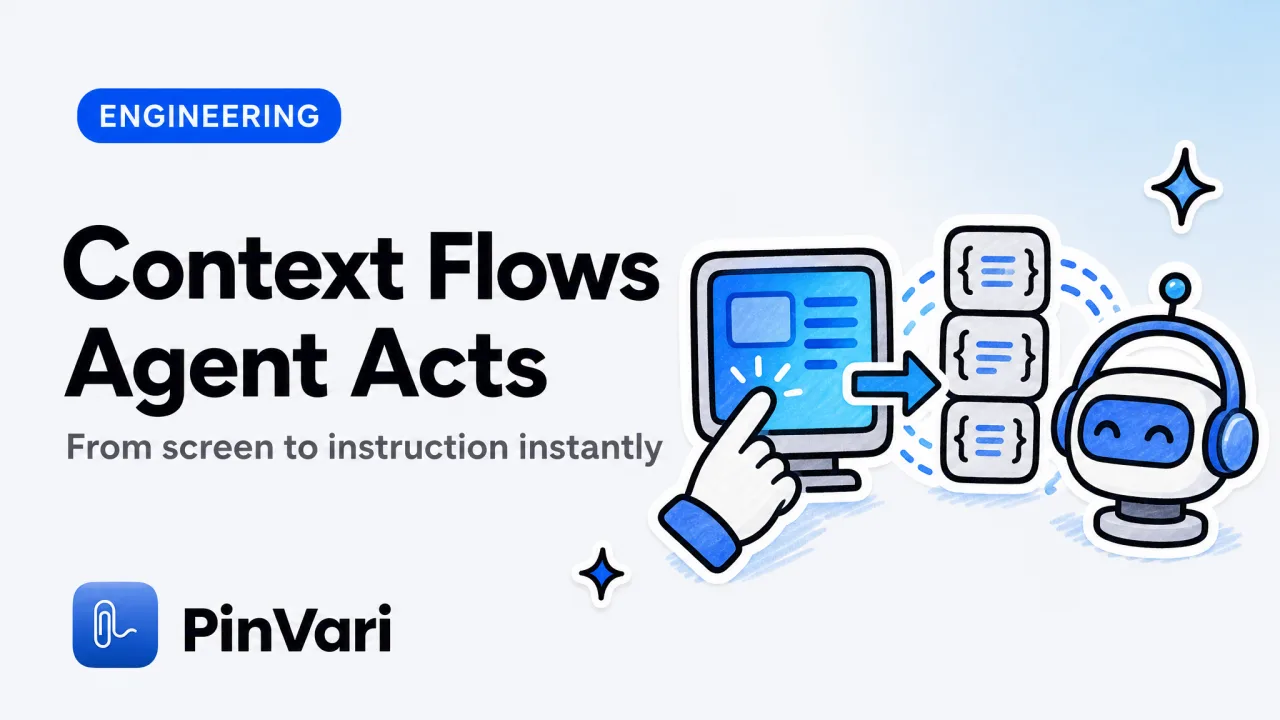
AI agents use context to resolve what you're pointing at and turn natural language into executable instructions. In 2026 the fastest path is a local MCP server that reads your Mac's accessibility tree, pairs it with a timestamped pointer trail and on-device speech transcription, then hands the agent a named UI element—role, label, frame, confidence score—not a screenshot guess. Most explanations stop at "the agent sees your screen"; the real work is resolving which button you circled when you said "fix this."
How do AI agents consume context in 2026?
Agents read structured JSON from Model Context Protocol (MCP) servers, not raw screenshots. An MCP server is a local process (127.0.0.1) that the agent calls when it needs environment data. For coding agents on macOS—Claude Code, Cursor, Codex, Zed—the server returns:
- The named accessibility element under your pointer (
AXButton "Submit" frame:{x:420 y:180 w:88 h:32}). - The full text of the focused window (up to 40,000 characters, including scrolled-out content).
- The URL of the active browser tab (read from the AX tree's
AXWebArea, not scraped). - A screenshot cropped to the region you circled, with the element's bounding box overlaid.
- The spoken instruction transcribed on-device, with deictic words ("this", "that") timestamped to pointer positions.
The agent parses this payload and writes code or files a ticket. The entire loop—point, speak, resolve, execute—runs locally. No cloud OCR, no vision-model API call to guess coordinates.
The context moat: macOS exposes every on-screen UI element via AXUIElementCopyElementAtPosition. A local MCP server resolves the named element at the pixel you touched, not a visual embedding guess. The agent sees role:AXTextField label:"Email" value:"[email protected]" instead of [243, 106, 180, 24].
You can read how Claude Code uses MCP for the Claude-specific setup, but the pattern holds for any agent: the MCP server is a subprocess the agent spawns at task start, queries mid-task, and tears down at task end.
What does a point-and-speak MCP workflow look like on macOS?
- Capture: Hold ⌥⌘A, circle a UI element while speaking ("move this button 20px left"). The overlay screenshots, resolves the accessibility element under the circled region, and transcribes your voice on-device.
- Resolve: The MCP server (
pinvari_next_instruction) returns the element path, the instruction text, the circled frame, and a cropped screenshot—all in one JSON object. - Execute: The agent (Claude Code, Cursor, etc.) reads the role/label, infers the framework (SwiftUI
Button, React<button className="submit">), writes the diff, and applies it. - Close: The agent calls
pinvari_mark_done, the capture disappears from the queue, and you move to the next mark.
A complete capture can include multiple regions (circle three things in one breath, each gets its own word bucket), span multiple displays (each mark remembers which monitor), and fall back to on-device Vision OCR when the AX tree is empty (canvas apps, some Electron windows).
This is the core ai agent workflow developers paid $39–59 for in early 2026: spatial input → resolved context → agent execution, zero API keys, everything local.
Why does the accessibility tree matter for agentic coding?
The macOS Accessibility API (AXUIElement) exposes every on-screen control as a tree of roles, labels, values, and frames. When you circle a button, the MCP server:
- Calls
AXUIElementCopyElementAtPosition(x, y)at the center of your circle. - Walks the on-screen window list (excluding PinVari's own overlay) and retries until a labeled element appears (~150ms for Electron/Chromium lazy AX trees).
- Descends to the deepest labeled child if the hit lands on a bare
AXGroup. - Returns
{role: "AXButton", title: "Submit", frame: {x, y, w, h}, confidence: 0.94, provenance: "circled"}.
The agent now knows it's a button named "Submit" at exact coordinates, not "probably a clickable rectangle somewhere in this 800×600 region." You can explore the accessibility tree structure or fire up Accessibility Inspector on Mac to see what your app exposes.
For agentic coding—where the agent writes and applies diffs autonomously—this precision is the difference between "try clicking near (420, 180)" and "set the Button("Submit") frame's x offset to 400."
Electron/Chromium caveat: these frameworks build their AX trees lazily. PinVari sets AXManualAccessibility on the target window and retries for ~150ms until a labeled element appears. If the tree stays empty (canvas games, some legacy WebViews), the MCP server falls back to on-device OCR and returns provenance: "ocr" with lower confidence.
| Context source | What the agent sees | Latency | Confidence |
|---|---|---|---|
| AX tree (native macOS) | role:AXButton label:"Submit" frame:{x,y,w,h} | <50ms | 0.92–0.98 |
| AX tree (Electron/Chrome) | Same, after AXManualAccessibility retry | ~150ms | 0.88–0.96 |
| Vision OCR fallback | text:"Submit" frame:{x,y,w,h} provenance:"ocr" | ~300ms | 0.65–0.85 |
| Screenshot alone (no AX) | [pixel_region] or vision-model guess | 800ms+ | 0.40–0.70 |
The AX tree gives the agent a named element with >0.9 confidence in <150ms. OCR is a safety net, not the primary path.
How does this compare to traditional AI agent tools?
Most ai agent tools either send screenshots to a vision model (slow, costly, privacy-hostile) or require you to manually describe the UI in a prompt. The 2026 pattern—local MCP server + AX tree + point-and-speak—eliminates both.
| Tool | Context method | Agent integration | On-device? | Price |
|---|---|---|---|---|
| PinVari | AX tree + OCR fallback + MCP | Claude Code, Cursor, Codex, Zed | Yes | $39–59 one-time |
| Jam.dev | Screenshot + console logs | Browser extension → ticket | Partial | Free–$10/mo |
| CleanShot X | Screenshot only | None (manual paste) | Yes | $29 one-time |
| Wispr Flow | Voice transcription (no UI resolve) | None | Yes | ~$12–15/mo |
| Screen-Pipe | Continuous screen recording + OCR | Local SQLite, no agent | Yes | Free (OSS) |
PinVari's moat is the resolved element with confidence and provenance, handed to the agent as structured JSON. Jam proves teams pay $10/mo for browser-only capture; PinVari charges $39 once and works across every macOS app, IDE, and Electron window. Compare the best screenshot MCP servers for the full landscape.
What does an AI agent workflow diagram look like with MCP context?
A complete ai agent workflow diagram for this pattern:
User input (⌥⌘A + circle + speak)
  ↓
Overlay captures:
  • Screenshot (native DisplayServices API)
  • Pointer trail (timestamped x,y every 16ms)
  • Speech (on-device Whisper via Speech framework)
  • AX element at circle center (AXUIElementCopyElementAtPosition)
  ↓
Resolve & store locally:
  • Element: {role, label, value, frame, parent_chain, confidence, provenance}
  • Instruction: transcribed text + deictic → pointer bindings
  • Region: circled bounds + screenshot crop
  ↓
MCP server query (localhost:3402):
  Agent calls pinvari_next_instruction()
  ↓
JSON response:
  {
    element: {role: "AXButton", title: "Submit", frame: {x:420,y:180,w:88,h:32}},
    instruction: "move this button 20px left",
    screenshot_crop: "data:image/png;base64,...",
    confidence: 0.94,
    provenance: "circled"
  }
  ↓
Agent execution:
  • Parse role → infer framework (SwiftUI, React, etc.)
  • Write diff (Button frame x: 420 → 400)
  • Apply via LSP or file write
  ↓
Agent calls pinvari_mark_done()
  ↓
Capture removed from queue, next mark activated
This is ai agent workflow automation with zero human handoff after the initial point-and-speak. The agent requests a capture mid-task if it needs clarification (the overlay lights up, you point, the capture flows back automatically).
Common failure mode: if your app is AX-blind (custom canvas, legacy Qt), the AX tree returns empty and PinVari falls back to OCR. Confidence drops to 0.65–0.85 and the agent may ask for confirmation. The fix: enable accessibility in your framework (SwiftUI does this by default; Electron requires webPreferences: {accessibilityFeatures: true}).
How do I connect an MCP server to my coding agent on macOS?
One-click inside PinVari: PinVari → Connect → select Claude Code / Cursor / VS Code / Codex. The app writes the connector path to the agent's config and restarts the MCP subprocess.
CLI (Claude Code example):
claude mcp add --scope user pinvari -- "$HOME/.pinvari/mcp/pinvari-mcp"Then restart Claude Code. The connector is a native macOS binary at ~/.pinvari/mcp/pinvari-mcp that talks to the main app on 127.0.0.1:3402. PinVari must be installed and running.
Cursor / Codex / Zed: same pattern—each agent reads MCP servers from a JSON config (~/.cursor/mcp.json, ~/.config/zed/mcp.json, etc.). The one-click connector writes the correct schema for each. See how to use Cursor MCP or the Codex CLI for agent-specific setup.
The MCP server exposes two tools:
pinvari_next_instruction→ returns the oldest unresolved capture.pinvari_mark_done(capture_id)→ closes the capture and removes it from the queue.
That's the entire surface. The agent loops: query, execute, mark done, query next.
What makes this faster than traditional context-gathering methods?
Latency breakdown (one capture → agent execution):
| Step | Time | Bottleneck |
|---|---|---|
| Circle + speak (⌥⌘A held) | 1–3s | Human input |
| Screenshot + AX resolve | <50ms | macOS DisplayServices + AXUIElement |
| On-device transcription | ~300ms | Apple Speech framework |
| OCR fallback (if AX empty) | ~300ms | Vision framework |
| MCP query (localhost) | <10ms | TCP loopback |
| Agent parse + diff write | 2–8s | LLM inference (local or cloud) |
| Total (AX path) | 3.3–11.4s | — |
| Total (OCR fallback) | 3.6–11.7s | — |
Compare to a vision-model API workflow (screenshot → Anthropic/OpenAI vision → coordinate guess → agent execution):
| Step | Time | Bottleneck |
|---|---|---|
| Screenshot | <50ms | — |
| Upload to vision API | 200–600ms | Network |
| Vision inference | 1,500–3,000ms | GPU queue |
| Download response | 100–300ms | Network |
| Agent parse coordinates | 2–8s | LLM inference |
| Total | 3.8–11.95s | — |
The AX path is 0.5–0.55s faster and returns a named element with 0.92+ confidence, not a bounding-box guess. More importantly: zero API keys, zero uploaded screenshots, zero network dependency. You can work offline on a 14" MacBook Air. Read why local AI for Mac became table stakes in 2026.
When should I fall back to manual context in my AI agent workflow?
If your app is AX-blind (custom game engine, legacy Qt without accessibility enabled, certain Electron WebViews), the MCP server returns provenance: "ocr" and confidence <0.85. The agent should ask for confirmation before executing. In PinVari, you can force whole-screen OCR (Settings → Capture → "Always run OCR") to get text from canvas-heavy UIs, but it's slower and less precise.
Real-world failure modes I've hit:
- Figma/Miro canvases: AX tree is empty; OCR catches text but misses ungrouped shapes. Solution: export the frame or describe the change in a voice note instead of circling.
- Chromium DevTools: the AX tree labels the outer pane but not individual console entries. Solution: circle the pane, then say "find the line that says 'TypeError: undefined'—the agent has the full text and can grep.
- Native games (Unity, Unreal): zero AX, zero OCR-friendly text. Solution: don't use point-and-speak; describe the change in a prompt or use the game's own debug console.
For 95% of macOS apps (AppKit, SwiftUI, Catalyst, modern Electron), the AX path works. For the other 5%, you still get a timestamped pointer trail and a screenshot—enough for the agent to infer, just with lower confidence.
How does this workflow handle multi-step tasks and automation?
An agent can request a capture mid-task via pinvari_request_capture(prompt: "Circle the element I should update next"). The PinVari notch island lights up with the prompt text, you point and speak, and the capture flows back to the agent automatically. This closes the loop for ai agent workflow automation: the agent controls when it needs human input, not the other way around.
Example (Claude Code fixing a layout bug across three screens):
- You circle the misaligned button and say "fix the spacing."
- Claude reads the element (
Button "Submit" x:420), writes a diff moving it tox:400. - Claude applies the diff, then calls
pinvari_request_capture("Circle the next element I should align"). - The overlay reappears; you circle the adjacent text field.
- Claude reads the new element, writes another diff, applies, marks done.
No context switch, no manual screenshot-paste loop. The agent drives. You point when asked. Compare this to traditional ai coding agents that require you to describe every element in a prompt.
PinVari-specific detail: if you scroll after marking an element, the mark's frame updates automatically (the overlay re-resolves the AX element at the new scroll offset). Pause with ⌥⌘P, scroll, resume—marks stay locked to their logical elements, not pixel coordinates.
FAQ
What is an MCP server and why does my AI agent need one?
An MCP (Model Context Protocol) server is a local subprocess your coding agent queries for environment data—files, terminal output, screenshots, UI elements. It's a standardized JSON-RPC interface so agents (Claude Code, Cursor, Codex) can share tooling. Instead of the agent scraping your screen, the MCP server hands over structured context: {role: "AXButton", label: "Submit", frame: {x, y, w, h}}. You bring your own agent and LLM; the MCP server is the local data layer.
Can I use this workflow with Cursor or Codex instead of Claude Code?
Yes. PinVari's MCP connector works with Claude Code, Cursor, Codex, VS Code (with MCP extension), and Zed. One-click setup inside PinVari (Connect → pick your agent) or manual config via ~/.cursor/mcp.json / ~/.config/zed/mcp.json. The agent must support MCP servers (all the above do as of August 2026). Compare Cursor vs Claude Code or Cursor vs Windsurf for agent-specific differences.
Does this work on Intel Macs or only Apple Silicon?
Both. PinVari ships a universal binary (arm64 + x86_64) and supports macOS 14+ (Sonoma). On-device transcription (Apple Speech framework) and OCR (Vision framework) run on Intel and Apple Silicon; Apple Silicon is faster (~200ms vs ~400ms for transcription) but the workflow is identical. The MCP server is a native binary, not Rosetta-translated.
What happens if the accessibility tree returns nothing?
PinVari falls back to on-device Vision OCR and returns provenance: "ocr" with confidence 0.65–0.85. The agent sees text and bounding boxes but no role/label. For most tasks ("change this heading to 18pt") that's enough. For precise element selection ("click the third button in the toolbar"), the agent should ask for confirmation. Enable accessibility in your framework (Electron: accessibilityFeatures: true; Qt: QAccessible::updateAccessibility) to expose the AX tree.
How does this compare to screenshot-only tools like CleanShot X?
CleanShot X is the Mac screenshot king—fast, beautiful, zero UI understanding. PinVari is the layer above: it screenshots and resolves what's on screen (role, label, frame, confidence) so an agent can act. If you're filing a static bug report, CleanShot is faster. If you're writing bug reports that an agent executes, you need the named element. Price: CleanShot is $29 one-time, PinVari is $39 (launch) / $59 (regular). Compare the best screenshot tools for Mac for the full matrix.
Can the agent see my entire screen or just the circled region?
The MCP server returns the full text of the focused window (up to 40,000 characters, including scrolled-out content) plus a screenshot cropped to the circled region. The agent sees the forest (all text) and the tree (the specific element you pointed at). If you enable whole-screen OCR (Settings → Capture), every capture includes OCR for the entire display, not just the circled area—useful for canvas apps where the AX tree is empty.
If you're shipping a Mac app and want this workflow for your own team, install PinVari (notarized DMG at pinvari.com/#pricing), connect your coding agent in one click, and hold ⌥⌘A the next time you need to point at a UI bug. The MCP server runs locally, no API keys, nothing uploaded. You bring the agent and the LLM. PinVari brings the named element and the confidence score.
Hand your agent the exact element
PinVari resolves what you point at into a named, executable instruction — on-device, no keys, your own agent. One click inside PinVari connects Claude Code, Cursor, VS Code or Codex — or paste one CLI line from pinvari.com/connect.
PinVari → Connect → your agent (one click)Get PinVari — $39 →