AI Agent Workflow Diagram: How Agents Plan and Act
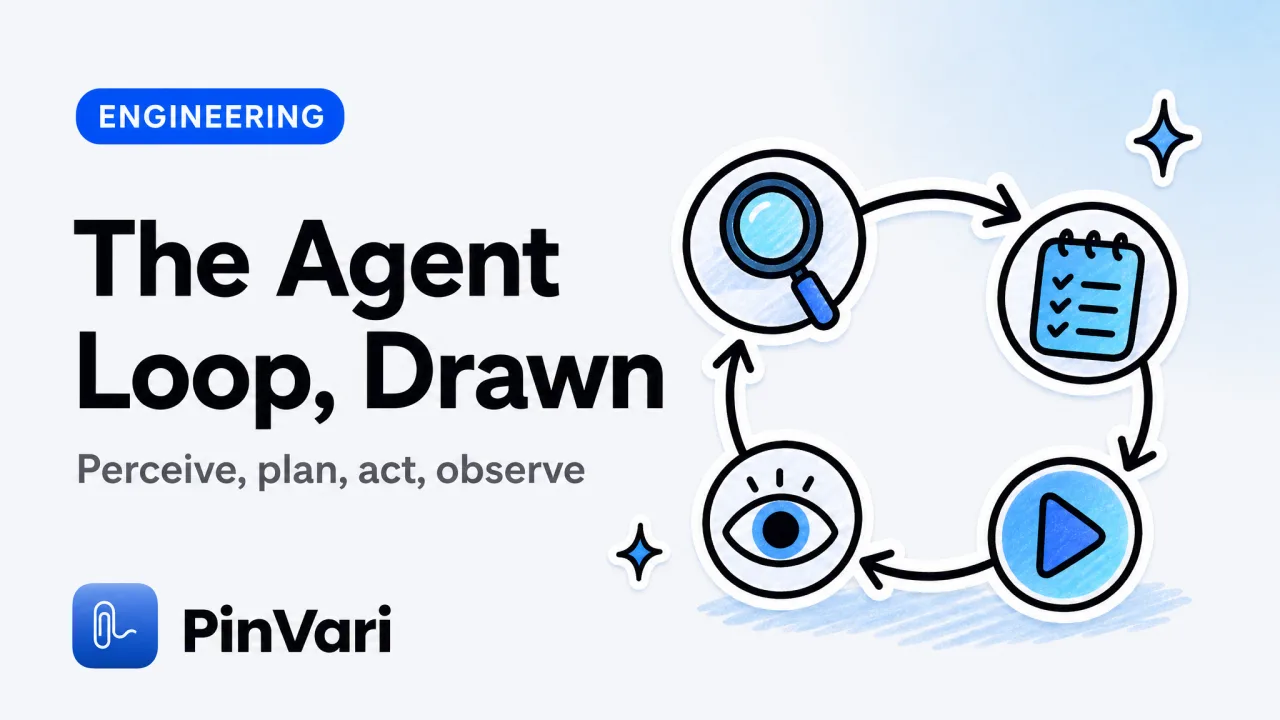
An AI agent workflow diagram maps the loop an autonomous agent runs to reach a goal: it perceives the current state, plans a next step, acts through a tool, observes the result, and repeats until the task is done. The key detail most diagrams get wrong is that it is a loop, not a straight line, and the quality of the perceive step decides whether the rest converges or spins.
Most explanations of an AI agent workflow diagram stay abstract. This walks the loop stage by stage, shows where MCP and tools plug in, and ends with a concrete Mac example.
What does an AI agent workflow diagram show?
It shows a cycle with a goal at the center and four repeating stages around it. Drawn plainly, the loop looks like this.
        ┌─────────────────────────────┐
        v                             │
   [ Perceive ] -> [ Plan ] -> [ Act ] -> [ Observe ]
      state        next step    tool        result
        │                                    │
        └──────────── goal met? ────────────┘
                     no -> loop
                     yes -> stop
Each pass through the loop is one step of reasoning plus one action. The agent reads what is true now, decides the smallest next move, performs it with a tool, checks what changed, and asks whether the goal is met.
If not, it loops with the new state as fresh input.
This is what separates an agent from a single prompt. A prompt answers once; an agent iterates against feedback. That iteration is the whole reason agentic coding can carry a multi-step task instead of producing one guess and stopping.
The diagram also explains why agents drift. Every loop compounds the last, so an error introduced at perception in step one rides along into steps two, three, and four.
What are the stages in an AI agent workflow?
Four stages carry the loop. Each has a distinct job and a distinct way it fails.
Naming the failure modes is more useful than naming the stages. The failures are where real agentic work breaks.
Perceive
- What happens: Agent reads the current state and inputs
- Common failure: Ambiguous or lossy input; wrong target
Plan
- What happens: Agent picks the next step toward the goal
- Common failure: Overreach; skips a needed step
Act
- What happens: Agent calls a tool to change state
- Common failure: Wrong tool or wrong arguments
Observe
- What happens: Agent reads the result of the action
- Common failure: Misreads output; no verification
The stage people underinvest in is perceive. A clean plan built on a bad reading of the state is still wrong.
No amount of clever planning recovers from feeding the agent the wrong element or a blurry screenshot. This is the practical core of what an AI agent workflow actually depends on.
Plan and act get the attention, but perceive is the load-bearing stage. Fix the input and the rest of the loop usually sorts itself out; leave it noisy and better planning just fails faster.
Where do tools and MCP fit in the diagram?
Tools are the arrows leaving the act stage and the data feeding the perceive stage. An agent's own reasoning lives in its text window; anything outside that window reaches the agent only through a tool.
MCP, the Model Context Protocol, is the standard connector for those tools. Rather than each agent inventing its own plugin format, MCP gives agents and tool servers a shared wire protocol.
One server then works across clients like Claude Code, Cursor, Codex, and Zed. That is the plainest meaning of agentic coding in practice: an agent that can call real tools, not just talk.
Think of MCP as the socket the loop plugs into. The agent brings the reasoning; the tools bring the reach.
Without tools, the loop can only rearrange text it already has. With them, it can read a file, query a database, or resolve the exact button you circled on screen.
When you read an AI agent workflow diagram, mentally label every arrow that leaves "act" with the tool that carries it. If an arrow has no tool behind it, that capability does not exist yet, no matter how the diagram is drawn.
A local MCP server is the case worth understanding for a Mac developer. It runs on 127.0.0.1, on your own machine, so the agent can perceive and act on local things without sending them to a third party.
The write-up on a local MCP server for agent screen context shows the exact payload an agent receives. The survey of AI agent tools covers what else you can wire into the loop.
This is also the backbone of most ai agent workflow automation, where the same loop runs unattended against a queue of tasks.
What is the most common mistake reading an AI agent workflow diagram?
The most common mistake is treating the perceive arrow as if it delivers clean, unambiguous truth. Diagrams draw it as a tidy line labeled "state," which hides the fact that perception is usually the noisiest part of the system.
For UI and screen work this bites hard. If the agent perceives your app through a full-window screenshot, it receives a lossy image and has to infer which element you mean.
Garbage into perceive means garbage through the entire loop. The agent confidently acts on the wrong target.
The fix is to make perception precise at the source. Instead of an image the agent must decode, give it structured facts: a named element, its role and label, and a confidence score it can reason about.
That is the difference between an agent that knows which UI element you mean and one that pattern-matches pixels.
The subtle version of this mistake is trusting confidence. An agent's confidence reflects how sure it is about its plan given the input, not whether the input was correct.
Feed it a clean reading of the wrong element and it will act decisively on the wrong thing. The strongest setups verify perception at the source, before the loop begins.
Catching a bad edit on the way out is far more expensive than preventing a bad reading on the way in.
A high-confidence agent acting on a low-quality perception is the worst case in the diagram. It will not hesitate, and it will not ask; it will simply edit the wrong thing and report success.
A concrete Mac example: closing the perception gap
Here is the loop with real inputs. Say you are reviewing your own app and a toolbar icon sits a few pixels too low, and you want your agent to fix it.
The weak-perception path: screenshot the window, paste it into your agent, type a paragraph describing the icon, and let the agent guess. Perception is lossy, the plan is built on a guess, and the act stage edits whatever component the agent bet on.
The strong-perception path uses a tool that resolves the element for you. On macOS, the Accessibility API can name the control under any point through AXUIElementCopyElementAtPosition, returning its role, title, value, and frame.
That turns perception from a guess into a lookup.
PinVari implements exactly this. You hold ⌥⌘A, circle the icon, and speak.
It screenshots the region, transcribes on-device, and resolves the named accessibility element with a confidence score and circled-versus-dwelled provenance. Below the confidence threshold it asks instead of guessing, which keeps a bad perception from poisoning the loop.
Your agent then closes the loop through MCP. It calls pinvari_next_instruction to perceive the resolved element path, your spoken instruction, and a cropped region.
It plans and acts on the named target. It observes the result and calls pinvari_mark_done.
Because the input is a named element rather than a picture, the act stage lands on the right component the first time.
It runs on-device with nothing uploaded by default, and you bring your own agent and model. PinVari ships as a notarized Developer-ID DMG, since the Mac App Store sandbox forbids the global hotkey and reading other apps' accessibility elements.
It is a one-time $39 launch license through Polar rather than a subscription. The pricing section has the full breakdown.
FAQ
What is an AI agent workflow diagram?
It is a visual map of the loop an autonomous agent runs to reach a goal, typically perceive, plan, act, and observe, repeating until the task is complete. Unlike a flowchart with a fixed end, it is a cycle that iterates against feedback from each action.
What are the main stages of an AI agent workflow?
The four core stages are perceive (read the current state), plan (choose the next step), act (call a tool to change state), and observe (read the result). The agent then checks whether the goal is met and loops if not.
How does MCP fit into an AI agent workflow?
MCP is the standard protocol that connects an agent to external tools. Tools are the arrows in the diagram that leave the act stage and feed the perceive stage, and MCP lets one tool server work across many agent clients.
What is the difference between an agent and a single prompt?
A single prompt produces one response and stops. An agent runs the workflow loop, using the result of each action as new input for the next step, which lets it carry multi-step tasks that a one-shot prompt cannot.
Why do AI agents act on the wrong thing?
Usually because of a weak perceive step. If the agent receives an ambiguous input, such as a full-window screenshot it must interpret, it guesses the target and acts on the guess. Precise, structured perception, like a named UI element, prevents this.
Can this workflow run automatically?
Yes. The same perceive-plan-act-observe loop underpins ai agent workflow automation, where the agent runs unattended against a queue of tasks. The reliability of unattended runs still hinges on the quality of the perceive step at the start of each loop.
Hand your agent the exact element
PinVari resolves what you point at into a named, executable instruction — on-device, no keys, your own agent. One click inside PinVari connects Claude Code, Cursor, VS Code or Codex — or paste one CLI line from pinvari.com/connect.
PinVari → Connect → your agent (one click)Get PinVari — $39 →