Model Context Protocol GitHub: Implementation Examples
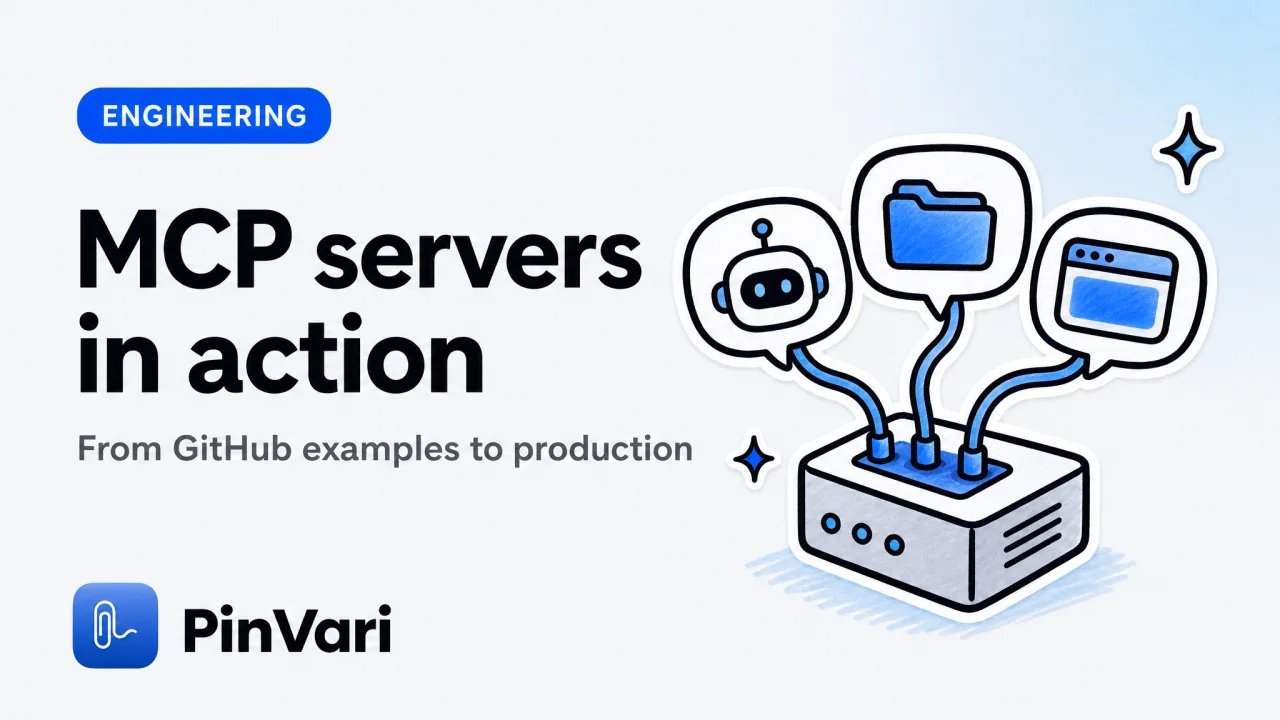
The Model Context Protocol GitHub repository (github.com/modelcontextprotocol) contains working server implementations that let your AI coding agent read files, execute scripts, or query external services in real time. An MCP server is a local process your agent talks to over stdio or SSE; it exposes tools the LLM can call mid-conversation—no copy-paste, no manual refresh. Most MCP documentation explains the spec; the GitHub examples show you what a running server actually does and how to wire it into Claude Code, Cursor, or Zed.
This guide walks through a real macOS MCP server—PinVari's connector—that extends your AI coding agents with spatial context: circle any UI element, speak an instruction, and the agent receives the element's name, role, frame, and a cropped screenshot via the pinvari_next_instruction tool. You'll see the connector's architecture, the one-click setup, and how the agent calls the tool when you capture a mark. By the end you'll know what "local MCP server" means in practice and how to evaluate GitHub examples for your own workflow.
What is an MCP server and why does GitHub matter?
An MCP (Model Context Protocol) server is a background process that your AI coding agent connects to via a standard JSON-RPC interface. The server exposes callable tools (functions the LLM can invoke) and resources (files, URLs, database rows the agent can read). Your agent's prompt gains a section listing available tools; when the LLM decides it needs one, it sends a tools/call request and the server executes the real operation—read a directory, query an API, resolve a UI element—then returns the result.
GitHub hosts the Model Context Protocol organization with reference servers in Python, TypeScript, and Go. These aren't toys: the filesystem server lets Claude Code read and search your entire project tree without embedding every file in the prompt; the fetch server retrieves live web content; the postgres server runs SQL. When you install one, your agent instantly gains that capability. The protocol itself is documented by Anthropic, but the GitHub repos show you the actual tool definitions, error handling, and stdio transport layer.
Why local matters: an MCP server runs on 127.0.0.1 or stdio. Nothing uploads to a vendor's cloud. You bring your own LLM API key (Claude, GPT, Ollama); the server just extends what that LLM can do with your local machine. PinVari's MCP connector talks to the PinVari app on 127.0.0.1:3402, reads the latest capture, and hands the agent a named accessibility element plus a cropped screenshot—all on-device, no external service.
An MCP server is a local tool API for your AI coding agent. GitHub examples are production-ready connectors you can install today; studying their code shows you how to build your own.
How does PinVari's MCP connector work as a real example?
PinVari installs a connector at ~/.pinvari/mcp/pinvari-mcp (a shell script wrapping a Node.js stdio server). When you press ⌥⌘A, circle a UI element, and speak, PinVari captures a screenshot, transcribes your speech on-device, resolves the exact accessibility element under your mark (role, label, value, frame, parent chain), and stores the capture with a confidence score and provenance (circled vs dwelled). The MCP connector polls http://127.0.0.1:3402/api/v1/next and exposes two tools to your agent:
pinvari_next_instruction— returns the element path (e.g.,AXButton "Submit" in window "Login", frame{x: 1024, y: 200, width: 80, height: 32}), your spoken instruction, the region circled, and a screenshot cropped to that region.pinvari_mark_done— closes the capture in the Command Center so the agent knows it's handled.
When Claude Code (or Cursor, Zed, Codex) connects to the server, it sees these tools in its prompt. If you circle a "Save" button and say "make this green," the agent calls pinvari_next_instruction, receives {element: "AXButton 'Save'", instruction: "make this green", frame: {…}, screenshot_base64: "…"}, writes the CSS or SwiftUI code targeting that exact element, then calls pinvari_mark_done.
Why this architecture: the PinVari app handles the hard parts (global hotkey via CGEventTap, accessibility API hit-testing, on-device transcription, Vision OCR fallback, multi-display capture). The MCP connector is a thin stdio wrapper that the agent connects to with one CLI command or one in-app click. The app must be running (it serves the HTTP endpoint); the connector talks to it locally.
PinVari's connector is a working reference for a macOS MCP server that bridges native app state (accessibility trees, window frames, screenshots) to an AI coding agent. The code is simpler than it sounds: 200 lines of TypeScript polling a local HTTP endpoint.
What does the connection flow look like step by step?
Here's the exact sequence when you connect Claude Code to PinVari's MCP server (the flow is identical for Cursor, Zed, or any MCP-compatible agent):
- Install PinVari (notarized DMG from pinvari.com, one-time $39 launch price). Open the app; it starts the local API on
127.0.0.1:3402. - Connect the MCP server: either click PinVari → Connect → Claude Code in the menu (writes the config automatically) or run:
claude mcp add --scope user pinvari -- "$HOME/.pinvari/mcp/pinvari-mcp"The -- and $HOME are mandatory (the bare claude mcp add pinvari errors because the connector path isn't in $PATH). This writes a JSON block to ~/Library/Application Support/Claude/claude_desktop_config.json with "command": ["/Users/you/.pinvari/mcp/pinvari-mcp"] and "transport": "stdio".
- Restart Claude Code. The agent spawns the connector as a child process, sends a
tools/listrequest, and receives the two tool definitions (pinvari_next_instruction,pinvari_mark_done). - Press ⌥⌘A, circle a UI element, speak. PinVari captures the mark, resolves the accessibility element, stores the instruction. The notch island (a Dynamic-Island-style HUD) shows the pending capture.
- The agent calls
pinvari_next_instruction(either unprompted when it's stuck, or because you asked "what did I mark?"). The connector GETs/api/v1/next, returns the element path, the spoken instruction, the frame, and the cropped screenshot. - The agent writes the code targeting that named element (e.g.,
document.querySelector('button[aria-label="Submit"]')for a web button, orNSWindow.firstResponder.title == "Save"for a native macOS control). - The agent calls
pinvari_mark_done. The connector POSTs to/api/v1/mark/{id}/done; PinVari removes the mark from the Command Center.
Failure modes: if the PinVari app isn't running, the connector's HTTP requests fail and the agent sees a timeout. If the accessibility element has confidence <0.8 (canvas, some Electron surfaces with lazy AX trees), PinVari falls back to on-device Vision OCR and returns the recognized text with a lower confidence flag. The agent learns to ask "is this the right element?" instead of guessing.
| Step | Tool | Action |
|---|---|---|
| User marks UI | (none) | PinVari captures screenshot, resolves AX element, transcribes speech on-device |
| Agent requests context | pinvari_next_instruction | Connector polls http://127.0.0.1:3402/api/v1/next, returns element path + screenshot |
| Agent completes task | pinvari_mark_done | Connector POSTs to /mark/{id}/done, removes from queue |
How do you evaluate GitHub MCP examples for your own use?
The Model Context Protocol GitHub organization hosts ~15 reference servers. Here's how to assess whether one fits your workflow:
- Check the language. Python servers (
mcp-server-fetch,mcp-server-postgres) need a Python runtime; TypeScript servers need Node.js. PinVari's connector is TypeScript (Node.js 18+) because macOS ships with a modern Node and the stdio transport is trivial in JS. - Read the tool definitions. Open
src/index.tsorserver.pyand look forserver.tool()or@mcp.tool()decorators. Each tool has a name, description, and input schema. The description is what the LLM sees in its prompt; vague descriptions ("fetches data") confuse the agent, specific ones ("reads the accessibility tree of the frontmost macOS window") guide it. - Understand the transport. Most GitHub examples use stdio (the agent spawns the server as a subprocess, talks over stdin/stdout). A few use SSE (server-sent events over HTTP). Stdio is simpler for local tools; SSE lets you run the server remotely (but then it's not local). PinVari uses stdio because the agent and the app are on the same Mac.
- Look for error handling. A good MCP server returns structured errors (e.g.,
{"error": "element not found", "confidence": 0.65}) instead of crashing. The agent can retry or ask the user. PinVari's connector returns a confidence score with every element; <0.8 prompts the agent to confirm. - Check dependencies. The
mcp-server-postgresexample needs a running Postgres instance. Themcp-server-filesystemneeds read permissions. PinVari's connector needs the PinVari app running (it's the HTTP server). Factor setup friction into your choice.
A checklist for rolling your own:
- [ ] Decide stdio vs SSE (stdio for local, SSE for remote).
- [ ] Define tools with specific descriptions (
"resolves the named macOS accessibility element under the user's pointer"not"gets UI info"). - [ ] Return structured JSON, not plain text (easier for the LLM to parse).
- [ ] Handle errors gracefully (return an error object, don't exit).
- [ ] Write a one-line install (
claude mcp add yourname -- /path/to/server). - [ ] Document the exact CLI command (bare
claude mcp addwithout--fails).
Many MCP GitHub examples assume the server is in $PATH. If yours isn't, you MUST use the -- /full/path form in the claude mcp add command or it errors silently. PinVari's one-click connector writes the full path automatically.
What's the difference between MCP and a normal API?
A normal API (REST, GraphQL) is request-response over HTTP: your app sends a request, gets a response, decides what to do. An MCP server inverts the control flow: the LLM decides when to call a tool, the server executes it, and the agent incorporates the result into its reasoning. The key difference is the LLM is the caller, not your code.
Example: with a REST API, your script might GET /elements and loop through the results. With an MCP tool, you tell Claude Code "fix the login button," it calls pinvari_next_instruction (because it sees that tool in its prompt), receives {element: "AXButton 'Login'", frame: {…}}, and writes the fix. You didn't write the GET request; the agent did.
Why this matters for coding agents: AI coding assistants like Claude Code or Cursor live in a loop: read the prompt, reason, decide if a tool is needed, call the tool, reason again. MCP formalizes the "call the tool" step. Before MCP, you'd paste a screenshot into the chat or copy file contents manually. With MCP, the agent fetches the accessibility tree or the latest browser state mid-task, without you lifting a finger.
Anthropic's role: the Model Context Protocol documentation is hosted by Anthropic because Claude was the first LLM with native MCP support (September 2024). But the protocol is open; Cursor, Codex, Zed, and local Ollama setups all implement it. The GitHub examples work with any MCP-compatible agent.
How does this compare to other context-extension methods?
| Method | How it works | Limits |
|---|---|---|
| Paste into chat | You screenshot, upload, describe | Manual; agent can't refresh; no named elements |
| @-mention file | Agent reads file at conversation start | Static; can't re-read if file changes; no external APIs |
| MCP server | Agent calls tools mid-task; tools return live data | Requires connector setup; agent must support MCP protocol |
| Custom API | You write request code, paste response | You do the work; agent doesn't learn the API |
Why MCP wins for live state: if you're fixing a bug, the DOM or accessibility tree changes as you scroll or switch tabs. An MCP server like PinVari's connector polls the latest capture every time the agent calls the tool. A pasted screenshot is stale the moment you take it.
When NOT to use MCP: if the data is static (a spec document, a design file), @-mentioning the file is faster. If the operation is one-off (run a script once), a shell command is simpler. MCP shines when the agent needs to query live state multiple times in one task (e.g., "check the accessibility tree, fix the label, re-check the tree").
What can you build with the GitHub MCP examples?
The reference servers in the Model Context Protocol GitHub repos are production-ready. Here's what each one enables:
mcp-server-filesystem— agent reads any file in a directory, searches for a string, writes a new file. Eliminates the 200K-token context-window problem; the agent fetches only what it needs.mcp-server-fetch— agent retrieves web pages (markdown conversion included). Example: "read the latest Next.js docs and update our migration guide."mcp-server-postgres— agent queries a local database. Example: "show me users who signed up this week and their cohort retention."mcp-server-brave-search— agent searches the web via Brave Search API. Example: "find recent blog posts about MCP servers and summarize the top three."mcp-server-puppeteer— agent controls a headless browser. Example: "log into staging, click the third item in the sidebar, screenshot the result."
PinVari's place in this lineup: while the reference servers handle files, databases, and web scraping, PinVari's MCP connector handles macOS native UI. It's the only server (as of August 2026) that resolves named accessibility elements across any macOS app—Safari, Electron, SwiftUI, AppKit—and hands the agent a cropped screenshot + the element's label, role, and frame. If your workflow involves reviewing builds in native apps or testing macOS software, this is the missing server.
Combining servers: you can connect multiple MCP servers to one agent. Claude Code with mcp-server-filesystem + PinVari's connector can read your SwiftUI code, circle a button in the running app, and update the code to match the design—all in one prompt. The agent sees both tool sets.
GitHub MCP examples are building blocks. Install the ones that match your workflow (filesystem for code projects, PinVari for native macOS UI, postgres for database queries) and your agent gains those capabilities immediately.
How do you troubleshoot MCP connection failures?
The most common errors when connecting an MCP server:
Command not found: pinvari— you wroteclaude mcp add pinvariinstead ofclaude mcp add --scope user pinvari -- "$HOME/.pinvari/mcp/pinvari-mcp". The connector isn't in$PATH; you must pass the full path after--.- Agent doesn't list the tools — restart the agent after adding the server. Claude Code, Cursor, and Zed only read
claude_desktop_config.json(or their equivalent) at launch. Connection refusedin agent logs — the PinVari app (or whichever MCP server you're connecting to) isn't running. PinVari must be open for its HTTP endpoint to exist on127.0.0.1:3402.- Tool call times out — check the server's stdio output. Run the connector manually in a terminal to see errors:
~/.pinvari/mcp/pinvari-mcpshould printServer runningand wait. If it crashes, the error appears there. - Wrong tool arguments — the agent passes JSON matching the tool's input schema. If the schema says
{element_id: string}but the agent sends{id: string}, the call fails. Check theinputSchemain the server's code and the agent's logs.
PinVari-specific: if you connect via the in-app menu (PinVari → Connect → Claude Code), the app writes the config and shows a confirmation. If you connect via CLI, the claude mcp add command must succeed (no error output). Run cat ~/Library/Application\ Support/Claude/claude_desktop_config.json afterward to verify the pinvari block exists.
Debugging stdio: most MCP errors are stdio issues (wrong path, missing executable permissions). Test the connector in isolation:
~/.pinvari/mcp/pinvari-mcpYou should see {"jsonrpc":"2.0","method":"tools/list", …} style output. If you see zsh: permission denied, run chmod +x ~/.pinvari/mcp/pinvari-mcp.
FAQ
What is the Model Context Protocol and who created it?
The Model Context Protocol is an open standard for extending AI agents with callable tools and live data sources. Anthropic published the spec and reference implementation in September 2024; the protocol itself is vendor-neutral and works with any LLM that supports tool calling (Claude, GPT-4, Ollama). An MCP server exposes tools via JSON-RPC over stdio or SSE; the agent decides when to call them based on its prompt.
Can I use MCP servers with local LLMs like Ollama?
Yes, if your agent (the UI wrapping Ollama) supports the MCP protocol. As of August 2026, Continue.dev and some custom Ollama frontends have experimental MCP support; Claude Code and Cursor support it natively. The MCP server doesn't care which LLM generates the tool calls—it just executes the request and returns JSON. Check your agent's documentation for mcp.json or claude_desktop_config.json equivalents.
How is PinVari's MCP connector different from a screenshot tool?
A screenshot tool (CleanShot X, macOS built-in) captures pixels. PinVari's MCP connector captures pixels plus the named accessibility element under your mark—role (AXButton), label ("Submit"), frame coordinates, parent window—and a confidence score. The agent receives {element: "AXButton 'Submit' in window 'Login'", frame: {x: 1024, y: 200, …}} not a dumb image. This lets it write code targeting the exact element, not guess from pixel positions.
Do I need to write code to use an MCP server from GitHub?
No. Clone the repo, npm install, then run claude mcp add servername -- /path/to/repo/build/index.js (or the Python equivalent). The GitHub README has the exact command. For PinVari, you don't even clone—just install the DMG, open the app, and click PinVari → Connect → Claude Code. The connector is bundled and the config writes automatically.
What happens if the MCP server crashes mid-task?
The agent sees a timeout or broken pipe error, logs it, and usually asks you "the tool failed, should I retry?" Well-written servers (like the GitHub examples) catch exceptions and return {"error": "…"} instead of exiting. PinVari's connector wraps the HTTP request in a try-catch; if the app is closed mid-call, the agent gets {"error": "PinVari app not running"} and can tell you to open it.
Can I connect multiple MCP servers to one agent at the same time?
Yes. The claude_desktop_config.json (or Cursor's mcp.json) accepts an array of server blocks. You can have mcp-server-filesystem, mcp-server-postgres, and PinVari's connector all running; the agent sees all their tools and decides which to call. Combining servers is how you build powerful workflows—read code with filesystem, test it in the native app with PinVari, query analytics with postgres, all in one task.
Hand your agent the exact element
PinVari resolves what you point at into a named, executable instruction — on-device, no keys, your own agent. One click inside PinVari connects Claude Code, Cursor, VS Code or Codex — or paste one CLI line from pinvari.com/connect.
PinVari → Connect → your agent (one click)Get PinVari — $39 →