Cursor MCP: Add a Local Server to Cursor IDE
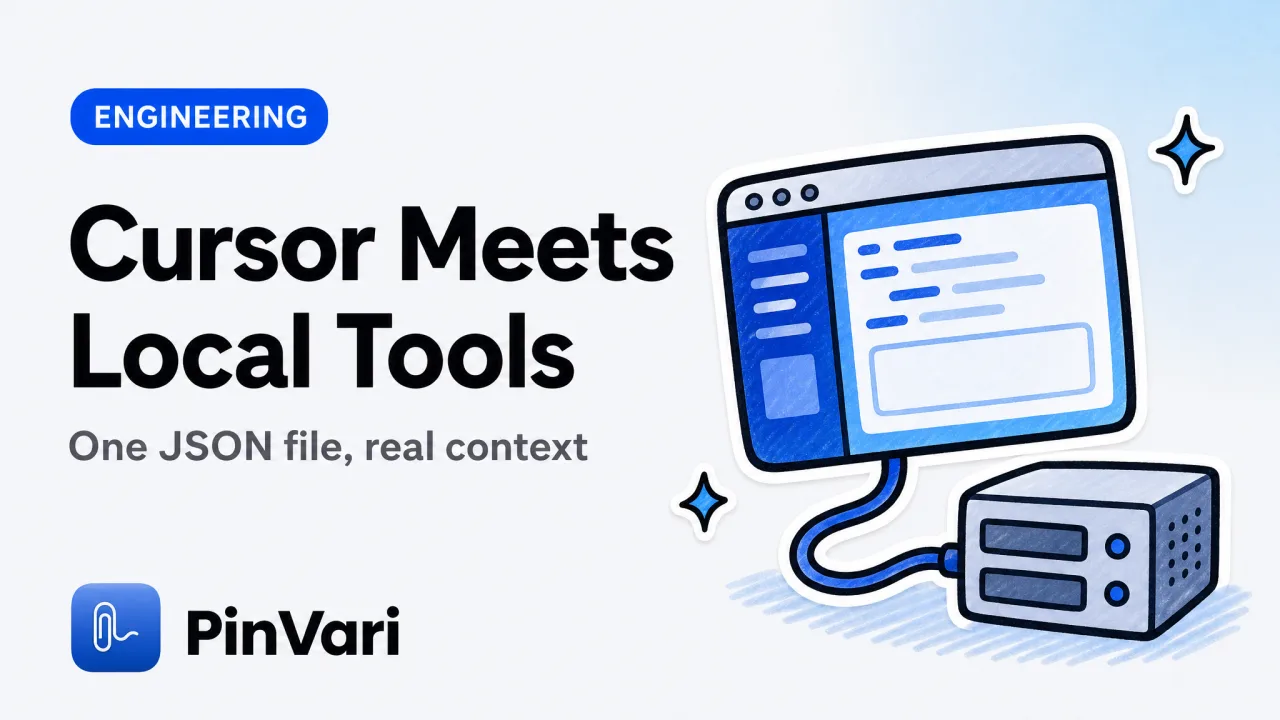
Cursor MCP is Cursor IDE's built-in support for the Model Context Protocol, the open standard that lets Cursor's Agent call external tools — a filesystem, a database, a browser, or a local capture server — through a single config file. You turn it on by adding a server block to ~/.cursor/mcp.json (or a project-scoped .cursor/mcp.json), restarting Cursor, and confirming the server's tools show up green under Settings, MCP.
Most explainers stop at "MCP lets your agent use tools" and never show a concrete Mac example, so the idea stays abstract. Here is what a local MCP server actually does for Cursor's Agent, end to end, with the failure modes nobody documents.
What is Cursor MCP, in plain terms?
MCP is a wire protocol between an AI client and a tool server. Cursor is the client, and each server you register exposes a set of named tools the Agent can call — read a file, run a query, fetch a URL, or return the exact thing you circled on screen.
The value is not the protocol itself. It is that the Agent gets structured input it can act on instead of you pasting a wall of prose or a screenshot it has to decode.
A local MCP server is the interesting case for a Mac developer. It runs on 127.0.0.1, on your own machine, so nothing leaves your Mac unless your model call sends it.
That is the difference between a remote SaaS integration and a tool that reads your actual screen privately.
Cursor MCP does not give the Agent new intelligence. It gives it new inputs. The quality of those inputs is the whole game — a named element beats a pixel guess every time.
How do I add an MCP server to Cursor?
Three steps, then you are live.
First, open the config. Cursor reads a global file at ~/.cursor/mcp.json and a per-project file at .cursor/mcp.json in your repo root.
Project config wins for that project, so keep repo-specific servers local and shared ones global.
Second, add a server block. A stdio server (a local binary Cursor launches) looks like this:
{
  "mcpServers": {
    "pinvari": {
      "command": "pinvari-mcp",
      "args": []
    }
  }
}
Some tools ship a one-line installer instead. PinVari registers itself with:
claude mcp add --scope user pinvari -- "$HOME/.pinvari/mcp/pinvari-mcp"That command writes the same kind of entry for MCP-aware clients and starts the local server on 127.0.0.1. You then reference it from Cursor's mcp.json if it is not picked up automatically.
Third, restart Cursor and open Settings, MCP. A healthy server shows a green dot and a list of its tools.
Turn the server on for Agent mode, and the tools become callable inside a chat.
Keep secrets out of mcp.json. Use an env block that reads from your shell environment rather than pasting API keys inline, because the file often ends up in dotfile repos.
What does the cursor mcp json config actually contain?
Two shapes cover almost everything. The table below is the honest side-by-side of the two transports Cursor supports and when to reach for each.
Launches a local binary
stdio server: Launches a local binary
SSE / HTTP server: Connects to a URL
command, args, env
stdio server: command, args, env
SSE / HTTP server: url, headers
Your Mac (127.0.0.1)
stdio server: Your Mac (127.0.0.1)
SSE / HTTP server: Local or remote host
Local tools that touch your machine
stdio server: Local tools that touch your machine
SSE / HTTP server: Hosted or shared services
No, by default
stdio server: No, by default
SSE / HTTP server: Depends on the endpoint
Cursor spawns the process
stdio server: Cursor spawns the process
SSE / HTTP server: Server must already be running
For anything that reads your screen, files, or clipboard, use a stdio local server. It keeps the tool on-device and avoids sending your working context to a third party.
A screen-context server that runs remotely would defeat the point.
If you want the deeper argument for why a local, structured server beats a screenshot pipe, the write-up on a local MCP server for agent screen context walks through the exact payload difference.
Why does Cursor MCP show 0 tools enabled?
Because the server is not reachable, not because Cursor is broken. This is the single most common "cursor mcp not working" report, and it has four usual causes.
- Wrong path or JSON. A trailing comma or a mistyped
commandmeans Cursor cannot parse the block. Validate the file, then restart fully — a reload is not enough. - The binary is not on PATH. For a stdio server, Cursor runs
commandas-is. Ifpinvari-mcpis not on your shell PATH, use the absolute path. - The server crashed on launch. Check the server's own logs. A local capture server needs macOS permissions (Accessibility, Screen Recording); without them it can start and immediately fail to resolve anything.
- Transport mismatch. An SSE server needs to be running before Cursor connects. If nothing listens at
url, you get zero tools.
"0 tools enabled" almost never means the model is at fault. Fix the transport first: confirm the process is alive, the path is right, and macOS granted the permissions the server needs.
Once the dot is green, the tools appear in Agent mode and the Agent can call them without you pasting anything.
A concrete Mac example: point at a bug, let Cursor fix it
Here is where the abstract protocol becomes useful. Say a button in your running app sits four pixels too low, and you want Cursor to fix it.
The slow way: screenshot the app, drag the image into Cursor, type a paragraph describing which button, and hope the Agent edits the right component. Screenshots are heavy and lossy, and they routinely cost tokens while still pointing the Agent at the wrong element.
The MCP way with a point-and-speak server: hold ⌥⌘A, circle the button, and say "this button is 4px too low." PinVari screenshots the region, transcribes on-device, and resolves the exact named accessibility element you circled — its role, label, and frame — with a confidence score. It queues that as an instruction.
Cursor's Agent then calls pinvari_next_instruction, which returns the resolved element path, your spoken instruction, the region you circled, and a screenshot cropped to that region. The Agent now knows which control you mean by name, not by guessing at pixels.
When it finishes, it calls pinvari_mark_done.
That resolution step is the part people miss. macOS exposes the element under any point through AXUIElementCopyElementAtPosition, returning role, title, value, and frame. A server that reads structure hands Cursor a name; a server that only screenshots hands Cursor a picture to squint at.
The difference in accuracy is the whole reason agents know which UI element you mean instead of editing the wrong one.
It runs on-device. Transcription and OCR use Apple frameworks, there are no API keys in the tool itself, and nothing is uploaded by default.
You bring your own agent — Cursor, in this case — and your own model.
PinVari ships as a notarized Developer-ID DMG (the Mac App Store sandbox forbids the global hotkey and reading other apps' accessibility elements), and it is a one-time $39 launch license through Polar rather than a subscription; the pricing section has the full breakdown. That pairs cleanly with a one-time IDE license and none of the monthly creep.
How does this compare to Cursor's other context methods?
Cursor already has @ mentions for files, codebase indexing, and image paste. Those are excellent for code that lives in the repo.
They fall down on the running app, because the repo does not know which rendered element you are looking at.
MCP fills that gap. It lets Cursor reach outside the editor to tools that know things the codebase does not — your live UI, your database, your browser tab.
For UI feedback specifically, the structured element path is what keeps the Agent from confusing two similar buttons.
If accessibility is new to you, the primer on what the macOS Accessibility API is used for explains why it can name any on-screen control, not just help screen readers.
FAQ
Where is the Cursor MCP config file on a Mac?
Cursor reads a global config at ~/.cursor/mcp.json and an optional project config at .cursor/mcp.json in your repository root. The project file overrides the global one for that repo, which is handy for servers only one project needs.
Why does my Cursor MCP server show no tools?
The server is not reachable. Check for JSON syntax errors, confirm the command binary is on your PATH or given as an absolute path, verify the process is actually running, and grant any macOS permissions it needs.
Then fully restart Cursor rather than reloading.
Do local MCP servers send my data to the cloud?
A stdio server on 127.0.0.1 runs entirely on your Mac and does not upload anything on its own. Whatever your model call sends is separate and under your control.
PinVari's transcription and OCR are on-device, and nothing is uploaded by default.
Can Cursor use the same MCP server as Claude Code?
Yes. MCP is a shared standard, so a server like PinVari works with any MCP client.
It is tested with Cursor, Claude Code, Codex, and Zed, and you register it once with claude mcp add --scope user pinvari -- "$HOME/.pinvari/mcp/pinvari-mcp" or an mcp.json entry.
What is the difference between stdio and SSE MCP servers in Cursor?
A stdio server is a local binary Cursor launches and talks to over standard input and output, ideal for tools that touch your machine. An SSE or HTTP server connects to a URL and must already be running, which suits hosted or shared services.
Do I still need screenshots if the server resolves the element?
The named element is what the Agent acts on, so you rarely need to paste a screenshot. The server rides a small cropped image along as evidence for anything text cannot capture, like spacing or color, which keeps token cost low while preserving the visual detail.
Hand your agent the exact element
PinVari resolves what you point at into a named, executable instruction — on-device, no keys, your own agent. One click inside PinVari connects Claude Code, Cursor, VS Code or Codex — or paste one CLI line from pinvari.com/connect.
PinVari → Connect → your agent (one click)Get PinVari — $39 →