MCP Server for AI Agent Screen Context
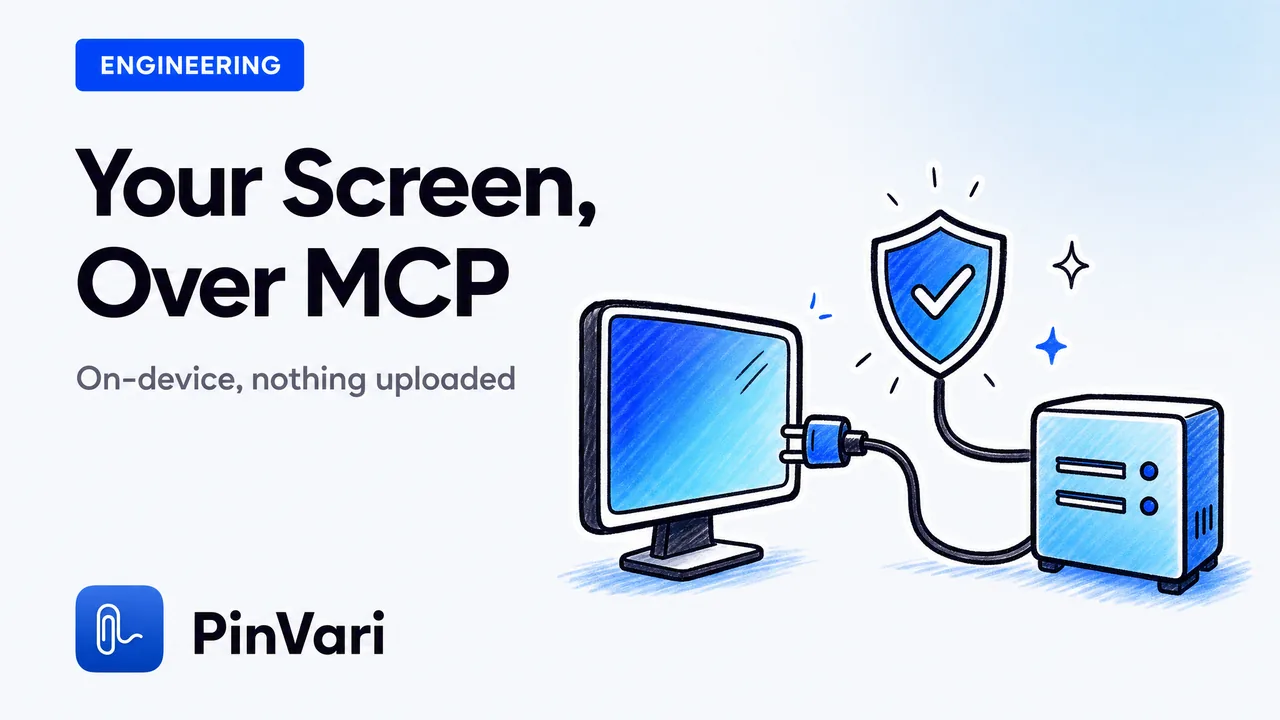
A local MCP server for AI agent screen context is a small process on your own Mac (127.0.0.1) that exposes what is on your screen to your coding agent as MCP tools, so Claude Code, Cursor, Codex, or Zed can read the exact UI element you mean instead of asking you to describe it. The one worth running does not ship a raw screenshot; it resolves the named accessibility element you pointed at — its role, label, and frame — plus a confidence score and provenance, all on-device.
Most write-ups treat "screen context over MCP" as a screenshot problem: grab the pixels, base64 them, hand them to the model. That part is already solved and already expensive.
The hard part is telling the agent which control you mean, and being honest about how sure you are.
What does an MCP server for AI agent screen context actually send?
There are two very different payloads hiding under the same phrase.
A screenshot-style MCP server (Peekaboo is the well-known example) captures the display and returns an image. The agent then has to look at that image and infer what you meant.
That inference is where agents go wrong, and it is why they so often edit the wrong component.
The other kind resolves structure. On macOS, every on-screen control is addressable through the Accessibility API: AXUIElementCopyElementAtPosition returns the element under a point, with its role, title, value, frame, and parent chain.
A structural server walks that tree and hands the agent a named element, not a picture to squint at.
PinVari's MCP tool pinvari_next_instruction returns exactly that: the resolved element path, the spoken instruction, the region you circled, and a screenshot cropped to that region. The screenshot is supporting evidence — the element path is the ground truth.
The differentiator is not "it uses MCP" or "it can screenshot." Every server here does. The differentiator is what rides over the wire: a resolved, named element with a confidence score, versus a pixel the model has to interpret.
How is this different from Peekaboo or a screenshot MCP server?
Here is the honest side-by-side. All three are real, all three have a place.
| Peekaboo-style screenshot MCP | PinVari | |
|---|---|---|
| What flows over MCP | Raw screenshot | Named AX element + region + cropped shot |
| How the agent knows the target | Infers from the image | Reads role, label, frame directly |
| Confidence signal | None | Score per element; below 0.8 it asks |
| Provenance | None | Circled vs dwelled |
| Point-and-speak | No | Yes, with deictic binding |
| Runs on-device | Varies | Yes, no API keys, nothing uploaded by default |
| Beyond the browser | Whole screen | Native, Electron, IDEs, canvas via OCR |
The reason to prefer "named element" over "screenshot" is not aesthetics. It is token cost and accuracy: a resolved element path is a few tokens of text the agent can act on with certainty, while a screenshot is a large image the agent has to re-derive meaning from every turn.
Why does "screen context" usually resolve to the wrong element?
Because a naive hit-test resolves to the overlay, not the app.
PinVari draws a topmost overlay so you can circle things. If you hit-test the point under your circle, macOS returns PinVari's own window, because it is on top.
That is the trap most people hit and never debug.
The fix is chainExcludingSelf: walk the on-screen window list, skip your own window, and hit-test the real app underneath. That one detail is the difference between "the agent got the button you meant" and "the agent got nothing."
Two more real failure modes, and how a serious server handles them:
- Electron and Chromium build their AX tree lazily. A fresh VS Code or Slack window can hand back a bare, label-less node. PinVari sets
AXManualAccessibilityon the app and retries for about 150ms until a labeled element appears. - A point can land on a generic
AXGroupwith no name of its own.labeledDescendantdescends into the group to the deepest labeled child, and Chromium identity attributes (AXDOMIdentifier,AXDOMClassList) give a title-less node a usable name.
If you are building your own screen-context server, test it against a just-launched Electron window and a <canvas>. Those two surfaces expose whether you actually resolve elements or just got lucky on native AppKit apps.
If you want the full tour of the API doing the work here, the macOS Accessibility API post goes deeper than screen readers.
How does the agent know which element I meant when I said "this"?
It reads a timestamped pointer trail, not just the final circle.
While you speak, PinVari records where the pointer was at the instant each word left your mouth. Deictic words — "this," "that," "here" — bind to the control the pointer was over at that moment.
So "move this into the sidebar" resolves to a specific element, in order, even when three candidates sit side by side.
The MCP payload spells this out for the agent. pinvari_next_instruction lists the controls the pointer moved across in order, marks each as circled (you deliberately drew around it — trust it) or dwelled (the cursor merely passed over), and attaches the confidence for each.
It then gives the exact deictic bindings: each spoken word mapped to the element the pointer was on when you said it.
That provenance flag matters more than it looks. Circled means you meant it; dwelled means maybe.
An agent that knows the difference asks before it edits a low-confidence, merely-dwelled target instead of guessing.
A server that returns only a screenshot cannot tell your agent whether you pointed at something or your cursor just happened to pass over it. Without provenance, "fix this" against a busy screen is a coin flip.
What happens on surfaces with no accessibility tree?
It falls back to on-device OCR, and says so.
Canvas apps, some Electron views, and remote-desktop windows can return an empty or generic AX result. When a circled region resolves to no named element, PinVari reads the visible text inside that crop with Apple's Vision OCR and uses it to name the target.
There is also an opt-in full-screen OCR pass that reads every visible word on screen, including apps that expose no accessibility tree at all.
The point is the graceful fallback, not the OCR itself. When AX is empty, you get a named guess from text, not silence — and the confidence score drops to reflect that it is a guess.
This is also why the "can it see my screen" question has a real answer rather than a marketing one. It reads structure first, pixels second, and it is transparent about which it used.
How do I add the local MCP server to Claude Code?
One command, then you point and speak.
claude mcp add --scope user pinvari -- "$HOME/.pinvari/mcp/pinvari-mcp"That registers the local MCP server for AI agent screen context on 127.0.0.1. From then on your agent has these tools:
pinvari_next_instruction— pull the oldest thing you pointed at and told it to do: the resolved element path, the spoken instruction, the circled region, and a cropped screenshot.pinvari_mark_done— close that instruction so it is not returned again.pinvari_request_capture— the agent asks you to point at something mid-task when your words were ambiguous.
The loop in practice: hold ⌥⌘A, circle a UI element, and speak ("rename this to Overview," "this button is misaligned by 4px"). It screenshots, transcribes on-device, resolves the named element, and queues it.
Your agent polls pinvari_next_instruction, does the work, and calls pinvari_mark_done. Voice-only capture is ⌥⌘V.
Because it is a local server the agent already trusts, the boundary is clean: the model runs where you run it, and the screen context never leaves your machine by default. You bring your own agent and your own keys; PinVari brings the resolver.
Is this really on-device, and what does that cost?
Yes on the first, once on the second.
Transcription and OCR use Apple's on-device frameworks. There are no API keys in PinVari itself, and nothing is uploaded by default — the MCP server talks to a local service on your Mac, and your coding agent talks to whatever LLM you already pay for.
The only thing crossing a network is whatever your own agent chooses to send its own model.
It ships as a notarized Developer-ID DMG rather than through the Mac App Store, because the App Store sandbox forbids the global hotkey and reading other apps' accessibility elements — the two things this whole idea depends on. Pricing is a one-time $39 launch license (first 500, then $59) through Polar, with team seats available; the full breakdown lives on the pricing section.
No subscription for the core app.
FAQ
What is an MCP server for AI agent screen context?
It is a local process that exposes your screen to an AI coding agent through the Model Context Protocol. A good one does not just send a screenshot; it resolves the specific UI element you indicated — its role, label, and frame — so the agent acts on a named target instead of interpreting pixels.
Is PinVari a Peekaboo alternative?
Peekaboo captures and returns screenshots over MCP, which is useful when you want raw pixels. PinVari is a different shape: it resolves the named accessibility element you circled, attaches a confidence score and circled-vs-dwelled provenance, and falls back to on-device OCR only when the accessibility tree is empty.
Does the screen context leave my Mac?
No, not by default. The MCP server runs on 127.0.0.1, transcription and OCR are on-device via Apple frameworks, and there are no API keys in the app. Your own coding agent still sends whatever it sends to whatever model you pay for — that part is under your control.
Which coding agents can use it?
Any MCP client. It is tested with Claude Code, Cursor, Codex, and Zed. You run claude mcp add --scope user pinvari -- "$HOME/.pinvari/mcp/pinvari-mcp" (or the equivalent for your client), and the agent gets the pinvari_next_instruction, pinvari_mark_done, and pinvari_request_capture tools.
What happens when the accessibility API returns nothing?
On canvas apps, some Electron views, and remote windows, the accessibility tree can be empty. PinVari runs on-device Vision OCR on the circled region to name the target from its visible text, and lowers the confidence score so the agent treats it as a guess rather than a certainty.
Do I need a screenshot at all if it resolves the element?
The named element is the payload the agent acts on; the cropped screenshot rides along as supporting evidence for anything text cannot capture, like visual spacing or color. That keeps the token cost low while still letting the agent see the pixels when it genuinely needs them.
Hand your agent the exact element
PinVari resolves what you point at into a named, executable instruction — on-device, no keys, your own agent. One click inside PinVari connects Claude Code, Cursor, VS Code or Codex — or paste one CLI line from pinvari.com/connect.
PinVari → Connect → your agent (one click)Get PinVari — $39 →