How AI Agents Know Which UI Element You Mean
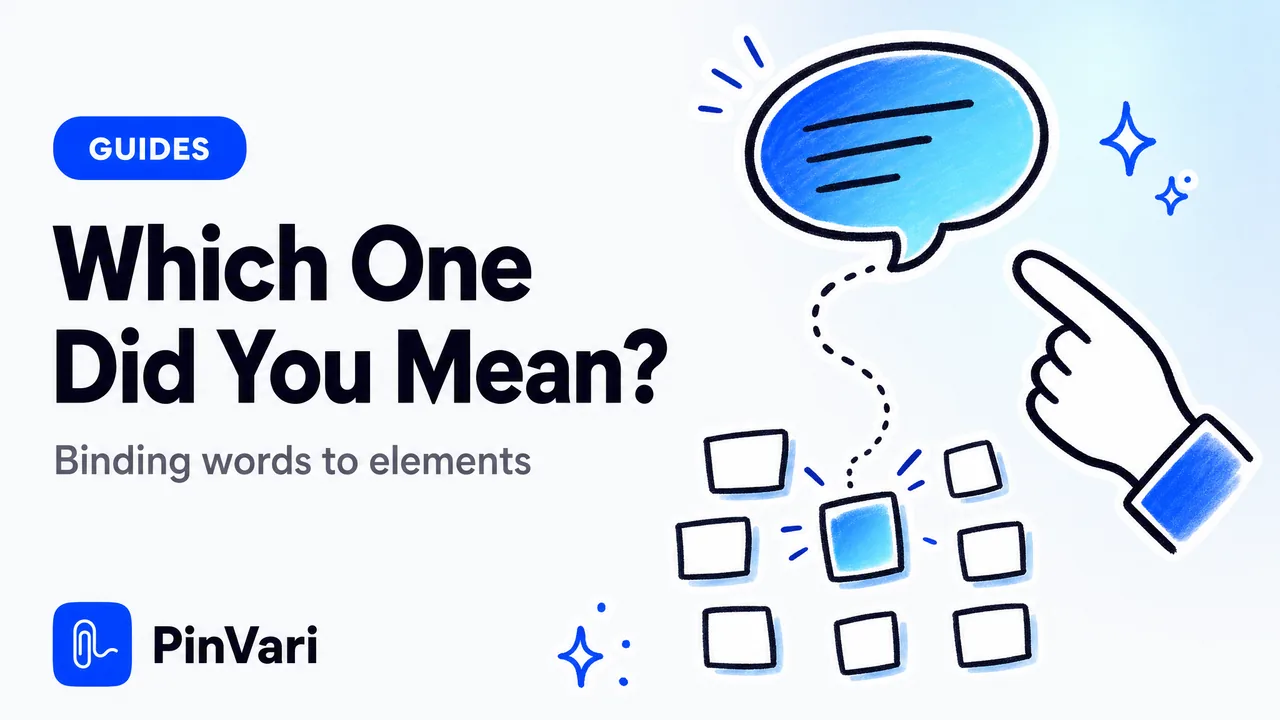
How does an AI agent know which UI element you mean? Only when something upstream turns your pointer and your words into one named, resolved element (role, label, and frame) before the request ever reaches the model.
The honest answer is unglamorous: it reads the operating system's accessibility tree at the point you circled, not the pixels, and hands the agent that exact element by name.
Most explanations get this backwards. They assume the agent stares at a screenshot and figures it out, and that guess is the failure mode, not the mechanism.
It is why your agent keeps editing the neighbor of the thing you pointed at.
Why can't the agent just read a screenshot and know?
Because a screenshot is pixels, and pixels do not carry names. When you send an image and say "make this button bigger," the model runs vision inference to locate a button, then maps it back to code by guessing.
Two similar buttons, a hover state, a slightly wrong crop, and it edits the wrong one.
A screenshot also throws away the one fact you already had for free: the identity of the element under your cursor. Your pointer was on a specific control.
The image discards that and asks the model to reconstruct it.
That reconstruction is expensive and lossy. Each screenshot is roughly 1,300 tokens of context the agent re-interprets every turn, a real cost in both money and accuracy.
I broke that down in why screenshots waste Claude Code tokens.
The question is not "can the agent see the screen." It usually can. The question is whether anything told the agent the name of the element you meant, or left it to guess from the picture.
How does an AI agent know which UI element you mean, mechanically?
It knows because macOS already knows what sits under any point on screen, and something reads that out before the model gets involved. The Accessibility API exposes it: AXUIElementCopyElementAtPosition(x, y) returns the element there, and from that element you can read its role (AXButton), its title or label, its value, its frame, and its parent chain up to the window.
That is the whole difference between a guess and a resolution. A resolved element is not "somewhere around coordinate 840, 210." It is AXButton "Save changes" at a known frame, inside AXWindow "Settings".
When an agent receives that, there is nothing to infer. It has the label, so it can find the component in your codebase by its accessible name instead of pixel-matching an image.
This is the same API screen readers use, but far more general than VoiceOver. I go deep on it in what the macOS Accessibility API is used for.
The short version: the OS names your UI, and that naming is the whole game.
How do you point an AI agent at a specific element without a screenshot guess?
You circle it or point at it, and you speak. The tool screenshots the region, transcribes your voice on-device, and resolves the accessibility element under your mark, then hands the agent the resolved element rather than the raw image.
This is what PinVari does. You hold ⌥⌘A, freehand-circle any on-screen control, say "rename this to Overview," and release.
The agent receives AXButton "Section title" with the spoken instruction attached, over a local MCP server on 127.0.0.1. Nothing uploaded, no API key, using your own agent (Claude Code, Cursor, Codex, or Zed).
The resolution is harder than one API call, because the real world fights it. Three honest problems and how they get solved:
The overlay is on top of everything. A naive hit-test at your cursor resolves to the capture tool's own transparent window, not the app underneath. So it walks the on-screen window list and hit-tests the real app below the overlay (chainExcludingSelf), skipping itself.
You circled a blank container. Sometimes the point lands on a bare AXGroup with no name. Rather than return a nameless box, it descends into that group to the deepest labeled child whose frame still contains your point (labeledDescendant), so you get "Publish" instead of "group."
Electron and Chromium apps build their tree lazily. Apps like Slack, VS Code, and Notion expose only untitled groups until you nudge them. The tool sets AXManualAccessibility and retries for about 150ms until a labeled element appears.
Chromium identity attributes (AXDOMIdentifier, AXDOMClassList) then give a title-less node a usable name.
When accessibility genuinely comes back empty (a canvas, a game, a remote-desktop window, some Figma surfaces), it falls back to on-device Vision OCR on your circled crop and reads the visible label there. You get a named target either way, and it never leaves your machine.
How does the agent bind "this" and "that" to the right thing?
Deictic words are the hard part of voice, and where most tools quietly break. "Move this above that" has no meaning unless you know where the pointer was when each word was spoken.
The fix is a timestamped pointer trail. While you talk, the tool records which controls your cursor moved over and when.
Then it aligns your transcript to that trail, so each deictic word binds to the element the pointer was on at that instant.
The agent receives that binding explicitly: "this" → AXCard "Draft post", "that" → AXList "Sidebar". No pronoun resolution left to chance.
That is what lets you talk naturally and still land on the exact elements.
Every target also carries provenance, so the agent knows how much to trust it:
| Signal | What it means | How the agent should treat it |
|---|---|---|
circled | You deliberately drew around it | Trust it; this is the intended target |
dwelled | The cursor merely passed over it | A weaker hint, useful for deixis |
| confidence < 0.8 | The resolution is uncertain | Ask before acting, never silent-edit |
That last row is the safety valve. Below the confidence threshold the tool is built to ask, not silently guess. A silent guess is exactly how you end up with the wrong button changed and no idea why.
How do I know which element the agent actually changed?
Because the target was named before the edit, the answer is legible after it. The instruction the agent acted on was AXButton "Save changes", not "the blue one near the top," so "which element did the agent change" has a concrete answer you can read back.
This is the whole reason vague feedback fails. When you type "fix the spacing on this," the agent has no anchor and picks a plausible-looking component, usually the wrong one.
I walk through that exact trap in why Claude Code fixes the wrong UI element.
Compare the three paths honestly:
| Method | What the agent receives | Failure mode |
|---|---|---|
| Prose only ("the save button") | A description to match | Matches the wrong similar element |
| Screenshot + prose | Pixels to locate, then map to code | Vision mislocates; high token cost |
| Resolved named element | Role, label, frame, provenance, confidence | Falls back to OCR when AX is empty |
The third row still has a limit, because accessibility can be sparse. But its limit is "ask or OCR," not "quietly edit the neighbor."
What does the agent get over MCP, exactly?
Over the local MCP server, the agent-facing tool pinvari_next_instruction returns the oldest capture you have not handled: the resolved element path, your spoken instruction, the region you circled, and a screenshot cropped to that region. The agent carries out the change and calls pinvari_mark_done to close it.
So the screenshot is still there, as evidence cropped to what you meant, but the instruction rides on the named element rather than the image. The agent acts on AXButton "Overview", and the crop is there if it wants to double-check.
It also gets the window's full text, read straight from the accessibility tree including scrollback a screenshot would clip, and the browser's real URL from the AXWebArea. That context is why the agent can jump from "this control" to the right file without a round-trip of questions.
If you are wondering whether your agent can see any of this on its own, the honest answer is nuanced, and I cover it in can Claude Code see my screen. Short version: it can be handed context, but it does not resolve named elements by itself.
FAQ
How does an AI agent know which UI element you mean?
It knows only when a resolver turns your pointer position into a named accessibility element (role, label, and frame) before the request reaches the model. Without that step, the agent is guessing from a screenshot, which is why it often edits a similar-looking element instead of the one you meant.
Can an AI agent identify a UI element from a screenshot alone?
It can attempt to, using vision inference, but it is guessing rather than resolving. A screenshot carries pixels, not names, so two similar controls or a slightly off crop lead the agent to the wrong component. Reading the accessibility element under the point removes the guess.
What is deictic binding for an AI agent?
Deictic binding maps words like "this," "that," and "here" to the element your pointer was on at the moment you spoke each word. It works by aligning your transcript against a timestamped pointer trail, so "move this above that" resolves to two named elements instead of ambiguous pronouns.
How can I point an AI agent at one specific element on Mac?
Use a point-and-speak tool that resolves the macOS accessibility element under your gesture and hands it to your agent over a local MCP server. With PinVari you hold ⌥⌘A, circle the control, and speak; the agent receives the named element plus your instruction, on-device, using your own agent and no API keys.
What happens when the accessibility tree is empty?
On surfaces with no accessibility data (canvas, games, some Electron or remote windows), resolution falls back to on-device Vision OCR of your circled crop to read the visible label. You still get a named target, and the recognition happens locally without anything leaving your machine.
How do I confirm which element the agent changed?
Because the target was resolved to a name before the edit, the instruction records the exact element, for example AXButton "Save changes", rather than a vague description. That named record is what makes the change auditable, and it is why low-confidence resolutions are set up to ask before acting.
Where this leaves you
The reason your agent edits the wrong element is not that it is careless. It is that nothing ever told it which element you meant, so it guessed from a picture.
Resolve the element first (name, frame, provenance, confidence) and the guessing goes away. If you want the point-and-speak version of this on macOS, resolving the named element on-device and handing it to your own agent, that is PinVari, one-time at $39.
Hand your agent the exact element
PinVari resolves what you point at into a named, executable instruction — on-device, no keys, your own agent. One click inside PinVari connects Claude Code, Cursor, VS Code or Codex — or paste one CLI line from pinvari.com/connect.
PinVari → Connect → your agent (one click)Get PinVari — $39 →