What Is the macOS Accessibility API Used For?
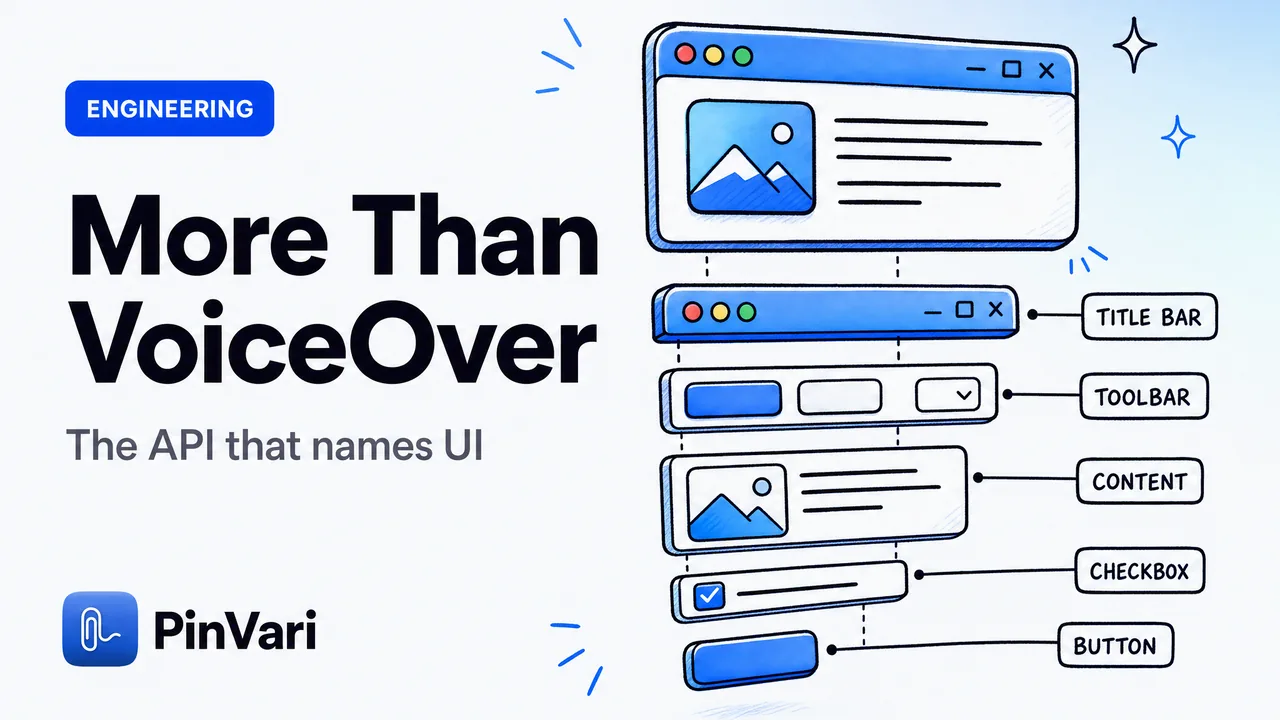
What is the macOS Accessibility API used for? Reading and controlling the user interface of other applications programmatically: every window, button, text field, and menu on screen is exposed as a queryable element with a role, a label, a value, and a frame.
VoiceOver is the famous consumer, but the same API is used for UI automation, window managers, keyboard remappers, testing harnesses, and AI tools that need the named control under your cursor.
Most explanations stop at "it's for screen readers," and that framing hides the part that actually matters to developers.
What is the macOS Accessibility API actually used for?
The short answer: reading and driving other apps' UI without touching their source code. Apple built it so assistive technologies like VoiceOver could describe the screen to blind users, which means the API's job is to answer one question for any app — what is here, and what can I do with it?
That single capability turns out to be general-purpose. If a screen reader can ask "what button is focused and what does it say," so can a window manager asking where a window's title bar is, a test runner asking whether the Submit button is enabled, or a text expander asking which field has focus.
So the real list of what the macOS Accessibility API is used for looks like this:
| Use case | What it reads | Example tools |
|---|---|---|
| Screen readers | Role, label, value of focused element | VoiceOver |
| Window management | Window frames, move/resize actions | Rectangle, yabai, Amethyst |
| Keyboard automation | Focused field, menu items, actions | Keyboard Maestro, BetterTouchTool |
| UI testing | Element existence, state, hierarchy | XCUITest, accessibility inspectors |
| AI screen context | The named element under a point | PinVari, agent tooling |
The API is not a screenshot service. It hands back structured objects — an element that knows it is a button titled "Save," located at a specific frame, currently enabled. That structure is the whole point.
What is AXUIElement, and how does the tree work?
Everything in the Accessibility API is an AXUIElement. The system-wide element is the root; from there you walk down through applications, windows, groups, and finally the leaf controls a user interacts with.
Each element answers attribute queries. You ask for kAXRoleAttribute and get back "AXButton"; you ask for kAXTitleAttribute and get "Save"; kAXValueAttribute gives a text field's contents; kAXChildrenAttribute gives its children.
The parent chain runs the other way through kAXParentAttribute.
That is AXUIElement explained in one paragraph: a lazily-walked tree where every node carries a role, a name, a value, a frame, and a parent. Nothing in it is pixels.
A button is a button because the app told AppKit or a web engine it was one, and the Accessibility API surfaces that declaration.
The frame matters as much as the label. Because each element reports its position and size in screen coordinates, you can map a pixel back to the object that owns it, which is the trick behind everything spatial.
How do you get the AX element at the cursor on macOS?
This is the function that makes the API interesting for anything beyond a screen reader: AXUIElementCopyElementAtPosition. Give it an x/y point and it returns the deepest AXUIElement at that spot — the actual control under the cursor, already named.
In practice you rarely get to call it naively and walk away. Three real-world snags show up the moment you ship, and they explain why "just read the AX tree" is harder than it sounds.
First, an overlay problem. If your own app draws a topmost transparent window — the marking layer in a capture tool, say — a hit-test at the cursor resolves to your window, not the app underneath.
The fix is to walk the on-screen window list yourself and hit-test the real app below, skipping your own process. In PinVari that walk is a function literally named chainExcludingSelf.
Second, lazy trees. Electron and Chromium apps (VS Code, Slack, Discord, Notion) build their accessibility tree on demand and often start cold, so the first query returns a bare, unlabeled group.
Setting the AXManualAccessibility attribute to true wakes the engine, and a short bounded retry (~150ms) gives it time to populate real buttons and labels.
Third, bare groups. Sometimes a point lands on an AXGroup with no name of its own, even though a perfectly good labeled control sits just inside it.
Descending to the deepest labeled child — a labeledDescendant walk — recovers the name. Chromium also stashes identity in AXDOMIdentifier and AXDOMClassList, so a title-less node can still be given a stable name from its DOM id or class.
When you inspect these attributes by hand, reach for Accessibility Inspector (bundled with Xcode). Point it at any app and it shows the same role/label/value/frame tree your code will see — the fastest way to learn why an element is or isn't named.
Is the macOS Accessibility API only for screen readers?
No, and treating it as a screen-reader-only API is the most common misread. Assistive technology was the motivation, but the surface area — read any app's structure, read the focused element, read text values, perform actions — is a general UI-inspection layer that Apple happens to also use for accessibility.
Consider what a browser exposes through it. The active tab's real URL is readable through the AXWebArea element's kAXURLAttribute, and the visible page text is readable as element values.
No osascript, no browser extension, no scraping. The browser already published its state to the accessibility layer, and any app the user has granted permission can read it.
This is why an AI coding agent benefits from the API even though it will never "narrate" anything. When you point at a component and say "fix this," the difference between a pixel guess and a resolved answer is whether the agent gets AXButton "Save changes" or a raw screenshot it has to interpret.
We covered that cost tradeoff in why screenshots waste Claude Code tokens, and the deictic binding problem — mapping the word "this" to the element your pointer was actually on — is only solvable because the frame and the name travel together.
Can you read app UI text with the Accessibility API when it works?
Usually yes, and this is where the API earns its place over OCR. Every text field, label, and static text node reports its value directly, so reading an app's on-screen text through the Accessibility API is exact — no character recognition, no confidence penalty, correct Unicode, correct casing.
But the honest limit is real: some surfaces have no meaningful AX tree at all. A <canvas> element, a game, a Figma document, a remote-desktop window, some custom-drawn Electron views — these render pixels the accessibility layer never sees, so AXUIElementCopyElementAtPosition returns a generic group with no name.
That is the case where structure fails and you need a fallback. PinVari reads the visible text inside the circled region with on-device Vision OCR (an Apple framework, nothing uploaded) and uses that to name the element instead.
The result carries lower confidence than a clean AX hit, which is exactly why it also carries a confidence score — below roughly 0.8 the tool asks rather than silently guessing.
Reading another app's UI requires the user to grant your app Accessibility permission in System Settings → Privacy & Security → Accessibility. There is no silent bypass, and the Mac App Store sandbox forbids reading other apps' AXUIElement at all — which is why tools that depend on it (PinVari, window managers) ship as notarized Developer-ID downloads, not through the App Store.
How does this power point-and-speak for AI agents?
Put the pieces together and you get spatial context. Hold a hotkey, circle a real control, speak an instruction; the Accessibility API resolves the named element under your ink — role, label, frame — attaches a confidence score and whether you circled or dwelled on it, and hands your own agent a resolved, executable instruction instead of "the button, you know, that one."
PinVari does this on-device and routes the result to whichever agent you already run (Claude Code, Cursor, Codex, Zed) over a local MCP server on 127.0.0.1, or files it to Linear, GitHub, or Slack. No API keys, nothing uploaded by default, and a one-time $39 launch license rather than a subscription.
The Accessibility API is the reason the agent gets a named target and not a pixel guess.
FAQ
What is the macOS Accessibility API used for besides VoiceOver?
Window managers use it to move and resize windows, automation tools use it to find the focused field and trigger menu actions, UI test frameworks use it to check element state, and AI tools use it to name the control under your cursor. VoiceOver was the original client, but any app can read another app's structure once the user grants Accessibility permission.
How do I get the UI element under the mouse on macOS?
Call AXUIElementCopyElementAtPosition with the system-wide element and an x/y point; it returns the deepest AXUIElement there. Watch for topmost overlays resolving to your own window, and for Electron trees that need AXManualAccessibility set before they report real labels.
Is AXUIElement the same as a screenshot?
No. A screenshot is pixels an app has to interpret; an AXUIElement is a structured object that already knows its role, label, value, and frame. That is why reading the tree is cheaper and more exact than sending an image, when the tree exists.
Does the Accessibility API work on every app?
No. Native AppKit and SwiftUI apps expose rich trees, browsers expose page content and the real URL, but canvas elements, games, and some custom-drawn views expose little or nothing. Production tools detect the empty case and fall back to on-device OCR of the region.
Why do accessibility tools ship outside the Mac App Store?
The App Store sandbox blocks reading other apps' AXUIElement and installing a global hotkey CGEventTap, both of which these tools depend on. So they ship as notarized Developer-ID DMGs that request Accessibility permission directly.
Can the Accessibility API read a browser's URL and page text?
Yes. The active tab's URL comes from the AXWebArea element's URL attribute, and visible page text is readable as element values — no extension or scraping required, as long as the user has granted your app Accessibility access.
Hand your agent the exact element
PinVari resolves what you point at into a named, executable instruction — on-device, no keys, your own agent. One click inside PinVari connects Claude Code, Cursor, VS Code or Codex — or paste one CLI line from pinvari.com/connect.
PinVari → Connect → your agent (one click)Get PinVari — $39 →