AI Agent Workflow: A UI Feedback Loop That Works
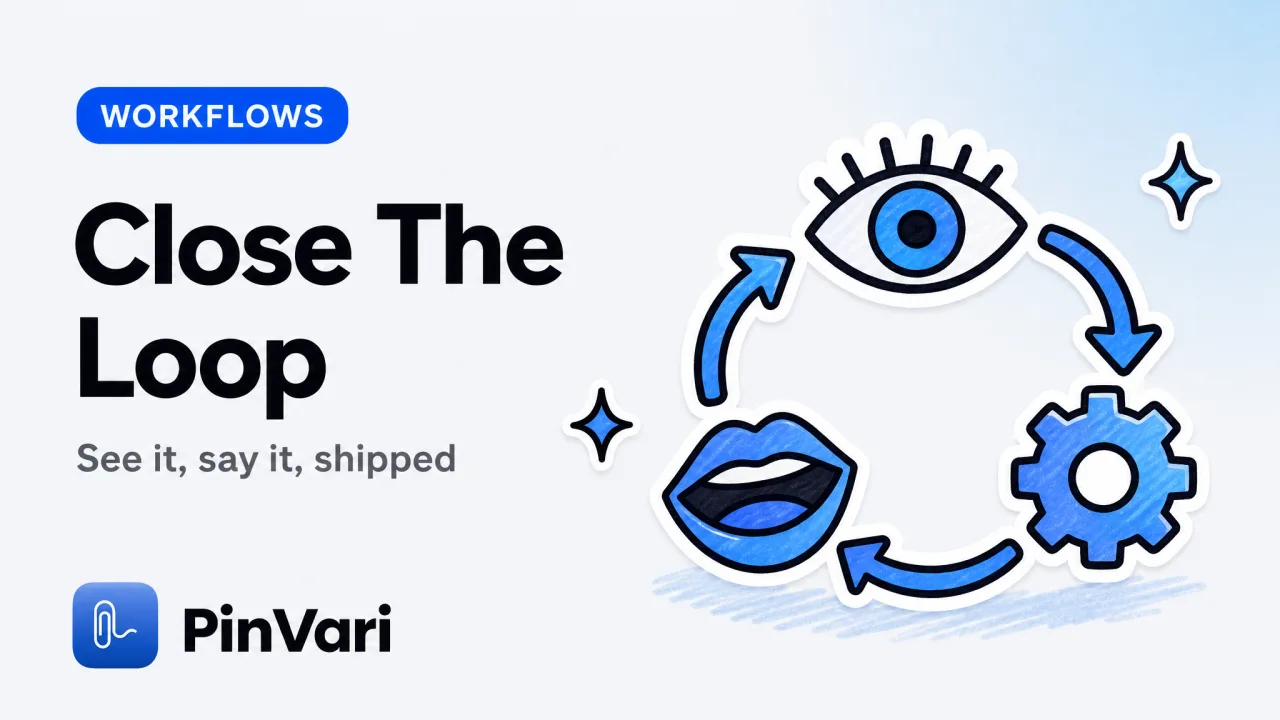
An AI agent workflow is the repeatable loop you build so an AI coding agent can take a task, act on your codebase, and report back with minimal hand-holding. For UI work the loop only works if the agent gets an exact target instead of a fuzzy description.
The failure point in most AI agent workflows is not the model's intelligence. It is the input step, where a screenshot and a paragraph leave the agent guessing which element you mean.
Most guides on agentic coding focus on prompts and autonomy. The part that actually breaks is feedback: you see something wrong on screen, and getting that "something" to the agent precisely is harder than it should be.
What is an AI agent workflow, and where does it break?
An AI agent workflow has four stages: capture the task, give the agent context, let it act, and verify the result. Agentic coding means the agent does the middle stages with tools instead of waiting on you for every step.
The stage that breaks is context. When the task is "fix this UI bug," you have to tell the agent which element, in what state, and what "fixed" looks like.
Do that in prose and the agent edits the wrong component often enough to erase the time savings.
The root cause is that the agent has no shared reference to your screen. It sees your words and maybe an image, and has to re-derive which rendered control maps to which line of code.
That re-derivation is the guessing step. It is where the loop leaks.
The bottleneck in an AI agent workflow is rarely the model. It is the fidelity of the input. Fix the input and the same agent gets dramatically more reliable.
Why do screenshots make the AI agent workflow worse?
Because a screenshot is a large, lossy input the agent has to interpret every turn. It is expensive in tokens and weak in precision, which is the worst combination for a loop you run dozens of times a day.
A single screenshot can cost a meaningful chunk of the context window. The agent still cannot be sure which button you meant among three similar ones.
The full accounting is in screenshots waste Claude Code tokens. The short version is that pixels are a bad way to name a target.
The alternative is to hand the agent structured text: the resolved element's role, label, and frame. That is a few tokens the agent can act on with certainty, versus a picture it has to squint at.
What the agent receives
- Screenshot + prose: Image plus description
- Point-and-speak: Named element plus spoken instruction
How it finds the target
- Screenshot + prose: Infers from pixels
- Point-and-speak: Reads role, label, frame
Token cost per turn
- Screenshot + prose: High (image)
- Point-and-speak: Low (text)
Confidence signal
- Screenshot + prose: None
- Point-and-speak: Score per element; below 0.8 it asks
Provenance
- Screenshot + prose: None
- Point-and-speak: Circled vs dwelled
Wrong-element rate
- Screenshot + prose: High on busy screens
- Point-and-speak: Low, target is named
The right column is not a different model. It is the same agent with a better input contract.
How do I build the feedback loop on macOS?
You wire capture directly into the agent over a local MCP server, so the handoff is structured and automatic. Here is the concrete loop.
First, register the capture server once:
claude mcp add --scope user pinvari -- "$HOME/.pinvari/mcp/pinvari-mcp"That starts a local MCP server on 127.0.0.1. Your agent gains pinvari_next_instruction, pinvari_mark_done, and pinvari_request_capture.
Second, capture the task by pointing. Hold ⌥⌘A, circle or point at the broken control, and speak: "this button is 4px too low" or "rename this to Overview."
PinVari screenshots the region, transcribes on-device, and resolves the named accessibility element you circled, with a confidence score and circled-versus-dwelled provenance.
Third, let the agent act. It calls pinvari_next_instruction, which returns the resolved element path, your spoken instruction, the region you circled, and a cropped screenshot as evidence.
The agent now knows the target by name, makes the edit, and calls pinvari_mark_done.
Fourth, verify and repeat. When your words were ambiguous, the agent can call pinvari_request_capture to ask you to point again, rather than guessing.
That single ability keeps the loop honest.
Batch your captures. Circle several elements and speak to each before switching to the agent — they queue in order, and the agent drains the queue with pinvari_next_instruction. It turns a review pass into one continuous loop instead of stop-start context switches.
Why does binding "this" to a pointer matter for automation?
Because deictic words are how people actually talk. An AI agent workflow that forces you to name every element by hand is slower than just fixing it yourself.
When you say "move this into the sidebar," PinVari knows what "this" is. It records where your pointer was at the instant each word left your mouth, using a timestamped pointer trail.
It binds "this," "that," and "here" to the control under the pointer at that moment.
The agent receives the exact bindings: each spoken word mapped to the element the pointer was on when you said it, marked circled or dwelled. Circled means you meant it; dwelled means maybe, and a well-built agent asks before editing a low-confidence, merely-dwelled target.
That provenance is what makes the automation trustworthy. Without it, "fix this" against a busy screen is a coin flip, and one wrong edit undoes the loop's value.
An AI agent workflow that silently guesses on low-confidence targets will occasionally break working UI. Insist on a confidence threshold and a provenance flag, so the agent asks instead of guessing when it is unsure.
How is this different from a general agent-tools setup?
General agent tools give the agent reach — files, shells, browsers, APIs. This adds the one input those tools miss: a precise reference to your running UI.
Your codebase does not know which rendered element you are looking at. A browser tool only helps inside a browser.
A macOS-level capture server reads native apps, Electron windows, IDEs, and canvas surfaces through the Accessibility API. It falls back to on-device Vision OCR when the accessibility tree is empty.
The mechanics live in the local MCP server for agent screen context write-up.
The broader principle is the one in how to give Claude Code context: the tighter and more structured the context, the less the agent has to guess.
Point-and-speak is that principle applied to the screen. It is what turns an unreliable UI loop into one you can run all day without babysitting each edit.
It runs on-device. Transcription and OCR use Apple frameworks, there are no API keys in the tool, and nothing is uploaded by default.
You bring your own agent and your own model; the server brings the resolver. PinVari ships as a notarized Developer-ID DMG and is a one-time $39 launch license through Polar rather than a subscription.
The pricing has the full breakdown.
FAQ
What is an AI agent workflow?
It is a repeatable loop where an AI coding agent takes a task, uses tools to act on your code, and reports back with minimal supervision. For UI work, the workflow's reliability depends on giving the agent an exact, named target rather than a prose description.
What does agentic coding mean?
Agentic coding is a workflow where the AI agent does the intermediate steps — reading files, running commands, calling tools — instead of waiting for you to drive each one. The developer's job shifts to defining tasks precisely and verifying results.
How do I stop my AI agent from editing the wrong element?
Give it a named target instead of a screenshot. A point-and-speak tool resolves the exact accessibility element you circled with a confidence score, so the agent acts on a specific control rather than inferring one from pixels.
Do I need to send screenshots to the agent in this workflow?
No. The resolved element name is the payload the agent acts on, and a small cropped screenshot rides along only as evidence for visual details like spacing. That keeps token cost low while preserving the picture when it is genuinely needed.
Can this AI agent workflow run entirely on-device?
The capture, transcription, and OCR run on-device via Apple frameworks, and the MCP server runs on 127.0.0.1. The only network traffic is whatever your own coding agent sends to whatever model you already use, which stays under your control.
Which agents does this workflow support?
Any MCP client. It is tested with Claude Code, Cursor, Codex, and Zed. You register the server once and the agent gains the capture tools, so the same loop works regardless of which agent you prefer.
Hand your agent the exact element
PinVari resolves what you point at into a named, executable instruction — on-device, no keys, your own agent. One click inside PinVari connects Claude Code, Cursor, VS Code or Codex — or paste one CLI line from pinvari.com/connect.
PinVari → Connect → your agent (one click)Get PinVari — $39 →