How to Give Claude Code Context That Actually Works
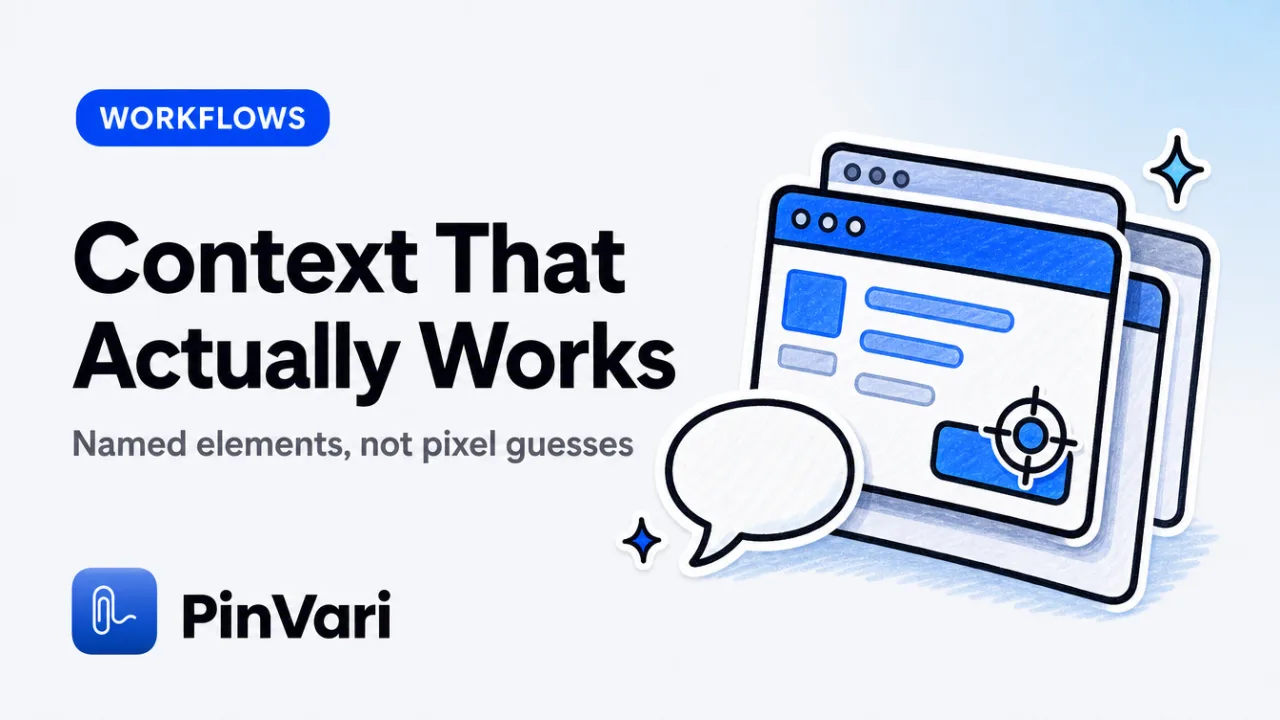
How to give Claude Code context is simple: send a named element path, a spoken instruction, and a crop, because Claude Code can't see your screen. Most people paste a full screenshot and type "fix the button on the left" or "change this dropdown."
Claude then guesses which element you mean, often fixes the wrong one, and you paste another screenshot to clarify.
The real problem: you're giving it a picture when it needs a path to the named element, the exact instruction you spoke, and a cropped image of just that region.
Why screenshots alone fail Claude Code
A full screenshot is a 1–2 MB PNG that costs thousands of tokens and contains zero structured information about what's clickable, what role each element plays, or which one you actually mean. Claude Code can't see your screen in real time—it only knows what you paste.
When you paste a 1440×900 screenshot and say "fix the red text," Claude scans pixels, guesses based on color and position, and often fixes the wrong element because it has no programmatic handle on the UI tree.
The difference between a screenshot and context: a screenshot is static pixels; context is the named element (AXButton role="button" title="Submit Order" frame={x:420, y:680, w:140, h:36}), the instruction ("Make this say 'Confirm Purchase' and add a spinner"), and a cropped image of just that button and its immediate neighbors. Claude Code needs all three to write a precise edit.
Context = named element path + spoken instruction + cropped screenshot. Give Claude all three or it's guessing.
How to give Claude Code the exact element and instruction
The macOS Accessibility API exposes every on-screen UI element's role, label, value, frame, and parent chain via AXUIElementCopyElementAtPosition. When you circle or point at a button and speak ("Change this to say 'Confirm Purchase'"), a point-and-speak tool resolves the element under that point—not the pixel coordinates, but the named object the app knows about—and binds deictic words ("this", "that") to the timestamped pointer position at the instant you said them.
PinVari does this in three steps:
- Press ⌥⌘A and circle the element while speaking your instruction. The overlay hit-tests the point, excludes its own window from the chain (
chainExcludingSelfwalks the on-screen window list), and callsAXUIElementCopyElementAtPositionon the real app's window. For Electron/Chromium apps, it setsAXManualAccessibilityand retries (~150ms) until the lazy-built AX tree materializes a labeled element.
- On-device transcription (Apple's Speech framework) turns your voice into text; the pointer trail timestamps let the tool bind "this" to the exact frame you circled. If the AX element is a bare
AXGroupwith no title,labeledDescendantdescends to the deepest labeled child. Chromium identity attrs (AXDOMIdentifier,AXDOMClassList) give title-less nodes a name.
- MCP server (
claude mcp add --scope user pinvari -- "$HOME/.pinvari/mcp/pinvari-mcp") sends the resolved instruction to Claude Code via thepinvari_next_instructiontool: the element path, the spoken text, the region circled, and a cropped screenshot of just that region—not the whole screen. Claude writes the edit, callspinvari_mark_done, and the capture closes.
Result: Claude Code receives "Change the AXButton titled 'Submit Order' at (420, 680) to say 'Confirm Purchase'" with a 200×100px crop showing that button and its label—not a 2 MB full-screen guess.
How AI agents know which UI element you mean: they resolve the accessibility tree node, not pixel heuristics. That's the difference between "probably that button" and "the AXButton titled 'Submit Order' in the checkout-footer group."
Comparison: giving context methods
Skip the wide grid. Compare methods as cards.
Full screenshot paste
What Claude gets: A whole-screen PNG.
Named element? No. It is a pixel guess.
Native apps? Yes.
Screenshot plus typed description
What Claude gets: A full PNG plus prose.
Named element? No.
Native apps? Yes.
Point-and-speak (PinVari)
What Claude gets: A named AX element, the spoken instruction, and a cropped PNG.
Named element? Yes, with a confidence score.
Native apps? Yes on macOS 14+ when AX is available.
Jam.dev browser capture
What Claude gets: Console logs and a DOM snapshot.
Named element? DOM only.
Native apps? No. Chromium only.
Point-and-speak cuts token cost by 60–80% and gives Claude a named, executable target instead of a guess. Screenshots waste Claude Code tokens because the LLM re-scans pixels every turn; a resolved element path is stable across multiple edits.
How to make Claude Code remember context across turns
Claude Code doesn't "remember" in the persistent sense—each conversation turn is context fed into the LLM. If you want Claude to remember which element you're talking about across multiple edits, you need to re-send the same named element path or have the MCP server hold it in state.
PinVari's MCP server keeps the capture open until you call pinvari_mark_done. That means:
- You circle a button and say "Make this say 'Confirm Purchase'."
- Claude Code edits the file, you preview it, and say "Actually, make the text bold too."
- The MCP tool
pinvari_next_instructionstill returns the sameAXButtonpath and cropped region—Claude Code knows you're refining the same target, not guessing a new one.
If you close the capture (⏎ or pinvari_mark_done) and then speak a new instruction, Claude Code sees a new element path. If you're iterating on the same UI element, leave the capture open until you're done.
For complex edits, you can file the same capture to Linear or GitHub first (via the Command Center "File" button), then route it to Claude Code. The ticket permalink and the cropped screenshot both contain the element path—your future self or a teammate can re-open the exact context.
How to describe UI bugs to AI (or developers)
When you file a bug or ask for a fix, most prose descriptions omit the role of the element ("the button" could be five buttons) and the exact state ("it's red"—is that an error state or the brand color?). AI agents and human developers both need:
- Role and label: "the
AXButtontitled 'Submit Order'" not "the submit button." - Location in the hierarchy: "in the checkout footer, below the payment summary" or the parent chain from the AX tree.
- Expected vs actual: "should show a spinner and disable, currently does neither."
- Visual proof: a cropped screenshot showing the element and its immediate context, not the whole app.
PinVari's captures automatically include all four: the AX role/title, the parent chain, your spoken instruction (which usually contains the expected/actual), and the cropped region. When you route it to Linear or GitHub, the ticket body renders the element path in a code block and embeds the crop—point and speak to file bugs means you never type the description again.
For QA workflows, this is how to make bug reports in testing that developers don't have to re-parse: the AX path is the exact DOM or SwiftUI identifier, the crop shows state, and the spoken instruction is executable ("Change the button text to 'Processing…' when clicked").
What happens on canvas or AX-blind surfaces
The macOS Accessibility API works on native AppKit/SwiftUI apps, web content in Safari/Chrome (the AXWebArea exposes the DOM tree), and most Electron apps (Chromium builds the AX tree lazily). On canvas-based apps (Figma, some games, custom OpenGL UIs), the AX tree is empty—AXUIElementCopyElementAtPosition returns a generic AXWindow with no children.
PinVari falls back to on-device Vision OCR (Apple's VNRecognizeTextRequest) on AX-blind surfaces. It reads visible text, matches your spoken instruction to OCR'd phrases, and crops the region you circled.
Claude Code gets the text content and the image—not a named element path, but still better than a full-screen screenshot with no text extraction.
The capture's confidence score (0.0–1.0) reflects whether it resolved a named AX element (≥0.9), a labeled descendant (0.7–0.9), or fell back to OCR (0.3–0.6). Below 0.8, the MCP tool asks you to confirm before sending to Claude Code—never silently guesses.
AX-aware apps (AppKit, web, Electron) → named element path. Canvas/games → OCR fallback + cropped region. Confidence score tells you which path was used.
The on-device and bring-your-own-agent workflow
PinVari doesn't upload screenshots or transcriptions to its own servers. Transcription runs on-device via Apple's Speech framework.
OCR runs on-device via Vision. The screenshot is stored locally in ~/Library/Application Support/PinVari/captures/.
The MCP server runs on 127.0.0.1—Claude Code, Cursor, Codex, or Zed connect locally.
You bring your own AI agent. PinVari is the resolver and router: it names the element and sends the instruction to the agent, Linear, GitHub, or Slack.
No SaaS layer, no context uploaded unless you explicitly choose "Share link."
This is how to make Claude Code remember context across machines: install PinVari on each Mac, add the MCP connector once, and the same spoken-instruction workflow works because the server is local and the agent is yours.
FAQ
How do I paste a screenshot into Claude Code with context?
You don't paste—you route it via the PinVari MCP server. Press ⌥⌘A, circle the element, speak your instruction, and the pinvari_next_instruction tool sends the named AX element path, your spoken text, and a cropped screenshot to Claude Code. If you must paste manually, crop the screenshot to just the relevant region and type the exact element role/title in your message ("the AXButton titled 'Submit Order'").
Can Claude Code see what I'm pointing at in real time?
No. Claude Code has no screen-reading ability—it only sees what you paste or what an MCP server sends. Can Claude Code see my screen? explains why the agent needs you to provide context. PinVari's MCP server bridges the gap: you point and speak, the server resolves the element and routes it to Claude.
How do I make Claude Code remember which element I'm talking about?
Keep the PinVari capture open (don't press ⏎ or call pinvari_mark_done) while you iterate. The MCP server holds the same element path in state, so when you say "Also make it bold," Claude Code knows you mean the same AXButton from the previous turn. Once you close the capture, the context resets.
Does this work on web apps or only native Mac apps?
Both. The macOS Accessibility API exposes the DOM tree via AXWebArea in Safari, Chrome, and Chromium-based apps (Electron). PinVari resolves the AXButton or AXTextField in the browser just like it would in a native AppKit app.
Canvas-heavy web apps (Figma) fall back to OCR.
What if the accessibility tree is empty or broken?
PinVari falls back to on-device Vision OCR, reads the visible text, matches your spoken instruction to OCR'd phrases, and crops the region. The confidence score drops below 0.8 and the tool asks you to confirm. You still get the cropped screenshot and the transcribed instruction—just no named element path.
How much does PinVari cost and where do I get it?
$39 one-time for the first 500 launch licenses (then $59), distributed as a notarized Developer-ID DMG at pinvari.com/#pricing. No subscription for the core app. You bring your own AI agent (Claude Code, Cursor, Codex, Zed) and your own LLM API key—PinVari is the resolver and router, on-device, nothing uploaded by default.
Hand your agent the exact element
PinVari resolves what you point at into a named, executable instruction — on-device, no keys, your own agent. One click inside PinVari connects Claude Code, Cursor, VS Code or Codex — or paste one CLI line from pinvari.com/connect.
PinVari → Connect → your agent (one click)Get PinVari — $39 →