Design Review Process: PM & QA Best Practices 2026
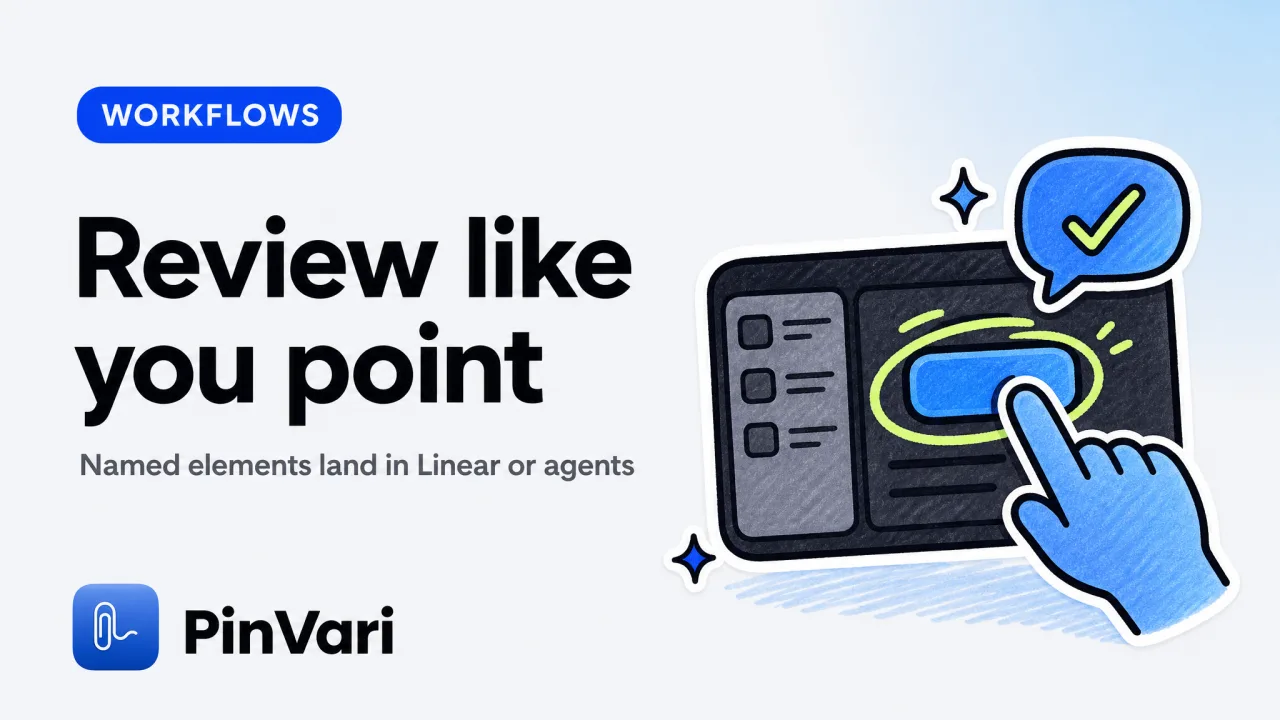
A design review process that works in 2026 resolves the named UI element under your pointer and binds your spoken instruction to it, so the developer or AI coding agent knows exactly which button, input, or card you mean. Most teams still write prose ("the blue button on the left") or annotate screenshots with arrows—both lead to misreadings, wasted Slack threads, and wrong-element fixes. The fastest workflow now points at the element, speaks the change, and files a ticket or hands the instruction to an agent in one breath.
What makes a design review process fast in 2026?
A fast design review process resolves three problems most annotation tools ignore: ambiguity (which "submit button"?), context loss (the agent can't see your screen), and round-trip delay (screenshot → Slack → misread → clarify → re-screenshot). The solution is spatial capture with element resolution—you circle or point at any on-screen UI element, speak the instruction, and the system resolves the exact accessibility (AX) element (role, label, frame, parent chain) at that point, then hands a named, executable instruction to your bug reporting software or agent.
Here's what that looks like in practice:
- Point and speak: hold a hotkey (⌥⌘A in PinVari), circle the Login button, say "this button should be teal #2DD4BF and 44pt tall."
- Element resolution: the system reads the macOS Accessibility API (
AXUIElementCopyElementAtPosition), resolvesAXButtonwith title "Login" and frame{x: 482, y: 340, w: 120, h: 48}. - Confidence + provenance: it scores the match (0.92 = high confidence, circled not just hovered) and timestamps the pointer trail so "this" binds to where you pointed when you said it.
- Delivery: the resolved instruction—element path, spoken text, cropped screenshot, confidence—goes to Linear, GitHub, or your agent's MCP server (one-click connect in Claude Code, Cursor, Codex, Zed).
The developer or agent gets a ticket that says "AXButton 'Login' at {482,340,120,48}: make it teal #2DD4BF and 44pt tall" with a screenshot cropped to that button. No guesswork.
Design QA in 2026 = named elements + confidence scores + provenance. If the system can't name the element (AX tree is empty on canvas or some Electron), it falls back to on-device Vision OCR and tells you the confidence dropped—never silently guesses.
How do you run a design review with an AI coding agent?
Running design qa with an AI agent requires the agent to see your screen and understand what you're pointing at. Most agents (Claude Code, Cursor, Codex) connect to local MCP servers for tool access—design review software that speaks MCP can hand them a resolved instruction mid-task.
The workflow:
- Agent requests a capture: you're pair-programming with Claude Code; it hits a layout question and calls
pinvari_request_capture. Your screen dims, the notch island lights up asking you to point. - You point and speak: circle the misaligned card, say "move this 12px left."
- Resolved instruction flows back: PinVari resolves the
AXGroupelement (role, label, frame), transcribes your speech on-device (Apple's Speech framework), and returns the instruction to the agent automatically. The agent reads it, updates the CSS, and marks the capture done.
This closes the loop—no copy-paste, no screenshot upload, no "which one?" Slack thread. The agent sees the named element and the exact instruction bound to it.
One-click setup: inside PinVari, click Connect → Claude Code (or Cursor / VS Code / Codex). It writes the MCP config to ~/.config/claude/claude_desktop_config.json (or the equivalent for your editor). The connector at ~/.pinvari/mcp/pinvari-mcp talks to the running app on 127.0.0.1:3402. Start marking with ⌥⌘A, finish with ⏎, and the agent's pinvari_next_instruction tool pulls the resolved capture.
Multi-display teams: one capture can span screens. Each mark remembers which monitor you drew it on, and scrolled marks keep their own frame even after you scroll the window. The agent gets per-mark coordinates tied to the correct display.
What should a design review checklist include?
A design review checklist that works with design review software engineering teams use should cover what to check, how to capture it, and where the instruction lands. Here's a copyable checklist optimized for spatial-capture workflows:
Before the review:
- [ ] Install the design review tool (PinVari, Jam.dev, Marker.io) and connect it to your tracker (Linear, GitHub, Slack) or agent (Claude Code, Cursor).
- [ ] Open the build on the target platform (macOS native app, Electron, browser).
- [ ] Have the design file (Figma, Sketch) or spec doc open in a second window for side-by-side comparison.
During the review (per screen):
- [ ] Layout: circle each misaligned element, speak the correction ("move this 8px up", "center this in the parent"). Capture multi-element issues in one pass (circle three cards, say "make these equal width").
- [ ] Typography: point at body text, speak size/weight/color deltas ("this should be 16pt medium #374151"). The tool reads the window's full text (up to 40,000 chars including scrolled-out content) so the agent can search the DOM.
- [ ] Interactive states: hover/focus/disabled. Circle the button, dwell ~0.2s to resolve the element without finishing the capture, then speak the state instruction ("this should have a 2px focus ring").
- [ ] Responsive breakpoints: resize the window, mark elements that break. The tool captures the window size in metadata.
- [ ] Accessibility: check color contrast (the agent can read the AX tree and flag low-contrast text), keyboard nav (circle the skip-link, verify it's in the AX tree), screen-reader labels (the tool reads
AXTitle,AXDescription,AXValue).
After the review:
- [ ] Scan the captures in the Command Center (PinVari's light window listing all marks by app). Any low-confidence (<0.8) captures? Retry with OCR fallback or rephrase.
- [ ] File all captures to Linear/GitHub in one batch, or let the agent pull them one-by-one via MCP.
- [ ] Mark done: ⌥⌘D to archive a capture, or the agent calls
pinvari_mark_done.
Comparison: design review tools & workflows
| Tool | Platform | Element resolution | Voice | Agent integration | Price |
|---|---|---|---|---|---|
| PinVari | macOS native apps, browsers, Electron | AX tree → named element + confidence | On-device transcription | MCP (Claude Code, Cursor, Codex, Zed) | $39 launch (one-time) |
| Jam.dev | Chromium browsers only | Console logs, network, DOM inspector | No | Jira, Linear, GitHub | Free |
| Marker.io | Browsers (widget) | Screenshot coordinates | No | Jira, Asana, Trello | $39+/mo team |
| CleanShot X | macOS (screenshot) | Pixel annotations | No | No | $29 one-time |
| Figma comments | Figma files | Design-layer anchors | No | Jira (via plugin) | Free (in tool) |
When to use each: Jam.dev if you're reviewing a web app and need console logs. Marker.io if you're an agency reviewing client sites monthly and billing for it. CleanShot X if you just need fast screenshots with arrows. PinVari if you're reviewing native macOS apps or Electron and want the agent to know which AXButton you circled, or if you're handing captures to an AI agent that needs executable instructions.
Electron limitation: Chromium builds its AX tree lazily. PinVari sets AXManualAccessibility and retries (~150ms) until a labeled element appears. If the app never exposes AX (canvas-heavy tools, some games), it falls back to on-device Vision OCR and reports the confidence drop. Jam.dev and Marker.io don't run outside the browser.
How do you handle design reviews for native macOS apps?
Native macOS apps (AppKit, SwiftUI) expose their UI through the Accessibility API—every button, input, label, table has a role, title, value, and frame you can read programmatically. A design review tool for native apps must hit-test the real app's AX tree, not just annotate a screenshot.
The macOS challenge: a naive hit-test (AXUIElementCopyElementAtPosition) on an overlay window resolves to the overlay itself, not the app beneath. The workaround (how PinVari does it, verified in code 22 Aug 2026):
- Window list walk:
CGWindowListCopyWindowInforeturns all on-screen windows. Build achainExcludingSelfarray that skips the overlay and PinVari's own windows. - Hit-test each window: for the point you circled, hit-test each window in stacking order until you get a non-overlay element.
- Lazy AX resolution: if the element is an unlabeled
AXGroup, descend to the deepest labeled child (labeledDescendant). If it's a Chromium node with no title, readAXDOMIdentifierandAXDOMClassListto synthesize a name. - Confidence scoring: circled = 0.85+, dwelled = 0.75+, found-via-descendant = −0.1, OCR-fallback = 0.5–0.7 depending on text clarity.
This gives you a ticket like "AXButton 'Export PDF' (com.apple.AppKit.button, frame {720,200,140,32}): change the label to 'Download PDF'" with a screenshot cropped to that button. The developer opens Xcode, searches for "Export PDF" in the storyboard or SwiftUI view, and changes it. Or the AI agent does.
Why the accessibility tree matters for design QA: screen readers, keyboard nav, and automation tools all read the AX tree. If the element isn't in the tree (decorative images, bare <div> wrappers), assistive tech can't see it—and neither can a spatial-capture tool without OCR. Reviewing the AX tree during design review catches accessibility bugs before QA.
What's the difference between design review and bug reporting?
Design review happens before QA, during the build phase—product manager or designer reviews the implementation against the spec, catches layout/typography/color drift, and files corrections. Bug reporting happens after QA finds a functional issue (button doesn't submit, API call fails) and documents steps to reproduce.
The overlap: both need to point at the exact element and describe what's wrong. The divergence: design review feedback is often subjective ("this feels too close to the edge") and targets the AI coding agent or developer directly. Bug reports are objective ("clicking this throws a 500") and go through a tracker.
Tool fit: Jam.dev is built for bug reporting (console logs, network timeline, user steps). Marker.io straddles both (agencies use it for design review comments that land in Jira). PinVari targets the design-review-to-agent workflow—you point, speak, and the agent reads the resolved instruction and fixes it immediately, or it files to Linear/GitHub for async review.
If you're a founder reviewing builds solo, the fastest path is: point at the wrong thing, say what to change, let the agent fix it while you move to the next screen. No ticket overhead unless the fix fails.
FAQ
What's the best design review software for Mac in 2026?
The best design review software for macOS depends on whether you're reviewing browsers or native apps. Jam.dev wins for browser-only QA (free, captures console logs and network). PinVari wins for native macOS apps and Electron because it resolves the AX tree element under your pointer and connects to AI coding agents over MCP—you point, speak, and the agent gets a named, executable instruction. Marker.io is best for agencies reviewing client sites monthly ($39+/mo). If you need screenshots with arrows and no element resolution, CleanShot X ($29 one-time) is faster than any web tool.
How do you give design feedback to an AI coding agent?
Give feedback to an AI coding agent by pointing at the on-screen element and speaking the instruction. The agent connects to a local MCP server (PinVari runs on 127.0.0.1:3402) and calls pinvari_next_instruction to pull the resolved element (role, label, frame), your transcribed speech, and a cropped screenshot. One-click setup: inside the capture tool, click Connect → Claude Code (or Cursor, Codex, Zed). The agent can also request a capture mid-task by calling pinvari_request_capture—your screen dims, you point and speak, the instruction flows back automatically.
Can you do design reviews on Electron apps?
Yes, but Electron (Chromium) builds its accessibility tree lazily, so the tool must set AXManualAccessibility on the window and retry (~150ms) until labeled elements appear. PinVari does this automatically. If the app never exposes AX (canvas-heavy UIs like Figma's editor view), it falls back to on-device Vision OCR and reports the confidence drop. Jam.dev and Marker.io work only inside Chromium browsers, not on Electron app wrappers. For Electron design review, use a tool that reads the AX tree and has OCR fallback.
What should a design QA checklist include?
A design QA checklist should cover layout (alignment, spacing, responsive breakpoints), typography (size, weight, color, line-height), interactive states (hover, focus, disabled), and accessibility (color contrast, keyboard nav, screen-reader labels). Capture each issue by pointing at the element and speaking the correction, so the developer or agent gets a named, resolved instruction. Include pre-review setup (install the tool, connect it to your tracker or agent) and post-review steps (scan low-confidence captures, file or hand to the agent, mark done). The checklist above is copyable.
How do you integrate design review with Linear or GitHub?
Integrate by connecting your capture tool to Linear or GitHub via API or webhook. PinVari files captures to Linear with the element name, instruction, screenshot, and confidence score as a new issue (API key in Settings). For GitHub, it creates an issue with the screenshot attached and the element path in the body. Jam.dev does the same for Jira/Linear/GitHub (free). Marker.io integrates with Jira/Asana/Trello ($39+/mo). If you're using an AI agent workflow, the agent pulls captures over MCP and fixes them inline—no ticket unless the fix fails and you escalate it.
What's the fastest way to annotate a native macOS app?
The fastest way is hold ⌥⌘A, circle or dwell on the element, speak the instruction, press ⏎. The tool resolves the AX element (role, label, frame) in ~150–300ms, transcribes your speech on-device, and files the instruction to your tracker or agent. For native macOS apps (AppKit, SwiftUI), this beats screenshot → manual arrow → text annotation → upload because it names the element ("AXButton 'Save'") instead of describing it ("the blue button on the right"). The agent or developer searches the codebase for "Save" and finds it instantly. Download PinVari ($39 launch, one-time) or use CleanShot X for simpler screenshot-only workflows.
Hand your agent the exact element
PinVari resolves what you point at into a named, executable instruction — on-device, no keys, your own agent. One click inside PinVari connects Claude Code, Cursor, VS Code or Codex — or paste one CLI line from pinvari.com/connect.
PinVari → Connect → your agent (one click)Get PinVari — $39 →