Claude Code Screenshots: Stop Wasting Tokens on Pixels
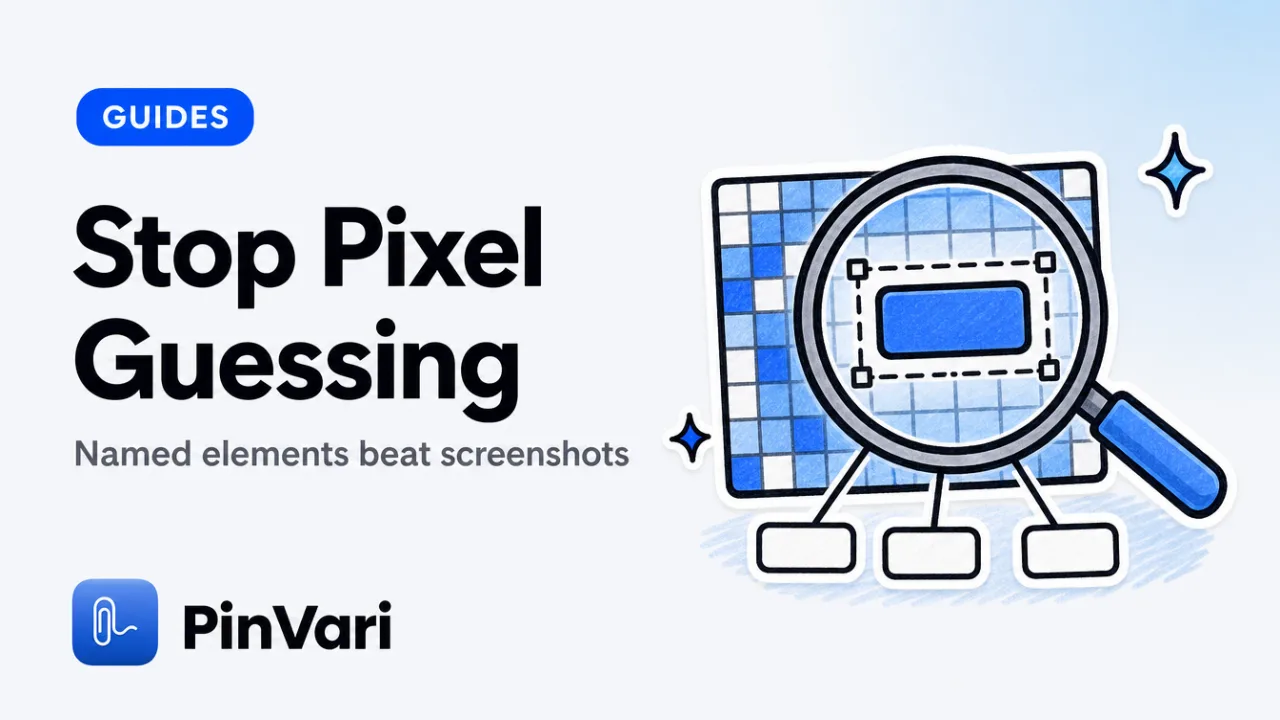
Claude Code screenshots burn tokens uploading raw pixels that the model then has to guess at. The real problem: screenshots are images; Claude Code needs the named UI element (role, label, parent chain, frame) to edit the right component, and pixels do not carry that data.
Most developers waste time re-describing what is already on screen because the screenshot does not tell the agent what it is looking at.
We are conditioned to think screenshots are helpful context. They are expensive, ambiguous pixel dumps that force the agent to infer structure from visual cues.
When it guesses wrong, you spend another round clarifying "no, the other button."
Why do Claude Code screenshots fail to identify UI elements?
Claude Code's screenshot skill (and similar tools in Cursor, Zed, Codex) capture a bitmap and send it to the model. The model analyzes pixel patterns — color, shape, text rendered as glyphs — and guesses what each region represents.
No DOM. No accessibility tree.
No element identity.
For web UIs, the agent might infer "that looks like a button" from rounded corners and shadow, but it cannot distinguish <button id="submit"> from <div class="btn"> from <a> styled as a button.
For native macOS apps (Xcode, Finder, Mail, Slack's Electron shell), there is zero markup to infer from. The model sees pixels, not NSButton with a label and action selector.
When you say "fix the submit button," Claude Code parses your codebase for strings like "submit" and makes a best guess. If your repo has three buttons with "submit" in the label, it picks one — often the wrong one — because the screenshot gave it no tie-breaker.
Screenshots uploaded to Claude Code count against your token limit. Vision tokens are expensive relative to a short JSON payload. A thread of full-screen captures can burn more tokens than the edit itself.
The macOS Accessibility API — the same framework VoiceOver uses — exposes every on-screen UI element as an AXUIElement with a role (button, text field, menu item, web area), label, value, and frame.
AXUIElementCopyElementAtPosition(x, y) returns the element under any pointer coordinate, not a pixel guess.
When you point at a button and the AX tree says AXButton, title "Submit", parent AXGroup "Form Actions", frame {520, 680, 120, 44}, that is executable context. Claude Code can search the codebase for "Submit" scoped to form-action UI.
Pixels cannot give you that path.
How does point-and-speak resolve named elements without screenshots?
Hold ⌥⌘A, circle or point at any UI element, and speak your instruction. PinVari captures three streams at once.
On-device voice transcription with word-level timestamps.
A timestamped pointer trail recorded while you mark.
An AX element resolution the instant you finish the mark.
When you say "change this button to green," the word "this" has a timestamp. PinVari walks the pointer trail, finds where the pointer was at that exact moment, calls AXUIElementCopyElementAtPosition, and retrieves the AXButton with role, label, value, and frame.
That element gets bound to the deictic word. "This" now means AXButton "Submit" at a known frame.
The capture then reads the window's full accessibility text (up to 40,000 characters, including text scrolled out of view), extracts the browser's real URL from the AXWebArea if it is a web view, and falls back to on-device Vision OCR on surfaces the AX tree does not cover.
PinVari does not upload pixels to an external API. Transcription and OCR are on-device (Apple frameworks). The screenshot is cropped to the circled region and handed to your local agent over MCP — no cloud hop, no API keys required.
The output is a resolved, named, executable instruction with the element path, your spoken sentence, the region you marked, and a cropped screenshot. That is what lands in Claude Code's MCP tool pinvari_next_instruction.
What is the Claude Code screenshot skill actually doing?
When you type screenshot in the Claude Code CLI or click the camera icon, it calls the OS screenshot API, saves a temp PNG, and sends it to the model as a vision message. The model receives pixels, no metadata beyond dimensions.
Claude Code does not parse the AX tree or DOM before uploading. It does not extract window titles, element labels, or text content.
It ships the bitmap and hopes the model can OCR text and infer UI structure from visual patterns.
For text-heavy UIs (code editors, terminal output, browser DevTools), the model does okay — it can read rendered glyphs. For iconography, custom controls, or ambiguous regions, it guesses.
When you circle a region in a screenshot and say "fix this," you are asking the model to infer "this" from pixel proximity.
The screenshot skill is useful for showing what broke (a layout bug, a color mismatch), but it does not name what broke. You still have to type "the submit button in the form footer" to disambiguate.
How do you give Claude Code the named element instead of pixels?
Install PinVari, add the MCP server to Claude Code, and point-and-speak at the UI.
claude mcp add --scope user pinvari -- "$HOME/.pinvari/mcp/pinvari-mcp"The MCP tool pinvari_next_instruction returns a structured payload: the spoken instruction, the resolved element (role, label, frame, parent chain, confidence, circled-vs-dwelled provenance), a crop of the region, window text, and the real URL when the surface is a browser.
Claude Code sees the named element with role and label, the instruction bound to it, the visual crop for confirmation, and the window's full text read from the AX tree.
It can now search the codebase for "Submit" scoped to a settings form, find the click handler, and edit the right function.
The screenshot is there for visual confirmation, not as the primary signal.
If you captured a native macOS app, the AX tree gives Claude Code the element identity that pixels cannot. If you captured a web app, Chromium identity attrs (AXDOMIdentifier, AXDOMClassList) map the AX element back toward the DOM node.
For browser-based UIs, PinVari reads the real URL from the AXWebArea element — not inferred from window title or OCR'd from the address bar.
When Claude Code finishes the edit, it calls pinvari_mark_done to close the capture. The next ⌥⌘A starts fresh.
Mid-task the agent can also call pinvari_request_capture. The notch island lights up, you circle the thing, and the capture flows back.
Can you use PinVari with other AI coding agents?
Yes. The MCP server ships in the app and runs locally on 127.0.0.1:3402.
Any agent that speaks MCP can call pinvari_next_instruction and pinvari_mark_done.
Claude Code
claude mcp add --scope user pinvari -- "$HOME/.pinvari/mcp/pinvari-mcp", or one click inside PinVari → Connect.
Cursor, Codex, Zed
Add the same local connector. The local MCP server for screen context walkthrough covers the pattern.
PinVari does not care which agent consumes the instruction. It hands over the resolved element and waits for mark_done.
If you are not using an agent, PinVari also routes captures to Linear, GitHub, or Slack, or exports a shareable page.
What about Claude Code screenshots on Windows?
PinVari is macOS-only (Sonoma 14+ on Apple Silicon and Intel). Windows UI Automation exists, but adoption is inconsistent, and many toolkits do not expose a reliable hit-test under the pointer.
For Windows users in Claude Code, the default screenshot skill is still the option you have, with the caveats above: you burn tokens and need to type element descriptions to disambiguate.
How do screenshot workflows for Claude Code compare?
Skip the five-column grid. Read each method as a card.
Native screenshot skill
Element identity: none. Pixel OCR only.
Cost: vision tokens per image.
Platforms: macOS, Windows, Linux.
Typing: yes, to name the element.
Manual screenshot plus paste
Element identity: none.
Cost: vision tokens per image.
Platforms: any.
Typing: yes, full descriptions.
Jam.dev
Element identity: DOM path, in the browser.
Cost: hosted by Jam.
Platforms: Chromium / browser only.
Typing: partial. Click-to-mark.
PinVari plus MCP
Element identity: named AXUIElement, role, label, frame, confidence.
Cost: on-device capture; structured JSON to your agent.
Platforms: macOS 14+.
Typing: no. Point-and-speak.
Named-element capture is the only path that resolves the macOS AX node on-device and hands it to Claude Code without uploading a full-screen bitmap to an external API.
How much do Claude Code screenshots actually cost in tokens?
Claude Code uses your Claude plan or API key. Vision messages cost per image based on resolution and detail level.
A Retina or 4K capture costs more than a small crop. A thread of five full-screen shots can spend more tokens on pixels than on the code change.
Screenshots waste Claude Code tokens breaks down why the primitive is wrong even before you look at the bill.
PinVari crops the screenshot to the region you circled and includes it for visual confirmation. The primary signal — the named element — is structured text, not a bitmap.
Do you need to install anything for PinVari to work with Claude Code?
Yes, two steps.
Download PinVari (notarized DMG, one-time $39 launch license for the first 500 licenses, then $59) from the pricing page. Drag to /Applications, launch, grant Accessibility and Screen Recording permissions.
Add the MCP server: claude mcp add --scope user pinvari -- "$HOME/.pinvari/mcp/pinvari-mcp", or use PinVari → Connect → Claude Code.
The app must be running. The connector talks to it on 127.0.0.1:3402.
No API keys — PinVari does not call external services.
PinVari does not require a Claude API key. You bring your own agent (Claude Code, Cursor, Zed, Codex). The MCP server is a local pipe; it does not authenticate or meter usage.
If you are not using Claude Code, you can still point-and-speak and file the capture to Linear, GitHub, or a shareable page.
FAQ
Can Claude Code screenshot native macOS apps like Xcode or Finder?
Yes, the screenshot skill captures any on-screen window, including native macOS apps. But it uploads pixels with no element metadata.
Claude Code sees a bitmap of Xcode's UI and has to infer structure from pixel patterns. PinVari reads the AX tree and names the control.
Does the screenshot in Claude Code CLI work the same as the Desktop app?
Yes, both call the same underlying screenshot API and send the image to the model. Token cost and pixel-guessing limitations are identical.
Neither parses the AX tree before uploading.
Can you use PinVari without Claude Code?
Yes. PinVari routes captures to Linear, GitHub, Slack, or a shareable page.
You do not need an agent to use the point-and-speak capture.
The MCP server is optional — install it only if you are routing to Claude Code, Cursor, or another agent.
How does PinVari handle Electron apps where Accessibility is empty?
Chromium builds its AX tree lazily — only when VoiceOver or an assistive app queries it. PinVari sets AXManualAccessibility on the target window and retries until a labeled element appears.
For surfaces that never expose AX, PinVari falls back to on-device Vision OCR and returns the text with a lower confidence score.
Does PinVari upload screenshots to the cloud?
No, not by default. Transcription and OCR run on-device.
The crop is handed to the agent you already run, or attached to a tracker you choose.
Nothing leaves the Mac unless you send it.
Why do Claude Code screenshots keep leading to the wrong edit?
Because pixels have no name. The model infers a control from shape and nearby text, and near-duplicates collide.
A named accessibility element with a confidence score removes the guess.
Hand your agent the exact element
PinVari resolves what you point at into a named, executable instruction — on-device, no keys, your own agent. One click inside PinVari connects Claude Code, Cursor, VS Code or Codex — or paste one CLI line from pinvari.com/connect.
PinVari → Connect → your agent (one click)Get PinVari — $39 →