Codex CLI MCP: Model Context Protocol Integration Guide
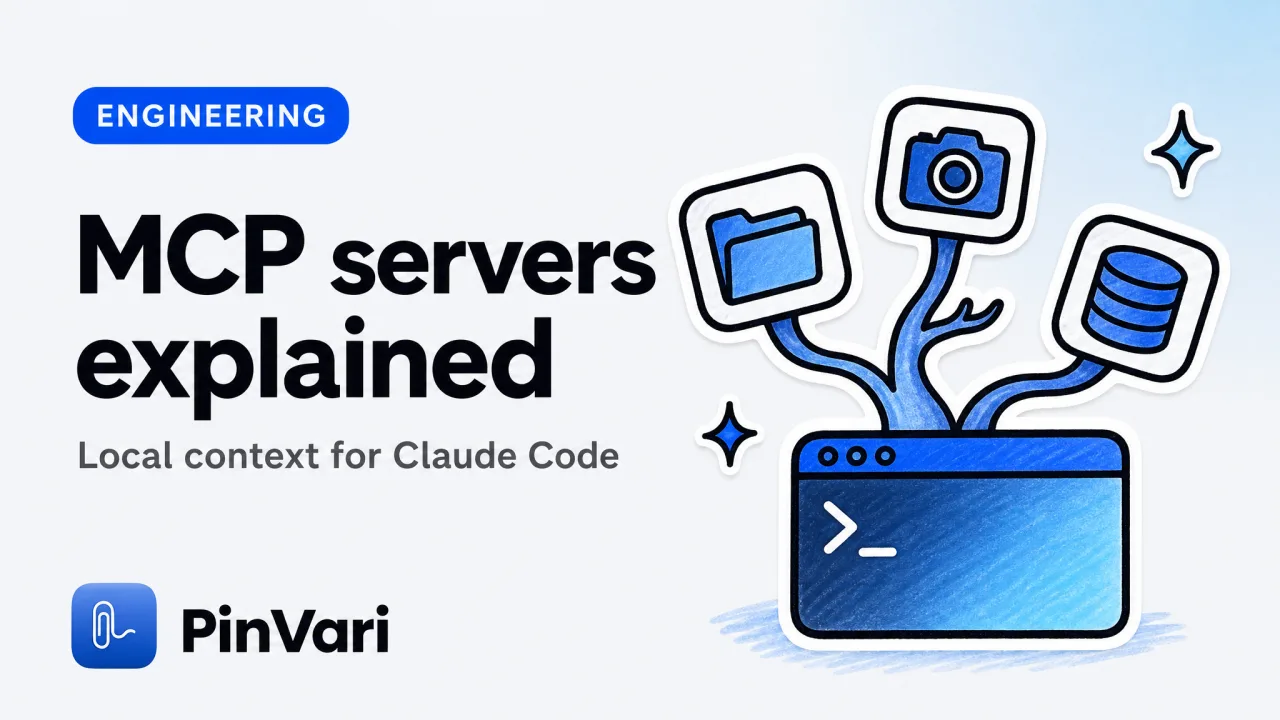
Codex CLI MCP is the command-line interface that connects Model Context Protocol (MCP) servers to Claude Code, letting the agent read local context—screenshots, file trees, databases, browser state—without uploading anything to the cloud. An MCP server is a local process (127.0.0.1) that exposes tools (Python functions, Node.js modules, compiled binaries) Claude Code can call; the server handles the reads/writes, returns structured data, and the agent decides what to do with it. This matters because most AI coding agents are blind to your actual screen, your local Postgres schema, or the accessibility tree of the app you're debugging—MCP servers fill that gap.
Most developers hear "MCP" and imagine a network protocol. It's simpler: a JSON-RPC conversation over stdin/stdout between Claude Code and a subprocess you configure. The confusion comes from the abstract spec—this guide shows you the concrete steps, a working macOS example, and where Codex CLI fits in the AI agent workflow.
What is Model Context Protocol and why does Claude Code use it?
Model Context Protocol is Anthropic's standard for context servers: small programs that expose tools (functions) an agent can call to read or write local resources. Instead of Claude Code building integrations for every possible data source, it speaks one protocol (MCP) and you bring the servers.
An MCP server announces a list of tools when it starts—list_files, take_screenshot, query_database—each with a name, description, and JSON schema for arguments. Claude Code shows these tools in its "available tools" panel. When the agent decides to call one (say, take_screenshot with {"region": "top-left"}), the Codex CLI runtime sends a JSON-RPC request to the server's stdin, the server does the work, and returns JSON on stdout. The agent never sees your data until the server returns it—nothing uploads unless you explicitly configure a remote MCP server.
This matters for Mac developers because macOS exposes the accessibility tree (every on-screen UI element's role, label, frame, parent chain) via the Accessibility API. A screenshot alone is pixels; a screenshot plus the AX element under the circled region is a named instruction the agent can execute. That's what PinVari's MCP server does—it resolves the element, crops the screenshot to the circled region, and hands Claude Code the path: AXApplication "Xcode" → AXWindow "MainWindow.swift" → AXButton "Run".
Key difference: Codex CLI vs Codex app. Codex CLI (claude command) is the headless runtime that manages MCP servers and can run agent tasks from the terminal. The Codex app (the GUI with the notch widget) is the interactive chat interface. Both share the same MCP server list (stored in ~/.codex/mcp.json); add a server with claude mcp add and it appears in both. The CLI is faster for scripting; the app is better for iterating on prompts.
How do I add an MCP server to Codex CLI?
You add servers with the claude mcp add command, specifying scope (user or project) and the executable path. User-scoped servers are available to all Claude Code sessions; project-scoped servers only load when you open that directory.
Command structure:
claude mcp add --scope user <server-name> -- <path-to-executable> [args]The -- separates Claude CLI flags from the server command. Everything after -- is the subprocess command Claude Code will spawn.
Real example—adding PinVari's screenshot MCP:
claude mcp add --scope user pinvari -- "$HOME/.pinvari/mcp/pinvari-mcp"This tells Claude Code: "When I start, spawn the pinvari-mcp binary from my home directory, talk to it over stdin/stdout, and register its tools." The server must be installed (PinVari → Connect → Claude Code does this automatically) and the main PinVari app must be running (the connector talks to it on port 3402).
Common mistake: running claude mcp add pinvari without the full path. The command errors because pinvari isn't on $PATH. Always use the absolute path or a shell variable like $HOME.
After adding a server, restart Claude Code (quit and reopen). Open the command palette (⌘K), type "Show available tools," and verify the server's tools appear. For PinVari, you'll see pinvari_next_instruction and pinvari_mark_done.
Check the server list: cat ~/.codex/mcp.json shows all configured servers. Each entry has a command (the path) and args (optional arguments). To remove a server, delete its JSON block or run claude mcp remove <name>.
What tools does a screenshot MCP server expose?
A screenshot MCP server (like PinVari's or any of the best screenshot MCP servers) typically exposes two core tools: capture (request a screenshot with optional metadata) and retrieve (fetch a previous capture).
PinVari's MCP interface (from the public docs at pinvari.com/mcp):
pinvari_next_instruction— returns the next unresolved capture:
- Spoken instruction (transcribed on-device).
- Resolved AX element (role, title, frame, confidence score, parent chain).
- Screenshot (base64-encoded PNG cropped to the circled region).
- Provenance (circled vs dwelled, which display).
- Word buckets (if you circled three regions in one breath, each gets its own words).
pinvari_mark_done— tells PinVari "this instruction is handled," moves it out of the queue, closes the notch island slot.
The agent-facing flow: Claude Code calls pinvari_next_instruction, receives the resolved element and screenshot, generates code or an explanation, then calls pinvari_mark_done to confirm. You never manually screenshot or paste paths—hold ⌥⌘A, circle the UI element, speak, release, and the capture flows to Claude Code automatically.
Why this beats a generic screenshot tool: Claude Code sees the named element, not a pixel guess. If you circle a button labeled "Submit" but it's rendered as an unlabeled <div> with aria-label="Submit", PinVari reads that from the accessibility tree and tells the agent "the Submit button at {x: 1200, y: 680}." On AX-blind surfaces (canvas, some Electron apps), PinVari falls back to on-device Vision OCR and flags the lower confidence.
Can I use MCP servers with other coding agents?
Yes, with caveats. MCP is an open protocol, so any agent can implement it. As of August 2026:
| Agent | MCP Support | Setup |
|---|---|---|
| Claude Code (Codex) | Native | claude mcp add |
| Cursor | Native (0.42+) | Add to ~/.cursor/mcp.json manually or via Cursor's MCP panel |
| Zed | Community extension | Install zed-mcp extension, configure in settings |
| VS Code | Via extension | Install "MCP Client for VS Code," add servers in JSON |
| GitHub Copilot | No (August 2026) | Copilot uses its own extension API, not MCP |
The catch: each agent interprets tool results differently. Claude Code is optimized for PinVari's output (it knows to parse the elementPath array and use the cropped screenshot as context for the next edit). Cursor and Zed will receive the same JSON but may not prompt the agent to act on it unless you write custom rules. Check Cursor MCP for Cursor-specific setup.
PinVari's MCP connector requires the PinVari app to be running. The connector (~/.pinvari/mcp/pinvari-mcp) is a thin client that talks to the main app on 127.0.0.1:3402. If you quit PinVari, the tools return an error. This is intentional—captures happen in the GUI (the overlay, the notch island), and the MCP server is the bridge.
Walk me through a real Codex CLI MCP example on macOS
Scenario: You're debugging a SwiftUI app in Xcode. A button's tap handler isn't firing. You want Claude Code to see the exact button, read the code, and suggest a fix.
Step 1—Install PinVari and connect it to Claude Code:
- Download PinVari (notarized DMG, macOS 14+).
- Open PinVari → Connect → Claude Code. This copies the MCP connector to
~/.pinvari/mcp/pinvari-mcpand runsclaude mcp add --scope user pinvari -- "$HOME/.pinvari/mcp/pinvari-mcp". - Restart Claude Code (quit and reopen).
Step 2—Capture the button:
- Open the SwiftUI preview or simulator with the broken button visible.
- Press and hold ⌥⌘A (PinVari's hotkey).
- Circle the button (freehand, lime ink trail).
- Say: "This button isn't responding to taps."
- Release ⌥⌘A or press ⏎.
PinVari screenshots, transcribes on-device, resolves the AX element (AXButton "Submit Order" at {x: 375, y: 820}), and files the capture to the notch island (a lime dot appears).
Step 3—Let Claude Code retrieve it:
- Open Claude Code, start a new task or continue an existing one.
- Type: "Check the PinVari capture and fix the issue."
- Claude Code calls
pinvari_next_instruction, receives:
   {
     "instruction": "This button isn't responding to taps.",
     "elementPath": ["AXApplication Xcode", "AXWindow", "AXButton Submit Order"],
     "elementRole": "AXButton",
     "confidence": 0.92,
     "screenshot": "data:image/png;base64,...",
     "provenance": "circled"
}- The agent reads your SwiftUI code, sees the button's action closure is missing or malformed, generates a fix, and calls
pinvari_mark_done.
Step 4—Review and apply: Claude Code shows the diff in the editor. You approve, the button works, the notch island dot fades. Total time: ~15 seconds from pointing to having the fix in your clipboard.
What makes this faster than a manual bug report:
- No typing element selectors or taking manual screenshots.
- The agent sees the resolved AX element, not a pixel guess.
- The cropped screenshot gives visual context; the accessibility path gives the exact target.
- On-device transcription (Apple Speech framework) is instant and private.
For a side-by-side comparison of how different AI coding assistants handle this workflow, see Claude Code vs Cursor and best AI for coding.
How do I troubleshoot MCP server connections?
Server doesn't appear in Claude Code's tool list:
- Verify the path is correct:
cat ~/.codex/mcp.jsonand check thecommandfield. - Test the executable manually:
"$HOME/.pinvari/mcp/pinvari-mcp"should print a version line or JSON, not error. - Restart Claude Code (quit fully via ⌘Q, not just close the window).
Tools listed but calls fail:
- Check the server process is running. For PinVari, the main app must be open (the MCP connector is a client, not a standalone server).
- Look at Claude Code's log:
~/Library/Application Support/Codex/logs/mcp.logshows stdin/stdout exchanges. If you seeECONNREFUSED, the server isn't listening on the expected port.
PinVari-specific: "No captures available":
- You haven't taken a capture yet. Hold ⌥⌘A, circle something, speak, release.
- The capture is already marked done. Check the Command Center (PinVari → Command Center) to see resolved vs pending captures.
Confidence score below 0.8: PinVari flags low-confidence elements (e.g., a button with no label, an AX-blind canvas). The agent still receives the capture but the JSON includes a warning. You can retry the capture with a tighter circle or use the fallback OCR (enable in PinVari → Settings → OCR).
Enable verbose logging: run Claude Code from the terminal with CODEX_LOG_LEVEL=debug /Applications/Claude\ Code.app/Contents/MacOS/Claude\ Code to see real-time MCP traffic. This shows every JSON-RPC request and response, helpful for debugging custom servers.
What's the difference between user-scoped and project-scoped MCP servers?
User-scoped servers (added with --scope user) load every time you start Claude Code, regardless of which directory you're in. Use this for global tools like screenshot capture, clipboard managers, or database connectors you use across all projects.
Project-scoped servers (added with --scope project from inside a project directory) only load when you open that directory in Claude Code. The config lives in .codex/mcp.json within the project root. Use this for project-specific tools—a custom linter, a local API mock server, a build cache inspector.
Example—user vs project:
# Global screenshot tool (user-scoped)
claude mcp add --scope user pinvari -- "$HOME/.pinvari/mcp/pinvari-mcp"

# Project-specific database seeder (project-scoped, run from ~/my-app)
cd ~/my-app
claude mcp add --scope project db-seed -- ./scripts/seed-mcp-server.js
The db-seed server only appears when you open ~/my-app in Claude Code. PinVari's screenshot tool is available everywhere.
Version control tip: commit .codex/mcp.json if you want teammates to get the same project-scoped servers. User-scoped config (~/.codex/mcp.json) is local and not versioned.
FAQ
How do I see the MCP servers Claude Code has loaded?
Open Claude Code, press ⌘K (command palette), type "Show available tools." The panel lists every tool from every loaded MCP server, with the server name in parentheses. For example, pinvari_next_instruction (pinvari). You can also inspect ~/.codex/mcp.json (user-scoped) or .codex/mcp.json (project-scoped) to see the raw config.
Can I write my own MCP server for Codex CLI?
Yes. An MCP server is any executable that speaks JSON-RPC over stdin/stdout. The MCP specification defines three message types: initialize (handshake), tools/list (announce available tools), and tools/call (execute a tool). Write a Node.js script or Python program that reads JSON from stdin, returns tool results on stdout, and add it with claude mcp add. Anthropic provides starter templates in the official MCP repo.
Does Codex CLI work on Intel Macs or only Apple Silicon?
Both. The claude CLI is a universal binary (arm64 + x86_64). PinVari's MCP connector also supports both architectures. The only requirement is macOS 14+ (Sonoma). Older Macs on Big Sur or Monterey can't run the current Codex CLI or PinVari.
What happens if an MCP server crashes during a tool call?
Claude Code detects the broken pipe (the server's stdout closes unexpectedly) and returns an error to the agent: "Tool call failed: server exited." The agent can retry, ask you to restart the server, or fall back to a different approach. PinVari's connector includes crash recovery—if the main PinVari app quits mid-call, the connector logs the error and the next call prompts you to reopen PinVari.
Can I use the same MCP server with both Claude Code and Cursor?
Yes, but you configure it separately in each tool. Add it to Claude Code with claude mcp add, then add the same executable path to Cursor's ~/.cursor/mcp.json manually or via Cursor's MCP settings panel. The server spawns twice (one process per agent) when both are running. For PinVari specifically, both agents can call the same capture queue—the server is stateless and talks to the main PinVari app on 127.0.0.1:3402. See Cursor MCP for Cursor's setup steps.
Where can I find a list of public MCP servers for coding workflows?
Anthropic maintains a community registry with servers for file systems, Git, Postgres, Slack, browser automation, and more. For screenshot and UI feedback specifically, check best screenshot MCP servers. PinVari's MCP docs are at pinvari.com/mcp.
Hand your agent the exact element
PinVari resolves what you point at into a named, executable instruction — on-device, no keys, your own agent. One click inside PinVari connects Claude Code, Cursor, VS Code or Codex — or paste one CLI line from pinvari.com/connect.
PinVari → Connect → your agent (one click)Get PinVari — $39 →