Talk to Type on MacBook: Fast Voice Dictation
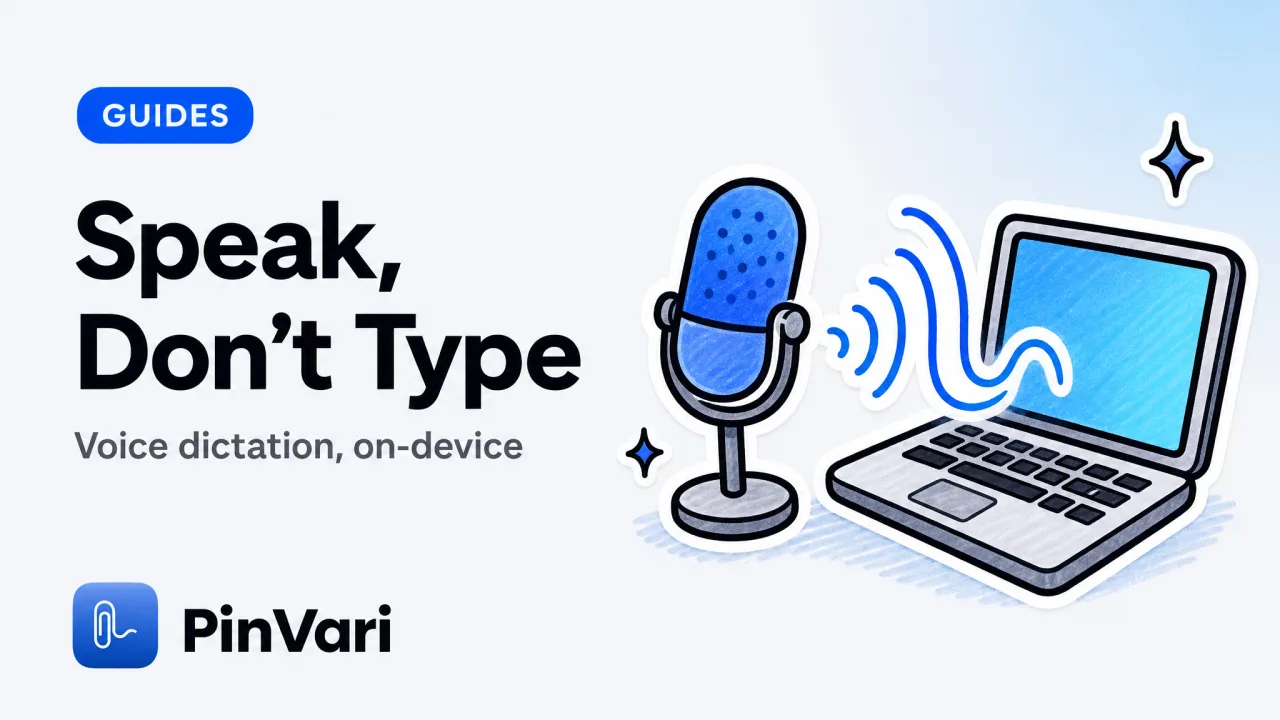
To talk to type on MacBook, open System Settings, go to Keyboard, switch Dictation on, then press the Dictation shortcut (by default you press the Control key twice) and speak into any text field. Words appear as you talk, and on modern Apple Silicon Macs the whole thing runs on-device, so it works offline and your voice never leaves the laptop.
Most guides stop at "turn on Dictation" and never tell you the shortcut tricks, the on-device caveat, or the point where dictation stops being enough. If you write code, review UIs, or file bugs all day, plain dictation solves half the problem and leaves the harder half untouched.
How do you talk to type on MacBook right now?
Three steps and you are dictating. This is the built-in path, no download required.
First, open System Settings, choose Keyboard, and turn on Dictation. macOS may download a small on-device language model the first time, which is what lets it run offline afterward.
Second, put your cursor in any text field, a note, a browser box, a chat, or your editor. Dictation works anywhere the system keyboard works, which means you do not need a separate app for the basic case, and no account or sign-in is involved.
Third, trigger it. The default shortcut is pressing the Control key twice, and you can change it to a Fn or F5 press under the same Dictation settings.
Speak, and say punctuation out loud, "comma," "new line," "question mark," to format as you go.
A few commands are worth memorizing because they save the most keystrokes. "New paragraph" gives you a blank line, "cap" capitalizes the next word, and "all caps on" and "all caps off" bracket a run of shouting for a constant or an acronym.
Once these are muscle memory, dictation stops feeling like a novelty and starts replacing real typing.
Change the shortcut to something you can hit without looking. A single dedicated key beats a double-tap when you dictate dozens of times a day, and it removes the accidental triggers that a double-Control tap causes while coding.
Is talk to type on MacBook on-device or cloud?
On modern Macs it is on-device, which matters more than most people realize. Enhanced Dictation downloads a local model so speech recognition happens on your Mac, works without internet, and does not stream your audio to a server.
Older Intel Macs and some configurations fall back to server-based recognition for longer sessions, so if privacy is the point, confirm your Mac shows the offline indicator. On-device means your voice stays on the machine, which is the same principle serious Mac tooling should follow.
To get dictation accuracy up when you speak into your Mac, three things help more than anything else. Speak in complete phrases rather than one word at a time, because the model uses surrounding words to disambiguate.
Add custom terms, like your product names and function names, to your macOS text replacements so they stop getting mangled. And use a decent input, since the built-in mic is fine but a headset cuts the error rate on technical vocabulary noticeably.
If you want the broader picture of every dictation route on macOS, including the Notes and Pages quirks, our guide to talk to text on Mac covers the full menu, and the voice to text on Mac walkthrough digs into accuracy tuning.
Built-in Dictation vs paid voice apps: what is the difference?
Built-in Dictation is free and everywhere, and for straight transcription it is genuinely good. Paid apps compete on speed, formatting, custom vocabulary, and the way they handle a push-to-talk flow rather than a toggle.
Here is the honest comparison for someone who already lives in premium Mac apps.
Skip the wide grid. Read each option as a card.
#
Cost
Built-in Dictation: Free
Paid voice apps: ~$12 to $15 per month
Point-and-speak for agents: One-time license
#
Runs on-device
Built-in Dictation: Yes, modern Macs
Paid voice apps: Varies
Point-and-speak for agents: Yes, by default
#
Understands the screen
Built-in Dictation: No
Paid voice apps: No
Point-and-speak for agents: Yes, names the element
#
Best for
Built-in Dictation: General typing
Paid voice apps: Fast, formatted dictation
Point-and-speak for agents: Directing a coding agent
#
Push-to-talk
Built-in Dictation: Toggle by default
Paid voice apps: Yes
Point-and-speak for agents: Yes, hold a hotkey
Paid dictation proves that push-to-talk voice on a Mac is a habit people pay for. If you are comparing those, the Wispr Flow alternative rundown lays out what you actually gain over the free built-in path before you commit to a subscription.
When does talk to type on MacBook stop being enough?
The instant your words need to point at something on screen. Dictation types "the save button is misaligned" into a box, but it has no idea which button you mean or where it sits.
For a developer, that gap is the whole job. You are not just producing text, you are trying to tell an AI coding agent, a bug tracker, or a teammate exactly which control is broken and what to do about it.
Plain dictation cannot resolve "this" or "that." It transcribes the pronoun and drops the meaning, so you end up typing the element name by hand anyway, which defeats the point of speaking.
Voice that only produces text still leaves you naming the element manually. The value shows up when the pronoun "this" binds to the actual on-screen control you are pointing at.
How does point-and-speak go beyond dictation?
It adds a target to the voice. PinVari is a native macOS app where you hold ⌥⌘A, circle or point at any on-screen element, and speak, and it captures both the words and the exact thing you meant.
It screenshots the region, transcribes your speech on-device, and resolves the exact named accessibility element you circled, including its role, label, and frame, with a confidence score. Deictic words like "this," "that," and "here" bind to where your pointer was at the instant you said them, from a timestamped pointer trail.
Then it hands a resolved, named instruction to your own AI coding agent, Claude Code, Cursor, Codex, or Zed, over a local server on 127.0.0.1, or files it to Linear, GitHub, or a shareable page. The agent acts on a named control, not a transcription of a vague sentence.
The transcription itself is on-device, the same class of Apple speech framework the built-in Dictation uses, so you keep the privacy you get from Enhanced Dictation while gaining the target. When the transcription is uncertain or the element resolves below a confidence threshold, it asks rather than silently guessing, which is the honest behavior you want before an agent starts editing code.
The interaction is push-to-talk, which is why it feels like dictation but does more. If you already use hold-to-speak with your terminal agent, the pattern is spelled out in push-to-talk voice for Claude Code on Mac.
Dictation answers "what did I say." Point-and-speak answers "what did I say, and about which named element," which is the piece a coding agent cannot infer from text alone.
It runs on-device with no API keys and nothing uploaded by default, so it fits the same no-subscription, no-cloud taste that makes Mac power users buy tools like CleanShot X. If a screenshot app is your current setup, the CleanShot X alternative comparison shows where a screen-understanding layer picks up where a screenshot tool stops.
PinVari ships as a notarized DMG for macOS 14 and up on Apple Silicon and Intel, and it is a one-time $39 launch license rather than a monthly bill; the pricing page has the details. It pairs cleanly with the built-in Dictation you already have, one for general typing, one for aiming your agent.
FAQ
#
What is the shortcut to talk to type on MacBook?
By default you press the Control key twice to start Dictation, then start speaking in any text field. You can change the shortcut to Fn, F5, or a single key under System Settings, Keyboard, Dictation.
#
Does talk to type on MacBook work offline?
On modern Apple Silicon Macs, yes. Enhanced Dictation downloads an on-device model the first time you enable it, so recognition happens locally and works without an internet connection.
#
Why does dictation stop after a minute on my Mac?
Older or server-based dictation caps continuous sessions, while on-device dictation on newer Macs runs much longer. Confirm Enhanced or on-device Dictation is active in Keyboard settings to lift the short time limit.
#
Is built-in Dictation good enough for coding?
For writing comments, commit messages, and prose, it is fine. For directing an AI agent to a specific UI element, it falls short because it transcribes words but cannot resolve which control you mean, which is where point-and-speak tools help.
#
Can I dictate directly into my code editor on a Mac?
Yes, Dictation works in any standard text field, including most editors. It types what you say, but it does not understand your running app, so pairing it with a tool that names on-screen elements gives an agent far more to act on.
#
Is there a free way to talk to type on a MacBook?
Built-in Dictation is free and included with macOS, and on modern Macs it runs on-device. Paid apps add speed, formatting, and better push-to-talk, but the free path covers general voice typing well.
Hand your agent the exact element
PinVari resolves what you point at into a named, executable instruction — on-device, no keys, your own agent. One click inside PinVari connects Claude Code, Cursor, VS Code or Codex — or paste one CLI line from pinvari.com/connect.
PinVari → Connect → your agent (one click)Get PinVari — $39 →