Push-to-Talk Voice for Claude Code on Mac
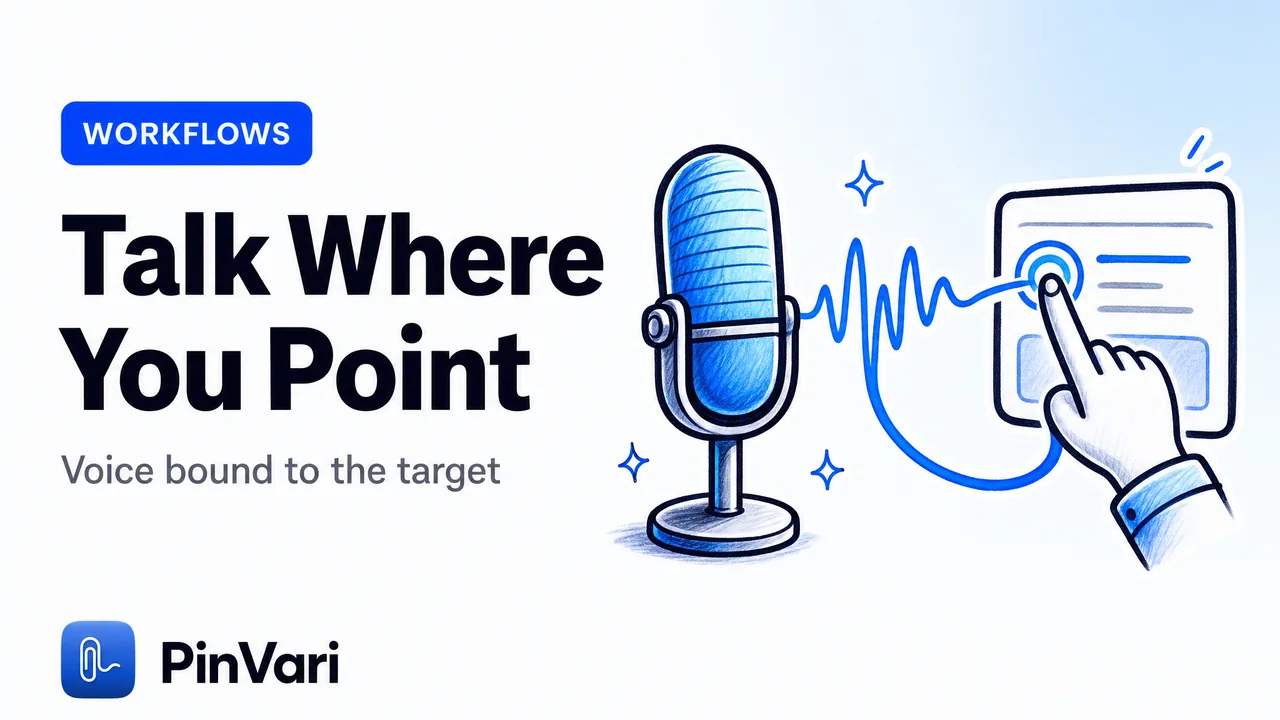
Push-to-talk voice for Claude Code on Mac means you hold a hotkey, point at the exact UI element you care about, and speak your instruction instead of typing it. The best setups do not just transcribe your voice.
They bind your words to the named accessibility element you circled. The agent knows the button you meant, not a paragraph describing it.
Most people reach for dictation and stop there. Raw speech-to-text is faster than typing, but it drops you right back into the hard part: describing which element on screen you are talking about.
Why is plain voice dictation not enough for Claude Code?
Dictation solves input speed. It does not solve reference.
When you say "make this button bigger," a transcription tool hands Claude Code the string "make this button bigger." The agent still has to figure out which button, on which screen, in which component.
Give it three near-identical buttons and it picks one to edit, with no way to know it guessed wrong. That is the real failure mode.
We wrote about it in how AI agents know which UI element you mean. The problem is almost never the model's coding ability — it is the ambiguous reference between your words and the thing on your screen.
Voice makes the input faster. It does nothing for the reference — which element you mean.
Push-to-talk voice for Claude Code only pays off when your pointer and your speech are captured together and resolved to one named element. The useful question is not "how do I talk instead of typing."
It is "how do I talk about a specific thing on my screen, and have it land on that thing."
How does push-to-talk voice bound to a UI element actually work?
You hold ⌥⌘A, circle or point at any on-screen element, and speak. PinVari screenshots the region, transcribes your speech on-device, and resolves the exact accessibility element under your pointer.
macOS exposes the UI element beneath any point through the Accessibility API. A single call returns the element's role, title, value, frame, and its parent chain.
PinVari uses that to name the element you circled — a real AXButton labeled "Publish," not a pixel guess at coordinates. The engineering is not trivial.
The capture overlay sits topmost, so a naive hit-test would resolve to PinVari's own window. It walks the on-screen window list excluding itself (chainExcludingSelf) and hit-tests the real app behind the overlay.
When your point lands on a bare container, it descends to the deepest labeled child (labeledDescendant). You get "Save changes," not "group."
On Electron and Chromium apps, the accessibility tree is built lazily. PinVari sets AXManualAccessibility and retries for about 150ms until a labeled element appears.
Each resolved element carries a confidence score. Below 0.8, the agent is told to ask rather than silently guess.
There are two hotkeys, not one. ⌥⌘A is point-and-speak: circle something, then talk about it. ⌥⌘V is voice-only, for when the instruction has no on-screen target — "run the tests," "commit this."
What makes "this" and "that" work when you speak to an agent?
Deixis. When you say "move this above that," the words "this" and "that" only mean something if you know where the pointer was at the instant each word was spoken.
PinVari records a timestamped pointer trail during the capture. As you speak, it tracks which control the cursor moved over, in order.
It then aligns your transcribed words against that trail, so each deictic word binds to a real element. The agent receives that binding explicitly.
Over the local MCP server, pinvari_next_instruction hands Claude Code a line like: "this" → AXButton "Archive", "that" → AXTextField "Title". Your spoken "this" is no longer a pronoun the model has to resolve.
The trail also distinguishes intent. An element you deliberately drew a loop around is marked circled and trusted; an element the cursor merely passed over is marked dwelled.
Provenance tells the agent how much to lean on each reference.
Push-to-talk voice tools compared: what fits AI coding on Mac?
Several tools own a piece of this. Read each as a card.
Wispr Flow
What it does: System-wide dictation into any text field.
Voice? Yes.
Names the element? No.
Price: About $12–15/mo.
Wispr Flow proves the habit: push-to-talk voice on Mac is something developers already pay for monthly. See a Wispr Flow alternative if the subscription is the dealbreaker.
macOS Dictation
What it does: Built-in speech-to-text.
Voice? Yes.
Names the element? No.
Price: Free.
Fine for prose. The voice to text Mac guide covers setup.
PinVari
What it does: Point-and-speak; resolves the named AX element with confidence and provenance.
Voice? Yes.
Names the element? Yes.
Price: One-time $39 launch.
Its approach ships the named element plus a short transcript, not raw pixels alone.
Is my voice uploaded anywhere when I use this?
No. Transcription runs on-device using Apple's speech frameworks, and the fallback OCR runs on-device with Vision. Nothing is uploaded by default.
You bring your own agent. PinVari does not ship an LLM, does not need an API key of its own, and does not route your screen through a cloud service.
The resolved instruction goes to the agent you already run — Claude Code, Cursor, Codex, or Zed — over a local MCP server on 127.0.0.1.
On-device transcription depends on Apple's speech model being ready on your Mac. If it returns an empty transcript, PinVari records that the speech stage failed and offers "pause and type it instead" rather than dropping your capture silently.
Voice is the fast path, not the only path. That local-first design matters for a second reason: cost.
Sending screenshots to a coding agent is expensive in tokens. A named element plus a short transcript is a fraction of the payload.
We broke the math down in why screenshots waste Claude Code tokens.
What does Claude Code actually receive over MCP?
Run this once:
claude mcp add --scope user pinvari -- "$HOME/.pinvari/mcp/pinvari-mcp"From then on, your capture becomes a structured, executable instruction the agent can pull. pinvari_next_instruction returns the resolved element path, your spoken instruction, the region you circled, and a screenshot cropped to that region.
When you circle several things in one capture and give an instruction for each, it returns a numbered task list. pinvari_mark_done closes the task so it never comes back.
The agent also gets context around the element: the window's full text, the browser's real URL read from the AX AXWebArea, and, on accessibility-blind surfaces, on-device OCR of the circled region.
Here is the shape of the loop:
# one-time
claude mcp add --scope user pinvari -- "$HOME/.pinvari/mcp/pinvari-mcp"
# then, in Claude Code:
> poll pinvari_next_instruction and carry out whatever I point at
# you hold ⌥⌘A, circle the misaligned card, say
# "this padding is off, match it to the card on the left"
# → agent receives: AXGroup "Pricing card" (circled, 0.94), transcript, cropped shot
You keep your hands on the keyboard for code and your voice for pointing. The agent gets a named target every time.
Can this file bugs and tasks, not just drive the agent?
Yes. The same resolved capture can be routed to a tracker instead of an agent — Linear, GitHub, or Slack — or to a shareable page.
That makes push-to-talk voice useful beyond a coding loop. A QA engineer can circle a broken element, say what is wrong, and file a named bug without writing a reproduction paragraph.
An agency reviewing a client build can leave spoken feedback pinned to exact elements. Captures collect in a dark notch island and in a lighter Command Center window for review.
You can capture a run of issues, then decide which go to the agent and which go to Linear.
How is push-to-talk voice for Claude Code different from just describing the screen?
Describing the screen puts the burden on your words. You have to be precise enough in prose that the agent cannot misread you, every time.
Point-and-speak moves that burden to the pointer. Your words can be loose — "make this match that" — because the pointer trail carries the precision.
The element identity comes from macOS, not from how carefully you phrased the sentence. That is the whole design: let voice be casual, let the Accessibility API be exact.
You get the speed of talking with the accuracy of a named reference. PinVari runs on macOS 14 and later, on Apple Silicon and Intel, shipped as a notarized Developer-ID DMG rather than through the Mac App Store.
The sandbox forbids the global hotkey and reading other apps' accessibility elements. It is a one-time $39 launch license for the first 500 seats, then $59, with no subscription for the core app.
FAQ
Does push-to-talk voice for Claude Code need an internet connection?
No. Transcription and OCR run on-device with Apple frameworks, and the resolved instruction travels to your agent over a local MCP server on 127.0.0.1. Your own agent may call out to its provider, but PinVari itself uploads nothing by default.
Can I use voice coding on Cursor or Zed instead of Claude Code?
Yes. PinVari hands the resolved element and your spoken instruction to any MCP-capable agent, including Cursor, Codex, and Zed. The point-and-speak capture is identical; only the agent on the other end of the local MCP server changes.
Is this a Wispr Flow alternative for developers?
It overlaps but aims elsewhere. Wispr Flow is general dictation into any text field, while PinVari binds your speech to a specific on-screen element and routes it to a coding agent or tracker.
What happens when the accessibility element cannot be read?
On surfaces where the Accessibility API returns nothing useful — a canvas, a game, some Electron views — PinVari falls back to on-device Vision OCR of the region you circled. If confidence stays below 0.8, the agent is instructed to ask you rather than guess.
How does it know which button I mean if two look identical?
It resolves the exact accessibility element under your pointer — its role, label, and frame — not a screenshot of a button shape. Two visually identical buttons are still distinct named elements in the accessibility tree.
Do I have to circle something every time I speak?
No. ⌥⌘A is for point-and-speak when your instruction targets an element. ⌥⌘V is voice-only for instructions with no on-screen target, like running tests or committing.
Hand your agent the exact element
PinVari resolves what you point at into a named, executable instruction — on-device, no keys, your own agent. One click inside PinVari connects Claude Code, Cursor, VS Code or Codex — or paste one CLI line from pinvari.com/connect.
PinVari → Connect → your agent (one click)Get PinVari — $39 →