Voice to Text Mac: Best Dictation Apps in 2026
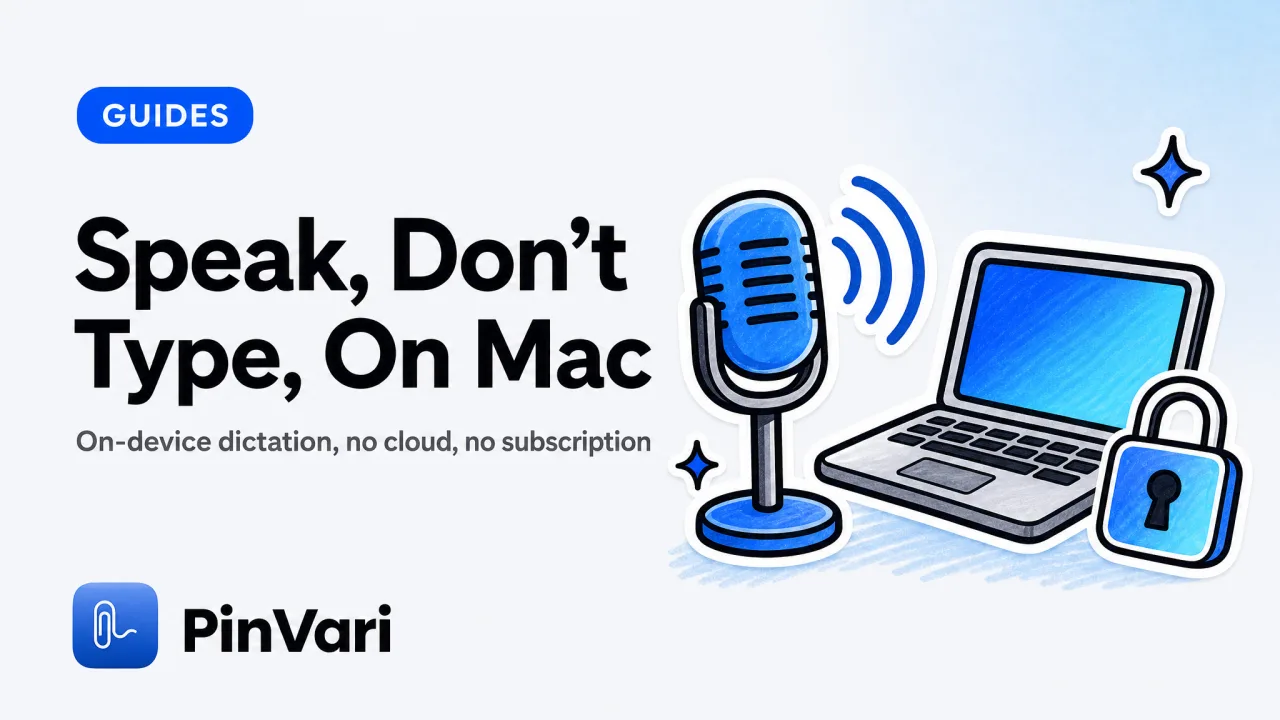
The fastest voice to text Mac option is the built-in Dictation: set a shortcut in System Settings, press it, and start talking, and on Apple Silicon it runs on-device for free. For heavier daily use, paid apps like Wispr Flow add real push-to-talk and cleaner formatting for a monthly fee.
Most "best voice to text Mac" lists rank apps by accuracy alone. For a Mac power user who hates subscriptions and cloud uploads, two better questions decide it: where does your audio go, and what do the words do once they are transcribed?
What's the fastest voice to text on Mac?
Apple's built-in Dictation is the default answer and the one most people skip. It is free, it is already installed, and on Apple Silicon it runs on-device once you have used it enough to download the model.
You turn it on in System Settings, Keyboard, Dictation, then pick a shortcut. The classic trigger is double-pressing the Control key, but you can set it to the mic key or anything you like.
It works in any text field, so it covers most talk to text on Mac needs without a single download. The catch is that it is dictation, not commands.
It types what you say into the focused field and stops there. For a lot of people that is genuinely enough.
Which voice to text Mac apps are worth it?
If the built-in tool is not enough, the market splits into prose dictation and something more interesting.
Apple Dictation
On-device: Yes (Apple Silicon).
Cost: Free.
Best for: Quick talk to type on MacBook.
Wispr Flow
On-device: Partly.
Cost: Subscription (about $12–15/mo).
Best for: Fast push-to-talk prose.
Wispr Flow is the one that proves people will pay for voice on a Mac. If a subscription is the dealbreaker, the Wispr Flow alternatives piece covers the one-time and free routes.
Third-party dictation apps
On-device: Varies.
Cost: One-time or subscription.
Best for: Formatting, custom vocab.
Some are one-time purchases focused on custom vocabulary and text expansion. Others are subscription tools chasing the smoothest possible flow.
macOS Voice Control
On-device: Yes.
Cost: Free.
Best for: Hands-free control, accessibility.
PinVari
On-device: Yes.
Cost: One-time $39.
Best for: Aiming voice at a UI element and your coding agent.
Before you buy anything, live with Apple Dictation for a week. Most people who think they need a paid dictation app actually needed a keyboard shortcut and ten minutes of practice.
Does voice to text on Mac work offline and privately?
This is the question that matters most for the persona buying premium one-time Mac apps. The answer depends entirely on the tool.
Apple Dictation on Apple Silicon runs on-device, so your speech does not leave the Mac. Many third-party voice apps send audio to the cloud for transcription, which is faster to build and worse for privacy.
There is a second cost to cloud transcription that people forget. A tool that transcribes locally today cannot quietly start training on your audio tomorrow, because the audio never reaches it.
On-device is the only guarantee that survives a policy update. That is exactly the kind of thing a Mac power user weighs before trusting an app with client work.
If a voice app has no offline mode, assume your audio is being uploaded and processed on someone else's server. That is fine for a grocery list and a problem for anything you say about a client's unreleased product.
Check for an explicit on-device claim, not just a privacy page. On-device is not only a privacy choice.
It also means no network round-trip, so latency is lower and the tool keeps working on a plane.
How accurate is built-in Mac dictation?
Accuracy on Apple Dictation has quietly gotten good, especially on Apple Silicon where the on-device model handles natural speech and spoken punctuation like "new line" and "period." For everyday notes, email, and messages, most people cannot tell it from a paid tool.
Where paid apps pull ahead is formatting and flow. Tools built around push-to-talk trim filler words, auto-capitalize, and reshape run-on speech into tidy sentences.
They also tend to insert text into stubborn apps more reliably than the system feature. The honest test is your own voice and vocabulary.
Technical terms, proper names, and code identifiers trip up every general model. Run the free option on your real work for a few days before paying to fix a problem you might not actually have.
Teach the tool your vocabulary. Apple Dictation and most paid apps let you add custom words or phrases, and ten minutes spent adding the names and jargon you use daily removes most of the corrections you would otherwise fix by hand.
Voice Control vs dictation on Mac: which do you want?
These two get confused because both listen to your voice, but they do different jobs. Dictation types words into a field.
Voice Control is an accessibility feature that drives the whole Mac by voice, letting you click, scroll, and open apps hands-free with spoken commands. If your goal is to write, you want Dictation.
If your goal is to operate the Mac without a keyboard or mouse, you want Voice Control, which lives in System Settings under Accessibility. Neither one understands what is on screen the way you do.
They map speech to text or to fixed commands, not to the meaning of the element in front of you. That gap is the whole reason the next section exists.
What if the point isn't dictation?
Here is the reframe for developers. The highest-value use of your voice on a Mac is not typing prose faster; it is telling your AI coding agent exactly what is wrong on screen without typing a paragraph of description.
That is what PinVari does, and it is a different category from dictation. You hold ⌥⌘A, circle or point at any on-screen element, and speak.
It screenshots, transcribes on-device with Apple frameworks, and resolves the exact accessibility element you circled through AXUIElementCopyElementAtPosition. You get role, label, and frame with a confidence score.
The transcription is on-device and nothing is uploaded by default. Instead of a monthly fee, it is a one-time purchase, and the details are on the pricing page.
The output is not text in a field. It is a named, executable instruction handed to your own coding agent over a local MCP server, or filed to a tracker.
If you already own a screenshot tool and want the layer that understands the screen, this is the gap it fills, in the same spirit as moving beyond a plain CleanShot X setup. For the coding-specific workflow, see push-to-talk voice for Claude Code on Mac.
The difference shows up in the loop. With dictation you speak, it types, and you still have to tell the agent which thing to change.
With point-and-speak, the pointing is the instruction. The element and the words arrive together and the agent skips the guessing step.
Voice to text Mac keyboard shortcut, step by step
If you just want the built-in speech to text Mac shortcut working, this takes two minutes.
- Open System Settings.
- Go to Keyboard, then Dictation, and turn it on.
- Choose a shortcut (double-press Control is the default).
- Click into any text field and press the shortcut.
- Speak, then press the shortcut again to stop.
The first use downloads the on-device model, after which it works offline. That single shortcut covers most talk to type Mac situations, and it costs nothing.
The deeper walkthrough lives in the talk to text on Mac guide.
FAQ
What is the best free voice to text on Mac?
Apple's built-in Dictation. It is free, installed by default, and runs on-device on Apple Silicon, so it covers most dictation without a subscription or a cloud upload.
What is the speech to text Mac shortcut?
By default, double-press the Control key. You can change it in System Settings, Keyboard, Dictation, where you can also set the mic key or a custom shortcut.
Do dictation apps for Mac work offline?
Some do, many do not. Apple Dictation runs on-device on Apple Silicon; several third-party apps transcribe in the cloud, so check for an explicit offline or on-device claim.
Is there a voice to text Mac option without a subscription?
Yes. Apple Dictation is free, and one-time-purchase tools exist for specific jobs. PinVari, for example, uses on-device transcription and is a one-time purchase rather than a monthly fee.
How is PinVari different from a dictation app?
A dictation app types your words into a field. PinVari aims your voice at a specific on-screen element, resolves which element you pointed at, and hands a structured instruction to your coding agent.
Can I use voice to text for coding on a Mac?
Yes, and the useful version is not dictating code. It is pointing at a UI element and speaking so your agent knows exactly what to change.
Hand your agent the exact element
PinVari resolves what you point at into a named, executable instruction — on-device, no keys, your own agent. One click inside PinVari connects Claude Code, Cursor, VS Code or Codex — or paste one CLI line from pinvari.com/connect.
PinVari → Connect → your agent (one click)Get PinVari — $39 →