Talk to Text on Mac: Enable Voice Dictation & Shortcuts
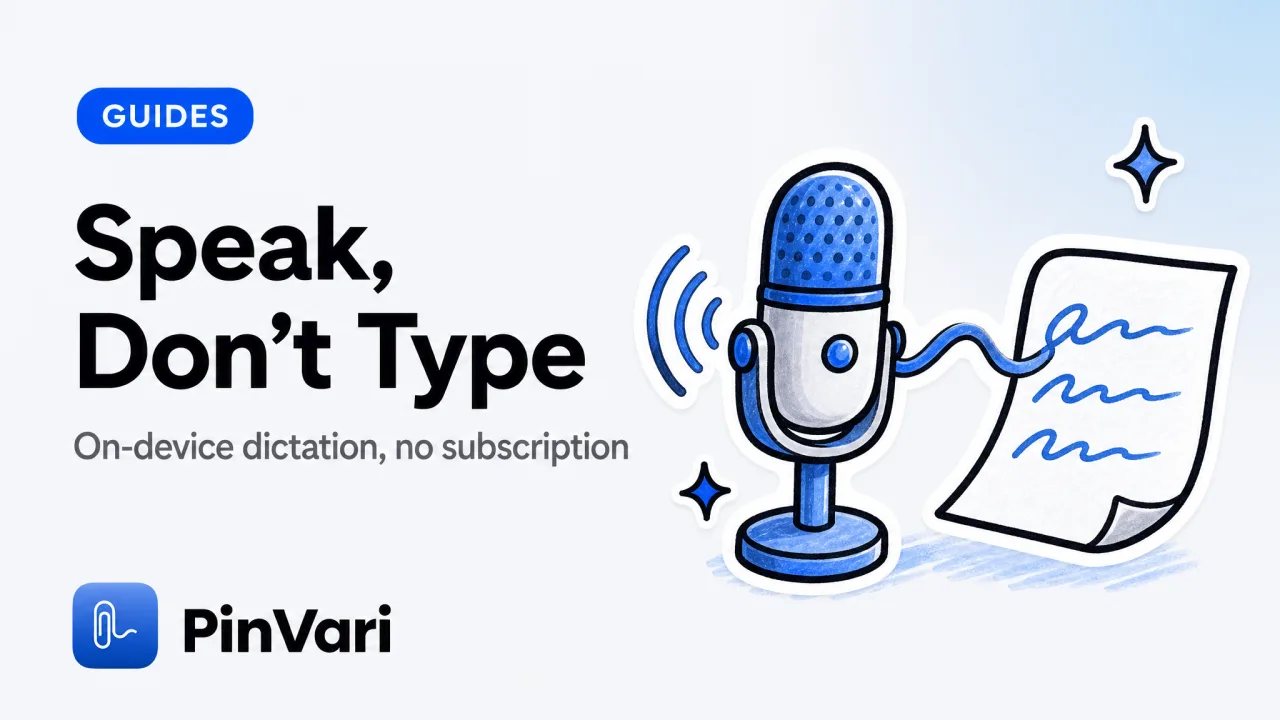
To talk to text on Mac, turn on Dictation in System Settings under Keyboard, then press the dictation shortcut (a double-press of the Control key by default) inside any text field and start speaking. On Apple Silicon Macs, dictation for many languages runs entirely on-device.
Your speech is transcribed locally without being uploaded. It works in Notes, Mail, your browser, or a terminal.
Most write-ups on how to talk to text on Mac stop at "turn it on" and never explain the tradeoffs between the built-in tools and the paid apps. For a Mac power user who buys one-time tools and avoids subscriptions, those tradeoffs are the whole decision.
How do you enable talk to text on Mac?
The built-in feature is called Dictation, and setup takes a minute.
- Open System Settings and go to Keyboard.
- Find Dictation and toggle it on.
- Confirm the language, and if prompted, allow the one-time download that enables on-device transcription.
- Note the shortcut. By default you press Control twice; on some keyboards it is the Globe/Fn key twice.
Now click into any text field, trigger the shortcut, and talk. A small microphone indicator appears, and your words become text.
Press the shortcut again or the Escape key to stop. Dictation understands basic punctuation and formatting by voice, so saying "new line" or "comma" inserts them instead of the literal words.
It also handles "period," "question mark," and "new paragraph." That is enough for drafting an email or a commit message without touching the keyboard.
You can change the trigger under the same Dictation settings if the double-Control tap conflicts with something you use. Pick a speech to text mac shortcut you will not fire by accident, because a stray double-tap in the wrong field is annoying.
If dictation feels laggy or requires a network, you are probably on a language or an older Mac that does not support the on-device model. On Apple Silicon, install the on-device language pack when prompted.
Is talk to text on Mac private, or does it upload my voice?
This is the question the persona actually cares about. On modern Apple Silicon Macs, Dictation for supported languages is processed on-device, so your audio does not leave the machine.
The caveat: unsupported languages, older Intel Macs, or certain features may fall back to server-based processing. If privacy is the point, verify your language shows as on-device, and check that no continuous listening is enabled beyond the dictation session.
A few habits improve accuracy without giving up privacy. Speak in complete phrases rather than one word at a time, because on-device models use surrounding words to disambiguate.
Add technical terms to the macOS text-replacement list so a name it keeps mangling gets corrected automatically. If a word comes out wrong, fix it by voice or keyboard immediately.
The system does not learn a permanent custom vocabulary the way some cloud services claim to. Consistency comes from your own shortcuts, not from a server profiling your speech.
This is also where paid cloud apps lose their shine. Many popular dictation apps for Mac run a subscription and process speech in the cloud for accuracy.
You trade money and privacy for a modest transcription bump. For a lot of writing, built-in on-device dictation is enough, and it is free.
If you want the full rundown of the native path, see our guide to voice to text on Mac.
Built-in Dictation vs Voice Control vs paid apps
macOS actually ships two different voice features, and they get confused constantly. Dictation types what you say into a text field.
Voice Control is an accessibility feature that lets you operate the entire Mac by voice, including clicking, scrolling, and issuing commands. If you want to talk to type on your MacBook, you want Dictation.
If you want to run the machine hands-free, that is Voice Control. For a Mac power user who already owns one-time tools, the instinct is to reach for another utility.
A launcher or a screenshot tool does not replace Dictation for general text. Most standalone dictation apps for Mac are billed monthly.
If you dislike subscriptions, that pushes you toward the free built-in path for everyday writing. Pay once only for a job the system genuinely cannot do.
macOS Dictation
Cost: Free.
On-device: Yes (Apple Silicon, many languages).
Best for: Everyday talk to type Mac.
macOS Voice Control
Cost: Free.
On-device: Yes.
Best for: Full hands-free control.
Paid dictation apps
Cost: Subscription.
On-device: Often cloud.
Best for: Higher accuracy, custom vocab.
Point-and-speak for agents
Cost: One-time.
On-device: Yes.
Best for: Voicing UI instructions to a coding agent.
Do not pay a subscription before you have tried on-device Dictation for a week. For most writing, the free built-in tool is accurate enough, and it keeps your voice on your own Mac.
When is built-in dictation not the right tool?
Dictation is built to put words into a text field. It is not built to tell an AI coding agent which button on your screen looks wrong.
That is a different job, and it is where the native tool runs out. Say you are reviewing your own app and the spacing on a toolbar icon is off.
You could dictate a long description into your agent's prompt: "the third icon from the left in the top toolbar, the one that looks like a gear." That is slow, it is imprecise, and the agent still has to guess which element you mean.
The better pattern for that specific task is point-and-speak. On a Mac, the accessibility API can resolve the exact element under your pointer, so you point at the icon, speak, and the agent gets a named target instead of a paragraph of hedging.
The distinction is worth keeping straight. Dictation answers "put my words into this field." Point-and-speak answers "act on the thing I am looking at."
A general dictation app can transcribe your description of a bug, but it cannot tell the agent which of five similar buttons you mean. That resolution step is the part that saves you from the back-and-forth of the agent editing the wrong element.
PinVari is built around this. You hold a hotkey, circle or point at the element, and talk; it resolves the named accessibility element with a confidence score, transcribes on-device, and hands the instruction to your own coding agent over a local MCP server.
There is also a voice-only mode when you just want to speak a note without pointing. It is push-to-talk, which is why it pairs naturally with the workflow in push-to-talk voice for Claude Code on Mac.
Crucially for this reader, it is on-device with nothing uploaded by default, and it is a one-time purchase rather than another monthly bill. If a subscription voice app is what you were about to buy, weigh it against a Wispr Flow alternative first.
PinVari's pricing is a single license on the pricing page.
FAQ
What is the shortcut to talk to text on Mac?
By default you press the Control key twice to start dictation, and press it again or Escape to stop. On some keyboards the trigger is a double-press of the Globe or Fn key. You can change it in System Settings under Keyboard, Dictation.
Is Mac dictation free?
Yes. Dictation is built into macOS at no cost, and on Apple Silicon it runs on-device for many languages. You only pay if you choose a third-party app for higher accuracy or custom vocabulary.
Does talk to text on Mac work offline?
On Apple Silicon Macs with a supported language, dictation runs on-device and works without a network. Older Macs or unsupported languages may require a server connection, so check that your language shows as on-device.
What is the difference between Dictation and Voice Control on Mac?
Dictation converts speech to text inside a text field. Voice Control is an accessibility feature that operates the whole Mac by voice, including clicking and navigating.
Are paid dictation apps for Mac worth it?
Only if the built-in tool leaves a real gap. Many paid dictation apps for Mac charge a subscription and process speech in the cloud, so you trade money and privacy for accuracy.
Can I use voice to instruct an AI coding agent on Mac?
Yes, but general dictation is a blunt tool for it. A point-and-speak app resolves the exact on-screen element you mean and hands your agent a precise instruction.
Hand your agent the exact element
PinVari resolves what you point at into a named, executable instruction — on-device, no keys, your own agent. One click inside PinVari connects Claude Code, Cursor, VS Code or Codex — or paste one CLI line from pinvari.com/connect.
PinVari → Connect → your agent (one click)Get PinVari — $39 →