Mac Menu Bar Apps: Essential Utilities for Developers
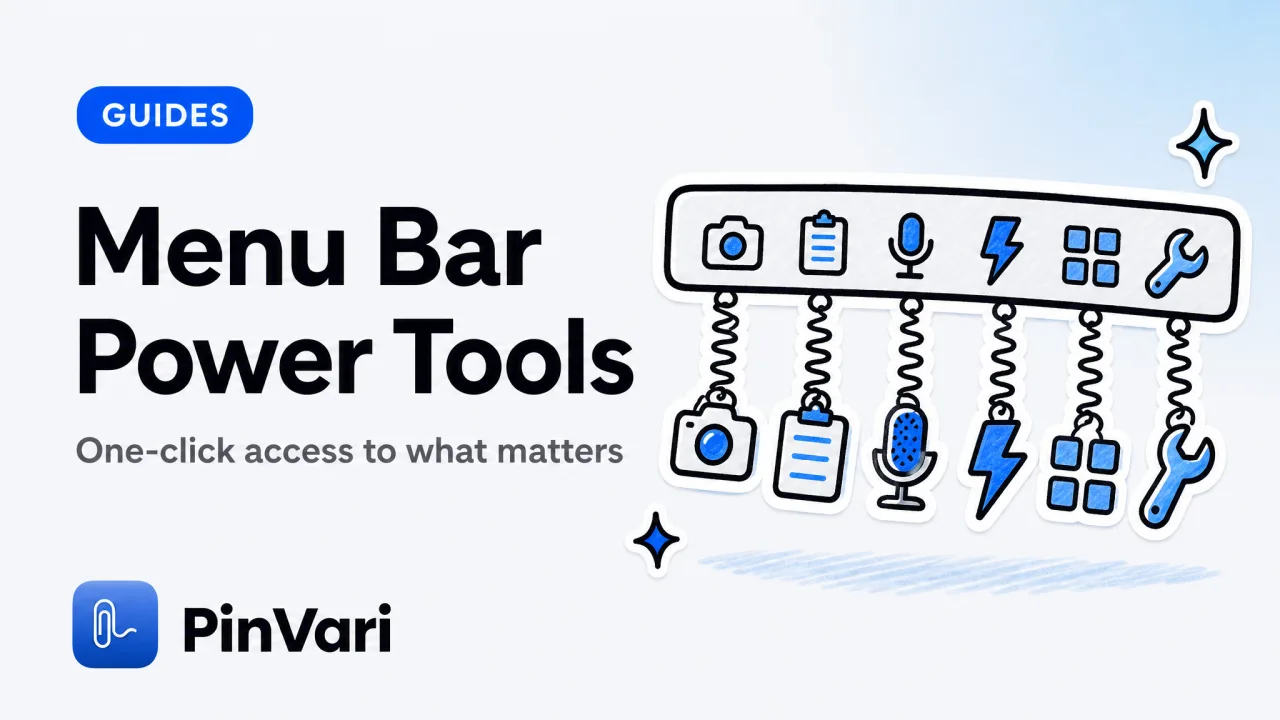
Mac menu bar apps sit in the top-right corner of your screen and surface the exact tool you need with one click, no window switching, no dock searching. The best menu bar apps for developers are single-purchase utilities that hook into macOS frameworks (screenshots, clipboard, hotkeys, Accessibility) without uploading your data.
Most "productivity suites" bundle features you'll never use; the fastest workflow is a curated set of small, specific tools you actually open every hour.
Mac menu bar apps: What makes a menu bar app worth installing?
A menu bar app earns a permanent spot when it solves a problem faster than the built-in macOS alternative and stays out of your way the rest of the time. CleanShot X ($39 one-time) captures, annotates, and pins screenshots without touching the Photos library; the default ⌘⇧4 dumps raw PNGs to your desktop.
Raycast (free, Pro $8/mo) replaces Spotlight with extensions that control Spotify, translate text, and run scripts, all keyboard-driven. Alfred (free, Powerpack £34 one-time) does the same with workflows and clipboard history.
The pattern: these tools use global hotkeys (CGEventTap to intercept keystrokes system-wide) and the Accessibility API (AXUIElement to read window titles, focused text fields, or UI hierarchies). That's why none ship through the Mac App Store, the MAS sandbox forbids both.
You download a notarized Developer-ID DMG, drag to /Applications, and grant Accessibility + Screen Recording permissions in System Settings → Privacy & Security.
Check System Settings → Privacy & Security → Screen Recording after installing any menu bar app that captures screenshots or reads window content. macOS blocks access until you manually enable it.
Which menu bar apps do developers use daily in 2026?
Skip the wide grid. Read each option as a card.
#
CleanShot X
Price: $39 one-time
What it does: Screenshot + annotate + OCR
Why developers pick it: Faster than ⌘⇧4; scrolling capture; no iCloud upload
#
Raycast
Price: Free / Pro $8/mo
What it does: Spotlight replacement + extensions
Why developers pick it: Window management, clipboard history, AI commands
#
Alfred
Price: Free / Powerpack £34 one-time
What it does: Launcher + workflows + clipboard
Why developers pick it: Text expansion, custom scripts, snippet library
#
Rectangle
Price: Free
What it does: Window tiling via hotkeys
Why developers pick it: Open-source Magnet alternative; ⌃⌥← snaps left half
#
Bartender
Price: $18 one-time
What it does: Hide/organize menu bar icons
Why developers pick it: Keeps 20+ menu apps from cluttering the notch area
#
PinVari
Price: $39 launch / $59 regular
What it does: Point-and-speak UI capture + MCP
Why developers pick it: Resolves exact AX elements; hands context to Claude Code/Cursor on-device
CleanShot X dominates because it does one thing, screenshots, better than anything built-in. Scrolling capture stitches tall pages, the annotation layer lets you draw arrows or blur API keys, and OCR runs on-device (Apple Vision framework).
The $39 license includes all future updates; no cloud account required.
Raycast vs Alfred comes down to taste. Raycast feels modern (Electron UI, faster extension installs), Alfred feels native (AppKit, more scriptable).
Both replace Spotlight with a smarter launcher that remembers your clipboard, calculates conversions inline, and triggers shell commands. Raycast Pro adds AI chat and cloud sync;
Alfred Powerpack adds workflows (multi-step automations).
Rectangle solves window tiling for free, ⌃⌥→ snaps the active window to the right half, ⌃⌥⏎ maximizes, ⌃⌥C centers. It's the open-source answer to Magnet ($8) and Moom ($10).
Unless you need multi-monitor profiles or saved layouts, Rectangle is enough.
Bartender ($18) hides menu bar icons you rarely click, keeping the notch area clean on 14"/16" MacBook Pros. You set rules, always show Wi-Fi/battery, hide everything else until hovered.
The alternative is manually rearranging icons by ⌘-dragging them, which macOS forgets on reboot.
PinVari ($39 launch, $59 after first 500 licenses) is the only menu bar app that understands what's on screen. Hold ⌥⌘A, circle any UI element, and speak, it resolves the exact named Accessibility element (role, label, frame, confidence score) and transcribes your words on-device (Apple Speech framework).
It then hands a resolved instruction to Claude Code, Cursor, or another AI coding agent over a local MCP server (127.0.0.1:3402). No API keys, no cloud upload.
The moat: macOS exposes AXUIElementCopyElementAtPosition → PinVari walks the window list, hit-tests the real app (not its own overlay), and reads the label/value/parent chain. Chromium builds its AX tree lazily, so PinVari sets AXManualAccessibility and retries until a labeled element appears (~150ms).
When you circle a button in Figma and say "make this bigger," your agent receives the button's name, the cropped screenshot, and the instruction, executable, not a pixel guess.
How do you connect a menu bar app to your AI coding workflow?
AI coding agents like Claude Code and Cursor see your code but not your screen. They can read src/Button.tsx but they can't tell you which button looks wrong in the browser without a screenshot and the element's name.
The gap: pointing at a bug vs handing executable context.
CleanShot X captures and annotates, but you still paste the screenshot into chat and type "the blue button in the top-right." The agent sees pixels; it can't click, can't edit the element, can't confirm it fixed the right thing.
PinVari bridges this with MCP. Install it, open PinVari → Connect → Claude Code (or Cursor / VS Code), and it adds ~/.pinvari/mcp/pinvari-mcp to your agent's MCP config. One click.
Now when you hold ⌥⌘A, circle a UI element, and speak, the agent receives:
- The resolved AX element path (app → window → group → button "Submit")
- The spoken instruction ("change the color to #3B82F6")
- The cropped screenshot of the circled region
- The confidence score (0.0-1.0; below 0.8 asks you to confirm)
The agent can edit Button.tsx, rebuild, and request another capture (pinvari_request_capture MCP tool) to verify the fix, all in one conversation. No re-screenshotting, no ambiguous "that button."
To connect PinVari to Claude Code via CLI:
claude mcp add --scope user pinvari -- "$HOME/.pinvari/mcp/pinvari-mcp"
The app must be installed and running (the connector talks to it on 127.0.0.1:3402). Never run claude mcp add pinvari bare, it errors.
If you're on Cursor, open Settings → MCP → Add Server → Local, point to ~/.pinvari/mcp/pinvari-mcp. Restart the editor.
Now ⌥⌘A captures flow into Cursor's context automatically.
What are the best free vs paid menu bar apps?
Free and complete:
- Rectangle , window tiling, zero upsell. - Raycast (base) , Spotlight replacement, clipboard history, window management, calculator, file search.
Pro ($8/mo) adds AI chat and cloud sync, but the free tier covers 90% of daily use. - Itsycal , tiny calendar in the menu bar; syncs with macOS Calendar.
- AlDente (free tier) , battery charge limiter to extend MacBook lifespan (caps at 80%).
Worth the one-time purchase:
- CleanShot X ($39) , if you screenshot more than twice a day, you'll recoup the cost in saved time. Scrolling capture alone justifies it.
- Alfred Powerpack (£34) , if you write the same text snippets (email signatures, code boilerplate) or run shell scripts hourly, workflows pay off fast. - Bartender ($18) , if you have 15+ menu bar apps and a 14" notch, this is mandatory.
- PinVari ($39 launch) , if you're shipping with Claude Code or Cursor, pointing at bugs beats typing descriptions every time.
Magnet's advantage: MAS convenience and saved multi-monitor layouts.
FAQ
#
What's the difference between a menu bar app and a dock app?
Menu bar apps live in the top-right corner (next to Wi-Fi, battery, date) and usually run background utilities, screenshot tools, clipboard managers, hotkey launchers. Dock apps live at the bottom (or side) and represent full-window programs, browsers, IDEs, Slack.
Many tools (Raycast, CleanShot X, PinVari) offer both: a menu bar icon for quick access and a full window for history or settings. You can hide the dock icon in the app's Preferences if you only need the menu bar interaction.
#
Can I use PinVari with Cursor or just Claude Code?
PinVari connects to any MCP-compatible agent over the local server at 127.0.0.1:3402. Claude Code and Cursor both support MCP natively, one-click setup in the app or a single CLI command.
VS Code with Codex, Zed, and Windsurf also work; you point each to ~/.pinvari/mcp/pinvari-mcp. The full connection docs live at pinvari.com/mcp.
The agent receives the pinvari_next_instruction tool (returns the resolved element, transcript, cropped screenshot) and pinvari_mark_done (closes the capture). Check the cursor-mcp guide for Cursor-specific setup.
#
Are there any good free alternatives to CleanShot X?
Shottr (free, no upsell) is the closest: fast capture, basic annotation (arrows, text, blur), scrolling capture, OCR, and cloud upload. It's missing CleanShot's pin-to-desktop and self-timer, but it covers 80% of the workflow at $0.
Xnapper (free tier with watermark, $20/yr removes it) adds aesthetic frames around screenshots, great for social media, less useful for bug reports. The built-in ⌘⇧4 → Preview → annotate flow works if you screenshot once a day; it breaks down at 10+ captures daily.
#
How much RAM do menu bar apps use?
Most sit under 100 MB idle. CleanShot X (~80 MB), Raycast (~120 MB), Alfred (~60 MB), Rectangle (~20 MB).
PinVari uses ~90 MB idle, spikes to ~200 MB during on-device transcription (Apple Speech framework processes audio in-memory), then drops back. If you're running 10+ menu bar apps, budget ~1 GB total.
The real memory hog is usually your browser (Chrome/Arc at 2-4 GB) or IDE (VS Code/Cursor at 1-2 GB).
#
Do menu bar apps slow down my Mac?
Not unless they run constant background tasks. CleanShot X, PinVari, and Rectangle are idle until you trigger a hotkey, zero CPU.
Raycast and Alfred index files in the background (similar to Spotlight), which uses ~5-10% CPU for a few minutes after boot, then drops to 0%. Bartender runs a timer to check for new menu bar icons (~1% CPU).
The slowdown you feel is usually login items (System Settings → General → Login Items), 10+ apps launching at boot. Disable what you don't need running 24/7.
#
Can I try PinVari before buying?
PinVari offers a 14-day trial (no credit card required). Download from pinvari.com, install, grant Accessibility + Screen Recording permissions, and try the ⌥⌘A workflow with a test capture.
Connect it to Claude Code or Cursor via the one-click installer (PinVari → Connect) and point at a UI element in your browser or IDE to see the resolved element + transcript flow into your agent. If it doesn't save you 10 minutes in the first week, it's not worth $39.
The trial includes all MCP features, multi-display support, and full text capture (up to 40,000 characters scrolled out of view).
Hand your agent the exact element
PinVari resolves what you point at into a named, executable instruction — on-device, no keys, your own agent. One click inside PinVari connects Claude Code, Cursor, VS Code or Codex — or paste one CLI line from pinvari.com/connect.
PinVari → Connect → your agent (one click)Get PinVari — $39 →