How to Transcribe on Mac: Offline Voice-to-Text
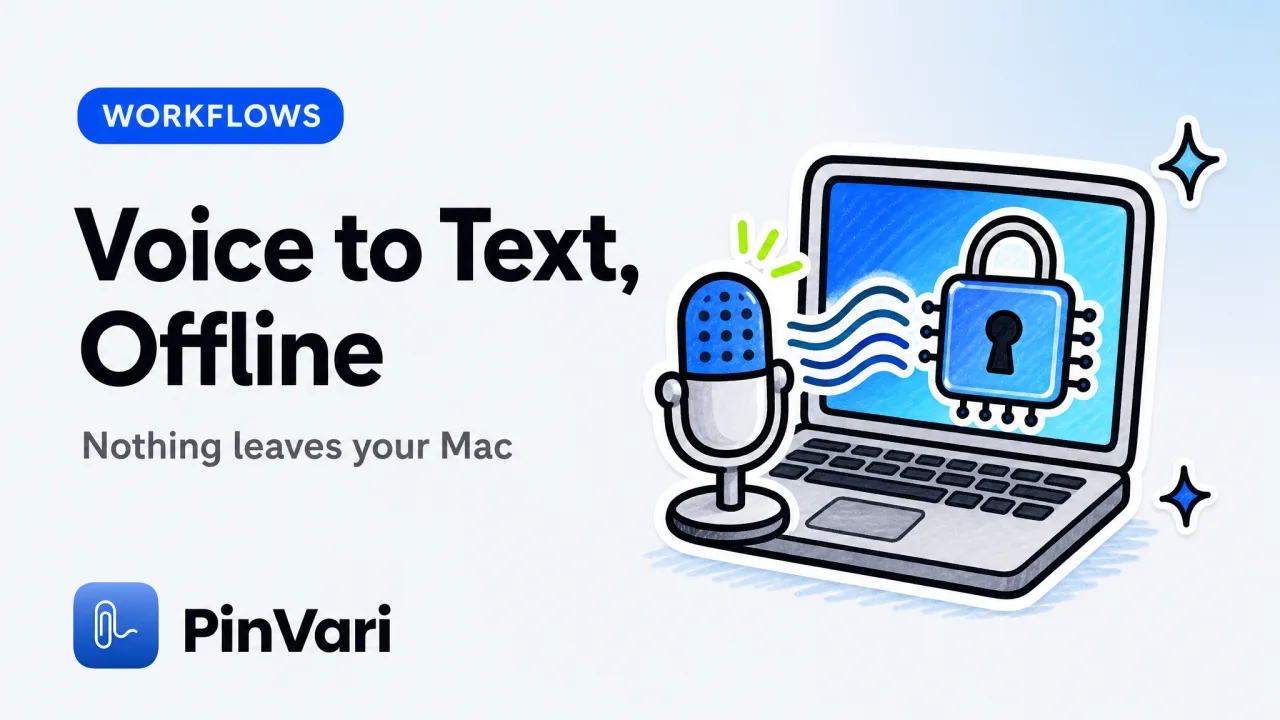
How to transcribe on Mac comes down to one built-in feature most people overlook: Dictation. Press the dictation shortcut (Fn Fn by default), speak, and macOS converts your voice to text on-device once you have downloaded the language pack, with no cloud upload and no subscription.
For longer audio files or higher accuracy you add a dedicated transcription app, but the free, private, offline path is already sitting in your keyboard settings. Most guides on how to transcribe on Mac push you straight to a cloud service, which is the wrong default if you care about privacy, cost, or working on a plane.
What is the fastest way to transcribe on Mac?
For live speech, it is macOS Dictation. Open System Settings → Keyboard → Dictation, turn it on, pick your language, and press the shortcut in any text field to start speaking.
The key detail people miss: modern macOS runs Dictation on-device once the language model is downloaded. Your audio does not leave the machine, there is no per-minute fee, and it keeps working with Wi-Fi off.
That single fact makes the built-in option the right starting point for most developers.
Dictation is tuned for real-time input into text fields, not for batch-transcribing a two-hour recording. For that job you want a tool that ingests an audio file and returns a full transcript, which is a different workflow covered below.
One more detail worth setting up front: the first time you enable Dictation, macOS downloads a language model in the background, and until that finishes it may route audio to Apple's servers. Wait for the download to complete, then confirm in the Dictation settings that on-device processing is active.
After that, everything you say stays local, which is the whole point of choosing the built-in option over a web transcriber.
"On-device" is the phrase that matters when you evaluate any Mac transcription option. If the tool uploads your audio to transcribe it, you are trading privacy and offline capability for a marginal accuracy bump you may not need.
How to transcribe on Mac offline with no cloud?
Learning how to transcribe on Mac without a network call comes down to two clean routes, and which one you pick depends on whether you are transcribing live speech or an existing file.
For live voice-to-text, use Dictation as above. Enable it once, and the on-device speech recognizer handles anything you say into a text field, terminal note, or chat box.
For transcribing an audio file offline, you want a local speech-recognition engine. Open-source Whisper builds and their Mac-native wrappers run entirely on Apple Silicon, so you can drop in an .m4a or .wav and get a transcript back without a network call.
These lean on the same on-device AI capabilities covered in the best local AI for Mac guide.
The tradeoff is setup. Built-in Dictation is zero-config; a local file transcriber needs a one-time install and a model download, after which it too runs fully offline.
Model size is the lever worth knowing about with local file transcription. Smaller models transcribe fast and fit comfortably in memory, while larger ones are noticeably more accurate on accents and technical terms but take longer per minute of audio.
On an Apple Silicon Mac the medium-size models hit a good balance, and because everything runs on the Neural Engine and GPU, you can leave a long recording processing in the background while you keep working.
If you dictate into your editor all day, remap Dictation to a single key or a hotkey you can hold. The friction of a two-key toggle is the reason most people abandon built-in dictation before it becomes a habit.
Built-in Dictation vs dedicated transcription tools
The built-in option covers most needs, but there are real reasons developers reach for something more. Here is the honest comparison across the axes that actually change your decision.
Skip the wide grid. Compare options as cards.
macOS Dictation
Runs offline: Yes, after the language download.
Cost: Free.
Best for: Live voice-to-text in any field.
Weak spot: Long files and custom vocabulary.
Local Whisper build
Runs offline: Yes.
Cost: Free or a one-time wrapper.
Best for: Batch file transcription.
Weak spot: Setup and a model download.
Cloud transcription service
Runs offline: No.
Cost: Per-minute or a subscription.
Best for: Speaker labels and huge archives.
Weak spot: Uploads your audio and keeps billing.
Push-to-talk voice app
Runs offline: Yes, when the engine is on-device.
Cost: One-time or a subscription.
Best for: Fast dictation into tools.
Weak spot: Not built for long recordings.
The takeaway for a Mac power user who hates subscriptions: the free, on-device path handles the 90% case. You only need a paid tool when you require speaker diarization, a large searchable archive, or app-aware output that drops your words into the right place automatically.
Push-to-talk voice input is its own category worth knowing, especially if you code with an agent. The push-to-talk voice for Claude Code on Mac guide walks through why holding a key to speak beats typing long prompts.
When does on-device transcription fail, and how do you fix it?
On-device transcription is good, not perfect, and knowing where it stumbles saves you a lot of re-recording.
The common failure modes are predictable. Heavy background noise degrades accuracy fast, since the on-device model has less compute than a datacenter to clean the signal.
Technical vocabulary and proper nouns get mangled, because a general language model has never seen your framework's API names. And very long single utterances can drift, as the recognizer loses context.
The fixes are equally practical. Speak in short, complete phrases and let the recognizer commit each one. Add a custom vocabulary or text-replacement entries for the terms you use constantly.
Use a decent microphone; the built-in one is fine in a quiet room and poor in a cafe.
If accuracy matters for a specific recording, do not trust any single pass blindly. On-device engines trade a few accuracy points for privacy and offline use, so proofread transcripts of anything important before you act on them.
For live coding dictation specifically, the mangled-vocabulary problem is the big one. That is exactly why tools aimed at developers pair transcription with screen context, so the words land on the right target even when a proper noun comes out slightly wrong.
There is also an environment factor people underestimate. On-device recognition shares your Mac's compute with whatever else is running, so a heavy build or a busy browser can slow the recognizer or make it drop the tail of a sentence.
If you dictate long passages while the machine is under load, expect more corrections than you would on an idle laptop, and pause your background jobs first when accuracy matters. Knowing how to transcribe on Mac reliably is as much about the conditions you record in as the tool you pick.
Turning transcription into action for AI coding agents
Raw transcription answers "what did I say." The more useful question for anyone building software is "what did I mean, and about which thing on screen." That gap is where transcription alone stops being enough.
PinVari closes it. You hold ⌥⌘A, circle a control on screen, and speak; it transcribes your voice entirely on-device using Apple frameworks, then resolves the exact named accessibility element you circled, with a confidence score and whether you pointed or dwelled.
Your spoken "this" binds to the real UI element, not a vague pixel region.
The transcript then travels with that resolved element to your own agent over a local MCP server, which is a cleaner way to give Claude Code the context it needs than pasting a wall of text. Nothing is uploaded by default, you bring your own agent, and it is a one-time $39 launch license rather than a monthly voice subscription.
Transcription is the first step; resolved, spoken instructions are the payoff.
FAQ
How do I transcribe on Mac for free?
Use the built-in Dictation feature. Turn it on in System Settings → Keyboard → Dictation, download your language pack, and press the dictation shortcut in any text field to convert speech to text on-device at no cost.
Does Mac transcription work offline?
Yes. Modern macOS Dictation runs on-device once the language model is downloaded, so it transcribes with Wi-Fi off and never uploads your audio. Local Whisper builds also transcribe audio files fully offline on Apple Silicon.
How do I transcribe an existing audio file on Mac?
Built-in Dictation is designed for live input, so for a saved file use a local speech-recognition tool such as a Mac-native Whisper build. Drop in the audio and it returns a transcript without a network call, which keeps the recording private.
Is on-device transcription as accurate as cloud services?
For clear speech in a quiet room it is close. Cloud services pull ahead on noisy audio, speaker labeling, and rare vocabulary because they run larger models, but they cost money per minute and require uploading your audio, which many developers will not accept.
Can I dictate directly into my code editor?
Yes. Dictation works in any standard text field, including most editors. For a smoother developer workflow, push-to-talk voice tools let you hold a key, speak, and release, which suits short bursts of dictation better than a toggle.
What is the most private way to transcribe on Mac?
Keep everything on-device. Built-in Dictation and local Whisper builds both process audio locally with no upload, which is the only setup where your voice data never touches a third-party server.
Hand your agent the exact element
PinVari resolves what you point at into a named, executable instruction — on-device, no keys, your own agent. One click inside PinVari connects Claude Code, Cursor, VS Code or Codex — or paste one CLI line from pinvari.com/connect.
PinVari → Connect → your agent (one click)Get PinVari — $39 →