How to Evaluate a Website Design: PM Review Checklist
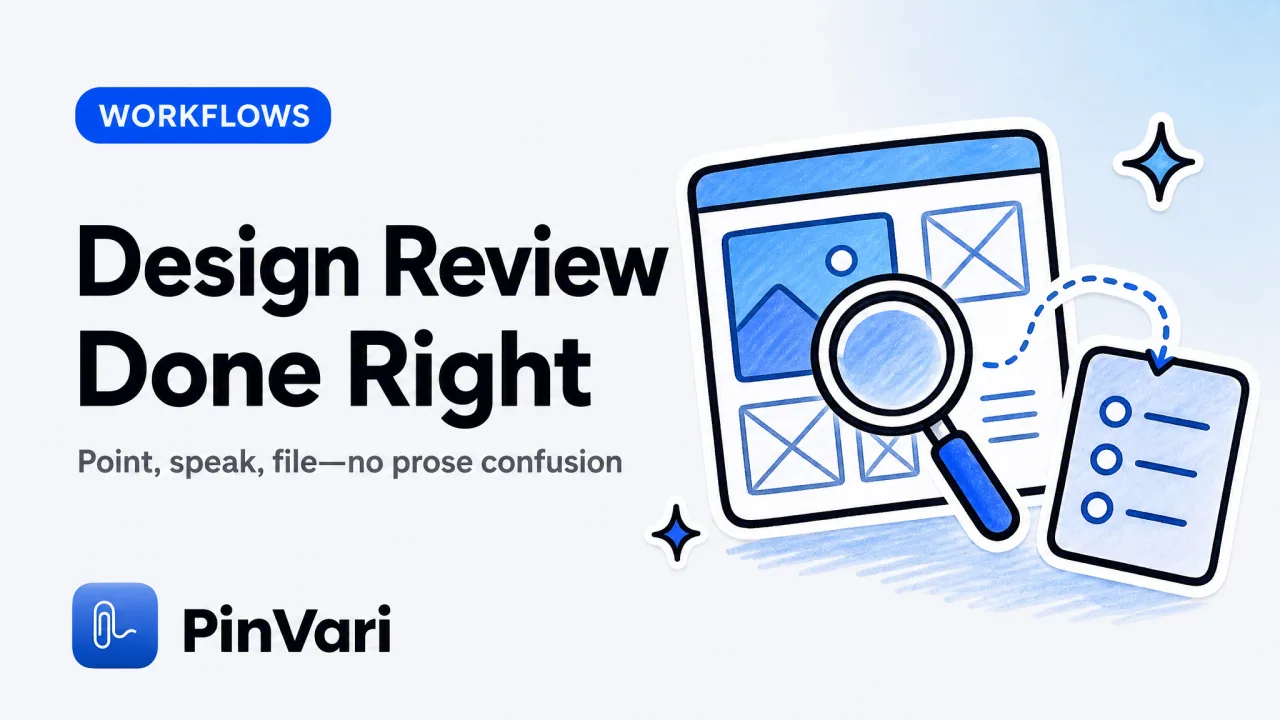
How to evaluate a website design: circle the exact element on screen, speak what needs fixing, and file a named instruction—role, label, frame—to your developer or AI agent. Traditional screenshot-and-text feedback forces the recipient to guess which "Submit button" you meant; the 2026 PM workflow resolves the accessibility tree node and hands back an executable instruction.
Most design-review articles suggest prose in Slack, pixel rulers in Figma, or annotated screenshots in Jam.dev. Those work until you have three identically styled buttons on one page, or your feedback lands in an Electron app where pixel coordinates shift when the window resizes. The missing layer: knowing the named UI element under your pointer—the thing the developer's code and the agent's toolchain both understand.
What does it mean to evaluate a website design as a product manager?
You verify that the build matches the spec, that interactive elements are correctly labeled and reachable, and that edge cases (empty states, error messages, disabled buttons) render as designed. Evaluation is not aesthetic opinion; it's a checklist against acceptance criteria.
The fastest path is to point at the element in question and speak the change. A traditional review workflow asks you to screenshot, open an annotation tool, draw an arrow, type "change this to 16px Semibold", export the image, paste it into Linear or Slack, and hope the developer infers which of the four "Learn More" links you circled. The 2026 workflow: press ⌥⌘A, circle the element, say "change to 16px Semibold," and watch a named instruction land in your issue tracker or flow to your AI coding agent with the exact AXButton title, role, and frame already resolved.
Evaluating a website design means confirming that what you see on screen is what the accessibility tree says it is. If a button shows "Submit" but its AXTitle is empty, a screen reader sees nothing—and your feedback tool can't name it either. Check the accessibility tree before you file the ticket.
Key point: The accessibility tree is the source of truth for UI element identity. If an element has no AXTitle, AXLabel, or AXDOMIdentifier, your feedback will default to pixel coordinates or OCR—both fragile when the layout changes.
How do you capture the exact element you're reviewing?
Hold a hotkey, circle or point at the element, and speak your instruction. The app screenshots the region, transcribes your words on-device, and resolves the accessibility element under your pointer—its role (button, link, text field), label, and frame.
PinVari uses macOS AXUIElementCopyElementAtPosition to hit-test the point where you drew the circle. If you land on a bare AXGroup, it descends to the deepest labeled child. Chromium builds its AX tree lazily, so the resolver sets AXManualAccessibility and retries (~150ms) until a labeled node appears. The result: a named element with a confidence score. Below 0.8, the tool asks you to confirm; it never guesses silently.
Concrete steps:
- Open the website or app in its live environment (staging URL, local dev server, production).
- Press ⌥⌘A to start marking.
- Circle the element you're reviewing. The ink trail is lime green; you can mark multiple regions in one breath.
- Speak your feedback: "This should be 16px Semibold" or "Move this 8px left" or "Change the label to 'Continue'."
- Press ⌥⌘A again or hit ⏎ to finish. The capture collects in the notch island.
- Click File to Linear or Send to Agent. The resolved element path, your spoken words, and a cropped screenshot flow to the destination.
The developer receives a ticket with the exact AXButton[title="Submit"][frame=CGRect(x: 1234, y: 567, width: 120, height: 44)] and your instruction. No guessing. If you're using Claude Code or Cursor, the agent reads the instruction and applies the change in the next edit.
Tip: For surfaces where the AX tree is empty (HTML5 canvas, some Unity WebGL), the fallback is on-device Vision OCR. The tool still captures the region and your words, but the element name comes from OCR text instead of a labeled node. Confidence drops to ~0.6–0.8; confirm before filing.
What should you check when evaluating a website design?
Run through this PM review checklist. Each item maps to a specific on-screen element you can circle and annotate.
| Item | What to verify | How to capture |
|---|---|---|
| Typography hierarchy | Heading sizes, weights, line-heights match the design system | Circle the heading; speak the correct size/weight |
| Interactive states | Hover, focus, active, disabled states render correctly | Trigger the state, then circle and describe |
| Button/link labels | Labels are clear, accessible, match spec | Circle the button; the AX tree shows the real label |
| Spacing/alignment | Margins, padding, grid alignment match Figma/spec | Circle the region; speak the correct spacing |
| Empty states | Placeholder text, illustrations, CTAs appear when data is missing | Navigate to the empty state, then mark it |
| Error messages | Form validation messages are helpful, positioned correctly | Trigger the error, circle the message, speak fix |
| Responsive breakpoints | Layout adapts at 768px, 1024px, 1440px (or your breakpoints) | Resize the window; capture at each breakpoint |
| Load states | Spinners, skeleton screens, progress indicators show while data loads | Throttle network; capture the loading state |
| Accessibility labels | All interactive elements have non-empty AXTitle, AXLabel, or AXDescription | Check the accessibility tree view; circle unlabeled elements |
Circle the element, speak the change, file the ticket. No screenshot markup tool, no ambiguous arrows. The checklist item becomes a named instruction.
How do you route design feedback to developers or AI agents?
Once the element is resolved, you have three paths: file to an issue tracker, send to a shared page, or hand it to your AI coding agent.
Linear/GitHub: Click File to Linear in the Command Center. The app creates a new issue with the element path, your spoken instruction, and the cropped screenshot attached. The title is auto-generated from your words ("Change Submit button to 16px Semibold"). The developer opens the ticket and sees the exact element to edit.
AI agent (Claude Code, Cursor, Codex, Zed): If you've connected PinVari's MCP server (one-click setup in the app, or claude mcp add --scope user pinvari -- "$HOME/.pinvari/mcp/pinvari-mcp"), the agent receives the instruction via pinvari_next_instruction. The tool returns the element role/title/frame, your words, and a cropped screenshot. The agent applies the change in the next edit cycle. See Claude Code MCP for the full flow.
Shareable page: Export the capture to a unique URL. Paste the link in Slack or email. The recipient sees the annotated screenshot, the element metadata, and a playback of your spoken feedback. No login required.
All three paths start with the same action: ⌥⌘A, circle, speak. The routing decision happens after the element is resolved, not during the capture. This means you can review ten elements in one session, then batch-file them to Linear or send a summary to the agent.
Warning: If the website is rendered inside an <iframe> from a different origin, the accessibility tree stops at the iframe boundary. PinVari will resolve the AXWebArea for the parent page but cannot descend into cross-origin iframes. Fallback: on-device OCR captures the visible text, but you lose the named element. Solution: review in the iframe's direct URL, not the embedding page.
What tools do product managers use to evaluate website designs in 2026?
Here's an honest comparison of the tools PMs reach for when reviewing builds. Each has strengths; the table shows where each one wins and where it stops.
| Tool | Price | Best for | Limitation |
|---|---|---|---|
| Jam.dev | Free | Browser bugs, console-log capture | Chromium/browser only—no native apps, no voice |
| Marker.io | $39+/mo | Website annotation for agencies | Browser-only, no native macOS apps |
| CleanShot X | $29 one-time | Pixel-perfect screenshots, scrolling | Zero understanding of UI elements |
| Figma | Free–$12/seat/mo | Design spec truth, pixel rulers | No live-site capture, no element resolution |
| PinVari | $39 one-time | Named-element feedback, agent routing | macOS only; AX-blind on canvas/some Unity |
The choice depends on where the build lives. If you're reviewing a staging URL in Chrome, Jam.dev is fast and free. If you're reviewing a native macOS app, an Electron build, or a browser window alongside an IDE, PinVari resolves the named element across all three. If you need console logs, Jam wins. If you need the element's accessibility identity and want to route feedback to an AI agent, PinVari is the tool.
How does pointing at an element differ from screenshot annotation?
Screenshot annotation tools (Markup, CleanShot, Marker.io) let you draw arrows and text boxes on a frozen image. Pointing at an element (via the accessibility tree) resolves the live UI node—its role, label, frame, and parent chain—before the screenshot is taken.
The difference: an annotated screenshot is a pixel image with drawn overlays. If the developer resizes the window or the layout shifts, your arrow points at the wrong spot. A resolved element is a named reference: AXButton[title="Submit"][parent=AXGroup[title="Form Actions"]]. That reference stays valid even if the button moves, because the code structure hasn't changed.
Example: You review a form with three "Next" buttons (one in each multi-step section). You screenshot the page, draw an arrow to the middle button, and write "change to Continue." The developer sees three identically styled buttons and guesses wrong. With element resolution, the feedback says AXButton[title="Next"][parent=AXGroup[identifier="step-2-actions"]]—unambiguous.
Pointing also captures the moment you spoke each word. If you say "This should be larger" while hovering over a heading, the system timestamps "This" to the pointer's exact position at that instant. Deictic words ("this", "that", "here") bind to spatial coordinates, not to your memory of where you were looking.
What if the accessibility tree is empty or the element has no label?
Fallback: on-device Vision OCR. PinVari reads the visible text in the circled region and uses that as the element name. The confidence score drops to ~0.6–0.8, and the provenance tag shows "OCR fallback" instead of "AX resolved."
When this happens:
- HTML5
<canvas>elements (charts, games, custom drawing surfaces) - Some Electron windows that don't expose AX attributes
- Unity WebGL builds
- PDF embeds without tagged structure
You still get a cropped screenshot, your spoken words, and the OCR text. The instruction is less precise ("change the text that says 'Submit'" vs. AXButton[title="Submit"]), but it's enough for a developer to locate the element manually. For product feedback tools that require named elements, this is the known edge case.
Mitigation: If you control the codebase, add aria-label or accessibilityLabel to custom canvas controls. The AX tree will populate, and the next capture resolves the named element.
FAQ
How do you evaluate a website design without developer access?
Circle on-screen elements, speak your feedback, and file named instructions to Linear or a shared page. You don't need source code access; the accessibility tree is exposed by the OS for any visible window. The developer receives the element path (role, label, frame) and your spoken words. If you're working with an AI coding agent, connect PinVari's MCP server—the agent reads the instruction and applies the change autonomously.
What's the fastest way to review a website design for a client?
Press ⌥⌘A, circle the elements that need fixing, speak the changes in one breath, and export to a shareable page. Send the link. The client sees annotated screenshots, hears your voice playback, and reads the element metadata. No login, no back-and-forth Slack threads with ambiguous arrows. One capture session = one complete review.
Can you evaluate responsive breakpoints with this workflow?
Yes. Resize the browser to each breakpoint (768px, 1024px, 1440px), then capture at each width. Each mark remembers the window size and monitor it was drawn on. If an element shifts position between breakpoints, circle it at both widths and speak "this should stay left-aligned at 768px." The developer receives two captures with the same element at different frames.
How do you verify that a button's label matches the design spec?
Circle the button. The resolved element shows AXTitle or AXLabel. If the spec says "Continue" but the AX tree shows "Next," file the discrepancy. The accessibility tree is the runtime truth; the Figma file is the design intent. Reconcile them before shipping.
What if the website is built with a no-code tool (Webflow, Framer)?
Point-and-speak still works. Webflow and Framer render to HTML with standard accessibility attributes. Press ⌥⌘A, circle the element, speak the change. The resolved node will show the element's role and label. File the feedback to Linear or a shared page. The no-code builder's visual editor is the implementation layer; the accessibility tree is the contract.
Can you route feedback to an AI agent mid-review?
Yes. If your agent is connected via PinVari's MCP server, it can request a capture at any point (pinvari_request_capture). The notch island lights up, you circle and speak, and the capture flows back automatically. The agent reads the resolved element and continues the task. This closes the loop: you review, the agent fixes, you review again—all in one session. See Claude Code tutorial for the complete agent workflow.
Hand your agent the exact element
PinVari resolves what you point at into a named, executable instruction — on-device, no keys, your own agent. One click inside PinVari connects Claude Code, Cursor, VS Code or Codex — or paste one CLI line from pinvari.com/connect.
PinVari → Connect → your agent (one click)Get PinVari — $39 →