Best Productivity Apps for Mac (Developer Edition)
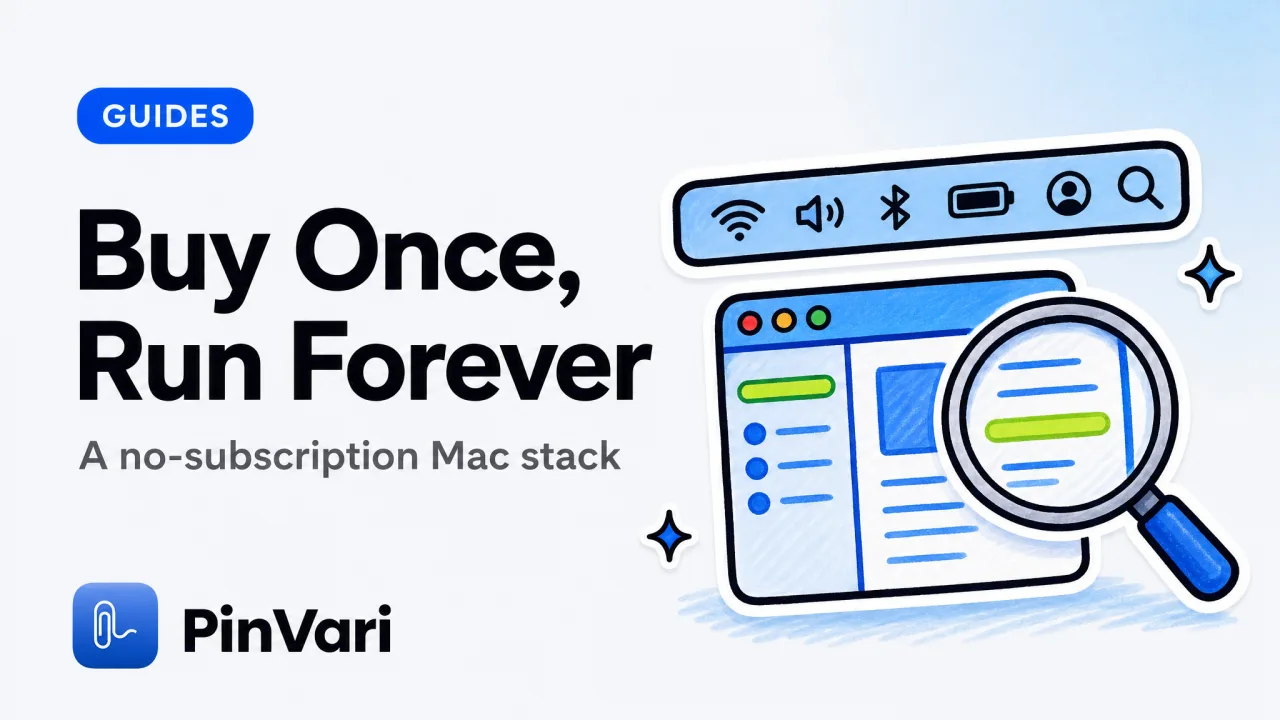
The best productivity apps for Mac developers are a launcher (Raycast), a screenshot tool (CleanShot X), a clipboard manager, and a window manager, and the good news is most of them are one-time purchases rather than subscriptions. The better news is that this stack has a gap nobody talks about: every tool in it moves or captures pixels, and none of them understand what the pixels actually mean.
Most roundups just list the same ten apps and stop. That misses the one category that changes how you work with an AI coding agent.
I buy Mac software the way I buy tools. Once, if it earns its keep, and I resent every app that turns into a monthly bill.
This is the stack that survived that filter, plus the one addition that most lists leave out.
What are the best productivity apps for Mac developers?
Start with the four categories that carry a developer's day, then fill each with the app that does one thing well. A launcher for everything you type, a screenshot tool for everything you show, a clipboard manager for everything you copy, and a window manager for everything you arrange.
Raycast is the launcher most developers settle on. It replaces Spotlight, runs scripts, manages window snapping through extensions, and stays fast.
The core app is free, which is rare for something this central.
CleanShot X is the screenshot king. Scrolling capture, annotation, pinned overlays, and a clean recorder, all for a one-time license.
If you have outgrown the built-in Screenshot app, this look at CleanShot X alternatives covers where it wins and where a lighter tool is enough.
A clipboard manager and a window manager round it out. Both are cheap, both save small amounts of time constantly, and both are the kind of app you forget is running until you switch to a Mac without it.
For a broader menu of the day-to-day utilities, this rundown of MacBook productivity apps goes past the core four into the smaller tools worth a menu bar slot.
Which Mac apps are worth a one-time purchase?
The subscription question is really a trust question. A tool you use every day, that stores nothing in the cloud, deserves a one-time price and an offline life.
A tool that syncs across devices and improves monthly can justify a subscription. Most of the best productivity apps for Mac fall into the first bucket.
Raycast
- Category: Launcher
- Pricing model: Free core, optional Pro
- What it does: Search, scripts, window snapping
- Runs offline: Mostly
CleanShot X
- Category: Screenshots
- Pricing model: One-time license
- What it does: Capture, annotate, record, pin
- Runs offline: Yes
Clipboard manager
- Category: Clipboard
- Pricing model: One-time, cheap
- What it does: History and paste stack
- Runs offline: Yes
Window manager
- Category: Layout
- Pricing model: One-time, cheap
- What it does: Snap and tile windows
- Runs offline: Yes
Screen-context layer
- Category: Understanding
- Pricing model: One-time
- What it does: Resolves the element you point at
- Runs offline: Yes
The pattern is that the tools that respect your machine also tend to respect your wallet. Local-first and one-time-purchase usually travel together, because a tool that never phones home has no recurring cost to pass on.
A good Mac stack should keep working on a plane with the Wi-Fi off. If an app breaks without a network connection, ask what it is sending and why.
That last card is the one most lists skip, so it is worth explaining what it fixes.
Where does every productivity stack still have a hole?
Every app above captures or moves pixels; none of them understand the screen. CleanShot X can grab a perfect picture of a broken button, but the picture is just pixels.
Raycast can launch anything, but it has no idea what is inside the window it launched.
This is fine until you add an AI coding agent to your setup, which most Mac developers now have. Then the hole opens up.
You look at a UI bug, you screenshot it, you paste it into your agent, and you type a description. The agent has to guess which coded element your screenshot is pointing at.
That guess fails often, because two controls that look alike are indistinguishable in a screenshot. A picture of the screen is not a pointer to an element.
The most capable stack in the world still leaves you narrating pixels to a model that cannot see them the way you do.
Adding more screenshot power does not close this gap. A sharper picture of the wrong-identified element is still the wrong element. The missing capability is understanding, not capture.
macOS actually solves this at the system level, and almost no productivity app takes advantage of it.
How do you add a screen-understanding layer without a subscription?
macOS exposes the UI element under any point through the Accessibility API. The call AXUIElementCopyElementAtPosition returns the control's role, title, value, frame, and parent chain, which is a precise, named handle on exactly what you are looking at.
What the macOS Accessibility API is used for explains why this record is the reliable way to identify a control, far more so than a screenshot.
A tool built on that API can turn "this button" into AXButton "Continue" inside AXGroup "login-card" with a confidence score. That is the screen-understanding layer the rest of the stack is missing, and it is what makes an AI agent stop guessing.
This is what PinVari adds. You hold ⌥⌘A, circle or point at any on-screen control, and speak.
It screenshots the region, transcribes on-device, resolves the named accessibility element under your pointer, and hands your own coding agent a resolved instruction over a local MCP server on 127.0.0.1. On surfaces with no accessibility labels, like a canvas or some Electron views, it falls back to on-device Vision OCR.
It fits the one-time, local-first philosophy of the rest of a good Mac stack. It is a notarized Developer-ID download, not a Mac App Store app, because the sandbox forbids the global hotkey and reading other apps' accessibility trees.
How AI agents know which UI element you mean covers the resolution logic in full if you want the engineering detail.
If you already run Raycast, CleanShot X, and a coding agent, the screen-context layer is the piece that makes them talk to each other. The screenshot shows the bug, the agent fixes it, and the element resolver tells the agent exactly which one you meant.
For developers wiring this into an agent workflow, a local MCP server for screen context shows how the handoff runs entirely on 127.0.0.1 with nothing uploaded.
Does a great Mac stack really need one more app?
If you never touch an AI coding agent, the launcher, screenshot, clipboard, and window quartet is genuinely enough. The screen-understanding layer earns its place the moment you start asking an agent to fix things you can see but cannot easily name.
Nobody buys a fifth app for its own sake. You buy it because the four you already own capture, launch, copy, and arrange, and not one of them can tell your agent which element is broken.
If that is the gap in your setup, PinVari closes it as a one-time purchase that lives in your menu bar with the rest.
FAQ
What are the best free productivity apps for Mac?
Raycast has a strong free core that replaces Spotlight and handles window snapping, and the built-in Screenshot and Notes apps are more capable than people assume. Beyond those, a free clipboard manager covers most daily needs. The paid upgrades are usually worth it, but you can build a solid stack without spending anything.
Are one-time-purchase Mac apps better than subscriptions?
For tools you use offline and that store data locally, a one-time purchase is usually the better deal and the more private choice. Subscriptions make more sense for apps that sync across devices or improve every month. The best productivity apps for Mac skew toward one-time buys because they run locally and rarely need a server.
What Mac apps do developers actually use?
Most developer stacks center on a launcher like Raycast, a screenshot tool like CleanShot X, a clipboard manager, a window manager, and a terminal. Add an AI coding agent and, increasingly, a screen-context layer that lets the agent understand which UI element you are pointing at.
Do these Mac apps upload my data to the cloud?
The local-first ones do not. Raycast runs mostly offline, CleanShot X keeps captures on your machine unless you choose to upload, and a screen-context layer like PinVari transcribes and resolves entirely on-device with nothing uploaded by default. Always check an app's network behavior if privacy matters to you.
Can these apps make an AI coding agent more accurate?
Yes, indirectly and directly. A screenshot tool helps you show the bug, and a screen-context layer directly improves accuracy by handing the agent the named element you circled instead of a pixel guess. That combination cuts down the wrong-element edits that waste time in an AI coding workflow.
Hand your agent the exact element
PinVari resolves what you point at into a named, executable instruction — on-device, no keys, your own agent. One click inside PinVari connects Claude Code, Cursor, VS Code or Codex — or paste one CLI line from pinvari.com/connect.
PinVari → Connect → your agent (one click)Get PinVari — $39 →