Talk to Type Mac: Voice Input Setup & Best Tools 2026
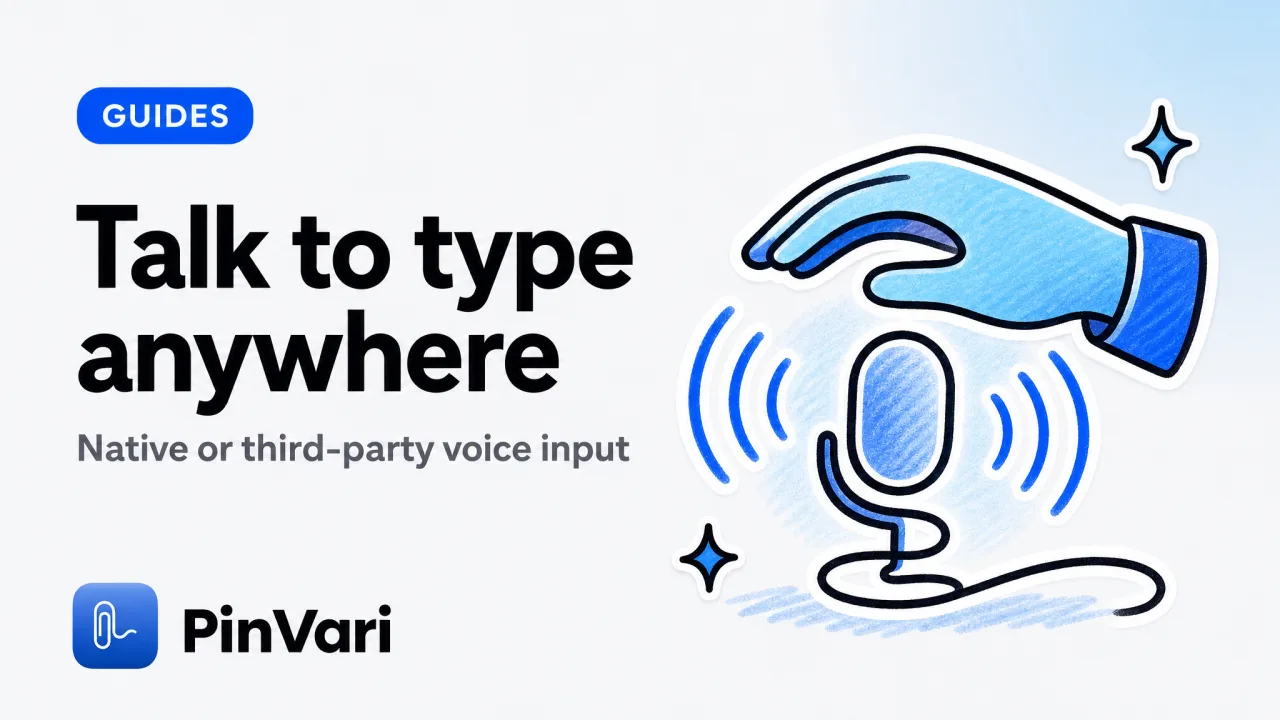
Talk to type Mac is dictation into any text field, plus the extra step of binding those words to a UI element when you are briefing an agent. Talk to type on Mac is built-in: press ⌘⌘ (Command twice) in any text field and speak.
macOS transcribes on-device with zero setup beyond toggling one System Settings checkbox.
For developers and power users who need voice input outside text fields, Figma canvases, Zoom calls, browser consoles, terminal windows, third-party dictation apps for Mac add global hotkeys, better accuracy, and the ability to capture screen context alongside the transcription.
Most guides stop at "press ⌘⌘ and talk," which fails the moment you're not in a Notes document. This guide walks through native dictation, shows where it breaks, and compares the tools that fill the gaps, prices, real failure modes, and which one matches your workflow.
How do I enable talk to text on Mac natively?
macOS Sonoma and later ship with on-device dictation powered by Apple's Neural Engine. No API keys, no cloud round-trip, no internet required after the initial voice-model download.
Steps to enable:
- Open System Settings → Keyboard → Dictation.
- Toggle Dictation to On.
- Choose a shortcut: Press ⌘⌘ (Command twice, the default) or Press Right ⌘ or Press Fn twice.
- Pick a language (English US supports punctuation commands like "period" and "new paragraph").
- Close Settings. Click into any text field, Messages, Mail, TextEdit, and press your shortcut. A pulsing microphone icon appears.
Speak naturally. Say "period" for ., "new line" for ↵, "comma" for ,.
Press your shortcut again or click Done to finalize. The transcription appears at the cursor.
Enable "Auto-punctuation" in the Dictation settings panel. macOS inserts periods, commas, and question marks by detecting pauses and intonation, you won't need to say "period" after every sentence.
What it costs: Free, included with macOS 14+.
Where it works: Any standard text input, Safari address bar, Slack message box, Mail compose, VS Code editor, terminal prompt (if the shell supports inline editing). It activates the system text-input service.
Where it fails: Non-text surfaces, Figma artboards, Zoom chat during a call, browser DevTools console (Chrome ignores the system input method in the console pane), video editors, and any app that renders text as pixels instead of editable NSTextField or contenteditable elements.
What's the speech to text Mac shortcut I should use?
The default shortcut is press ⌘⌘ (Command key twice in quick succession). If you've remapped Command for window management or use an external keyboard with a flaky Command key, switch to Press Fn twice or Press Right ⌘, both avoid conflicts with most productivity tools.
How to change it:
- System Settings → Keyboard → Dictation.
- Click the Shortcut dropdown.
- Pick Press Fn Fn, Press Right ⌘, or Customize to set any modifier+key combo.
I recommend Fn-twice for developers who run AI coding agents and already use Command-heavy shortcuts in Cursor, Claude Code, or Zed. Right-⌘ is cleanest if your keyboard has a dedicated right Command key (most MacBooks do; some mechanicals don't).
Avoid single-key shortcuts (like just pressing Fn once). macOS lets you set them, but they trigger accidentally during normal typing and will insert random transcriptions mid-code.
What are the best dictation apps for Mac beyond the built-in option?
Native dictation is free and private, but it only activates in text fields. Third-party tools add global hotkeys (talk anywhere, including non-text surfaces), better accuracy models, and context capture, screenshots, UI element names, timestamps, so the transcription carries where and when you spoke.
Skip the wide grid. Read each option as a card.
#
macOS native
Price: Free
Where it works: Text fields only
On-device: Yes
Standout feature: Zero setup, auto-punctuation
#
Wispr Flow
Price: $12-15/mo
Where it works: Anywhere (global hotkey)
On-device: Yes
Standout feature: Push-to-talk overlay, Whisper model
#
PinVari
Price: $39 one-time
Where it works: Anywhere + screen context
On-device: Yes
Standout feature: Captures circled UI element + transcription, sends to AI agent over MCP
#
Talon Voice
Price: Free (open-source)
Where it works: Anywhere + voice commands
On-device: No (cloud STT)
Standout feature: Full voice coding, custom grammars
#
Dragon Dictate
Price: Discontinued
Where it works: ,
On-device: ,
Standout feature: No longer sold; old licenses run on Big Sur and earlier
Wispr Flow proves the market: Mac users pay $12-15/mo for push-to-talk voice input that works in Zoom, Figma, and anywhere else native dictation doesn't. It uses a local Whisper model (OpenAI's open transcription engine) and overlays a HUD when you hold a hotkey.
The transcription types into the active window as if you'd pasted it.
PinVari combines voice-to-text with spatial capture: hold ⌥⌘A, circle or point at any UI element on screen, and speak. It transcribes your words on-device, resolves the exact macOS Accessibility element you circled (role, label, frame, confidence score), and hands the named instruction plus a cropped screenshot to your AI coding agent over a local MCP server.
Developers use it to say "fix this button's padding" while circling the button, the agent receives AXButton "Submit" frame:{x:120 y:340 w:80 h:32} and the instruction, no guessing. One-time $39, no subscription.
Talon Voice is for voice-coding purists: custom grammars, eye-tracking integration, full keyboard-free workflows. It's powerful but has a steep learning curve and requires cloud transcription (not on-device).
If you're exploring voice coding specifically, start with our voice coding workflows guide (planned sibling).
How do I talk to type on MacBook during Zoom calls or in non-text apps?
Native dictation won't activate during a Zoom call (Zoom captures the microphone) or in a Figma canvas (no text field to click). You need a tool with a global hotkey that intercepts the microphone at the OS level and types the transcription into whatever window is active.
Wispr Flow setup:
- Install Wispr Flow from wispr.ai.
- Grant Accessibility and Input Monitoring permissions in System Settings → Privacy & Security.
- Pick a push-to-talk hotkey (default is hold Fn).
- Hold the hotkey anywhere, Zoom chat, Figma text layer, Slack DM, browser DevTools, and speak. Release the key. Wispr types the transcription at the cursor.
PinVari setup for voice + context:
- Install PinVari from the DMG (notarized Developer-ID build).
- Grant Accessibility and Screen Recording permissions.
- Press ⌥⌘A, circle or point at any on-screen element, and speak. Press ⌥⌘A again or hit ⏎ to finish. The transcription plus the circled region and resolved UI element land in the notch island.
- If you're connected to an AI agent via MCP, the agent auto-receives the instruction and can execute it (e.g., adjust CSS, file a bug, update copy).
Both work during Zoom calls, Wispr types into the chat box, PinVari captures what you circled on the Zoom window and transcribes your feedback.
Global hotkeys require Accessibility permission. macOS will prompt on first launch. If the tool stops typing after an OS update, re-grant the permission in System Settings → Privacy & Security → Accessibility.
What's the difference between talk to text on Mac and voice-to-text Mac?
None, they're synonyms. "Talk to type," "voice to text," "speech to text," and "dictation" all describe the same function: speaking and seeing the words typed on screen.
The phrasing varies by region and vintage (older Mac users say "dictation," developers say "STT" for speech-to-text).
macOS calls the native feature Dictation in System Settings. Third-party tools market it as "voice typing," "talk to type," or "push-to-talk transcription." The underlying tech is identical: an audio buffer → a speech-recognition model → a text stream.
Can I use talk to type Mac offline?
Yes, if you use macOS native dictation or PinVari, both transcribe on-device with no internet required after the voice model downloads. Wispr Flow also runs locally (it bundles a Whisper model).
Talon Voice requires a cloud STT service and won't work offline.
First-time setup for offline native dictation:
- Enable Dictation in System Settings.
- macOS downloads a ~300 MB language model for your chosen language.
- Once downloaded, airplane mode works fine, dictation transcribes instantly with no lag.
PinVari's on-device transcription uses the same Apple Speech framework. The only network call is if you're sending the capture to a cloud agent (Claude API, OpenAI); if you're using a local agent or just filing the instruction, it's fully offline.
FAQ
#
Can I use talk to text on Mac without upgrading macOS?
Yes, if you're on macOS Catalina (10.15) or later, Dictation has existed since Mountain Lion (10.8). The on-device Neural Engine transcription requires macOS Sonoma (14.0+).
Older macOS versions send audio to Apple's servers, so you'll need an internet connection and the transcription is slower. For offline voice typing on pre-Sonoma systems, use Wispr Flow or another third-party tool with a local model.
#
Does talk to type Mac work with multiple languages?
Yes. Native dictation supports 60+ languages.
Go to System Settings → Keyboard → Dictation → Languages and enable as many as you need. macOS auto-detects the spoken language per session (you can't switch mid-sentence).
For multilingual transcription with better code-switching, Wispr Flow and Talon Voice handle mixed-language speech more gracefully than native dictation.
#
Can I dictate in one app while another app is playing audio?
No, macOS mutes the microphone input to prevent feedback loops when system audio is playing. Pause the music, podcast, or video before pressing your dictation shortcut.
If you're on a Zoom call, the call audio takes priority over dictation input; use a tool like Wispr Flow that bypasses the system audio check (hold Fn, Wispr captures the mic directly).
#
How do I stop accidental dictation triggers when typing fast?
Change the shortcut from ⌘⌘ to something less collision-prone. Go to System Settings → Keyboard → Dictation → Shortcut → Customize and pick a modifier+key combo that doesn't overlap with your existing shortcuts (e.g., ⌃⌥⌘D).
Or use Press Right ⌘ if your keyboard has a dedicated right Command key, you'll never hit it by accident during normal typing.
#
Does PinVari replace native dictation or work alongside it?
Alongside. PinVari uses the same on-device Apple Speech framework for transcription but adds spatial capture (you circle UI elements while speaking) and MCP integration to send the instruction + context to an AI agent.
You can still use ⌘⌘ for plain dictation in text fields; use ⌥⌘A when you want the agent to know what you're pointing at. See our best productivity apps for Mac guide for how they stack.
#
Can I train macOS dictation to recognize custom terms?
Partially. Add names, company terms, and acronyms to your Contacts app, macOS learns them after a few uses.
For code-specific terms (variable names, framework functions), native dictation won't learn them. Use auto-correct shortcuts (System Settings → Keyboard → Text Replacements) to map spoken phrases to code (e.g., say "react use state" → auto-expands to useState).
Or switch to Talon Voice with a custom grammar for full code dictation.
Hand your agent the exact element
PinVari resolves what you point at into a named, executable instruction — on-device, no keys, your own agent. One click inside PinVari connects Claude Code, Cursor, VS Code or Codex — or paste one CLI line from pinvari.com/connect.
PinVari → Connect → your agent (one click)Get PinVari — $39 →