Local AI for MacBook: Best Private On-Device Tools
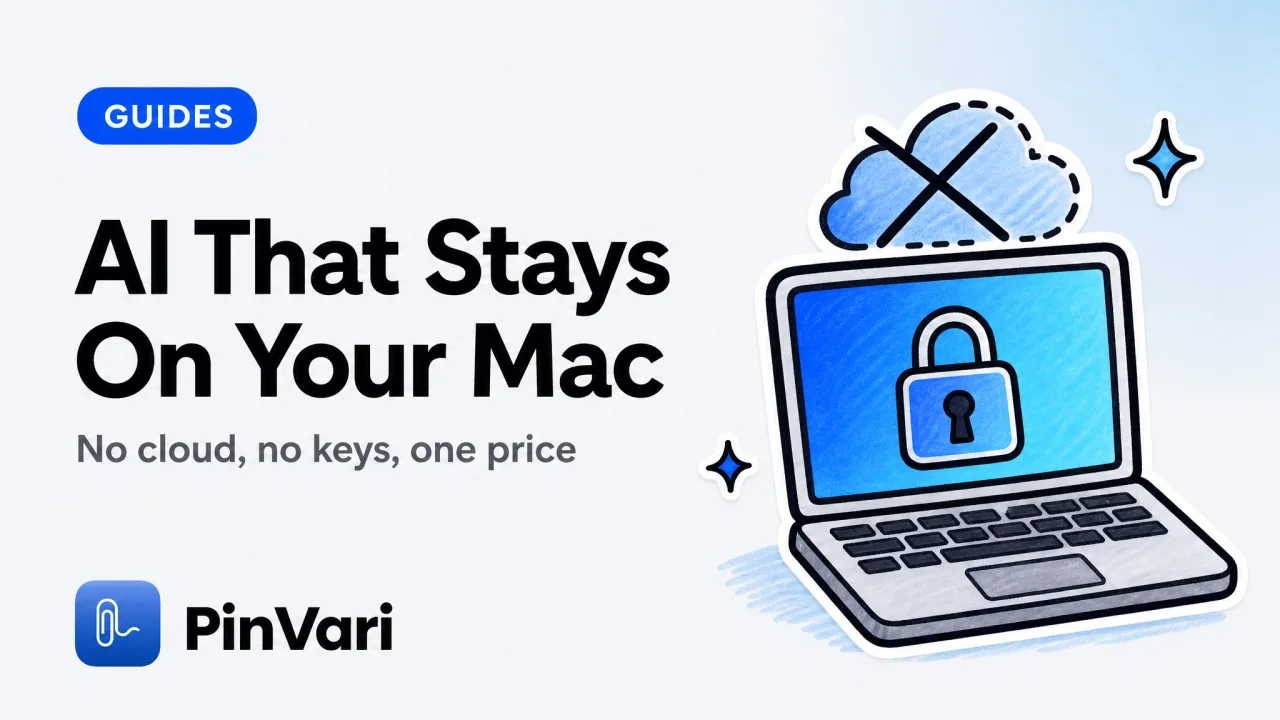
Local AI for MacBook means running the models on your own machine, so transcription, vision, and language work happen on Apple Silicon or Intel with nothing uploaded to a server and, in most cases, no API key. The practical stack has three layers: local LLM runners like Ollama and LM Studio, on-device speech and vision built on Apple's own frameworks, and capture tools that keep transcription and OCR local instead of shipping your screen to the cloud.
Most roundups of local AI for MacBook list only the LLM runners and skip the capture and speech layers, which is where a power user who already owns CleanShot X and Raycast actually feels the difference.
If you buy one-time Mac apps and avoid subscriptions on principle, the appeal is obvious: local AI removes the monthly fee, the upload, and the vendor's ability to change the deal later. The trade is that you manage the models and the memory, and you learn which tasks a MacBook can genuinely run itself.
What counts as local AI for a MacBook?
Local AI for a MacBook is any model that executes on the Mac's own CPU, GPU, or Neural Engine, rather than sending your data to a remote API. The test is simple: pull the network cable, and if the feature still works, it is local.
That covers more than chatbots. On-device speech turns audio into text without a server, on-device vision reads text and objects from images locally, and local LLMs answer prompts from a model file on your disk.
Apple ships several of these as system frameworks, so the Speech and Vision APIs already run on-device for any app that calls them.
The reason this matters on a MacBook specifically is the hardware. Apple Silicon's unified memory and Neural Engine make on-device inference genuinely usable, so a modern Mac runs small and mid-size models at speeds that were cloud-only a few years ago. Local stopped meaning slow==== on Apple Silicon.
"Local" and "private" are related but not identical. A local model keeps computation on your Mac; a private app also promises it will not phone home with telemetry. When you evaluate local AI for MacBook, check both the inference location and the network behavior, because some "local" apps still upload usage data by default.
The best local AI for Mac, compared
The best local AI for Mac depends on which layer you need. Running a chat model is a different job from transcribing meetings or reading your screen, and the strongest setup usually combines one tool from two or three rows below.
Skip the wide grid. Compare local AI layers as cards.
Ollama
Layer: Local LLM runner.
On-device? Yes. No API key.
Price: Free.
LM Studio
Layer: Local LLM runner plus a UI.
On-device? Yes. No API key.
Price: Free.
Apple MLX
Layer: LLM framework.
On-device? Yes. No API key.
Price: Free.
GPT4All / Jan
Layer: Local chat apps.
On-device? Yes. No API key.
Price: Free.
MacWhisper
Layer: On-device transcription.
On-device? Yes. No API key.
Price: Free, with a one-time Pro option.
Apple Speech / Vision
Layer: System speech-to-text and OCR.
On-device? Yes. No API key.
Price: Built in.
Wispr Flow
Layer: Push-to-talk dictation.
On-device? Partial. Needs an account.
Price: About $12–15 a month.
PinVari
Layer: Point-and-speak capture.
On-device? Speech and OCR stay on-device. You bring your own agent.
Price: $39 one-time.
Ollama, LM Studio, MLX, and the local chat apps cover the language layer for free. They run models like Llama and Mistral variants straight from disk, and they are the right starting point if you mainly want a private chatbot or a local endpoint for coding tools.
Transcription is its own layer. MacWhisper and Apple's Speech framework both transcribe on-device, and the practical guide to transcribing on Mac covers where each one fits.
A deeper ranking of the language runners lives in the best local AI for Mac breakdown.
Which local AI tools run fully on-device?
The local AI tools that run fully on-device are the LLM runners, the Apple speech and vision frameworks, and any capture tool that keeps transcription and OCR local. Fully on-device means no prompt, audio, or screenshot leaves your Mac by default, and you can verify it by watching the network.
The LLM runners are unambiguous here. Ollama and LM Studio load a model file and never call out, so your prompts stay on disk.
The catch is that the model quality tops out below the largest cloud models, so a fully local chat is excellent for private drafting and weaker for the hardest reasoning.
Speech and vision are the quiet win. Apple's on-device Speech framework transcribes audio locally, and its Vision framework runs OCR locally, which means a well-built Mac app can transcribe your voice and read on-screen text without a server. The privacy story on a MacBook is strongest at the speech and vision layer, because Apple already did the on-device work.
Pair a local runner with a local endpoint. Ollama exposes an OpenAI-compatible API on 127.0.0.1, so many Mac apps and coding tools can point at it and stay fully local. Check for a "custom base URL" or "local model" setting before assuming a tool is cloud-only.
The honest limit is coding agents. Tools like Claude Code and Cursor lean on large cloud models for their best output, so their reasoning is not local even when the surrounding app runs on your Mac.
What you can keep local is everything around the model: the transcription, the OCR, and the screen context you feed it.
How do you add local AI that understands your screen?
You add local AI that understands your screen by combining on-device capture with the macOS Accessibility API, so a tool can read the exact element you point at without uploading a screenshot. A screenshot alone is pixels; the accessibility tree gives the named element behind them.
Most screen tools stop at the pixel. CleanShot X is the Mac screenshot king and captures beautiful images, yet it has no idea what is in them, which is why power users end up describing the element by hand afterward.
The CleanShot X alternative comparison covers where a capture tool needs to add understanding, not just resolution.
Understanding comes from the operating system. macOS exposes the element under any point through AXUIElementCopyElementAtPosition, returning its role, title, value, and frame, and a local tool can resolve that on-device with no upload. That is the difference between "here is a picture of my app" and "here is AXButton "Export" (AXEnabled=false)."
"On-device" claims deserve a check when a tool talks to an AI agent. Some apps transcribe or resolve locally but then send the whole screenshot to a cloud model to interpret it. Confirm whether the interpretation step is local, or whether the tool hands a resolved, named target to your own agent instead of uploading pixels for a remote model to guess at.
If you run a coding agent, the cleaner pattern is to keep capture local and let your own agent do the reasoning. Whether Claude Code can see your screen depends on what you feed it, and feeding it a resolved element over a local MCP server for agent screen context keeps the pipeline on your machine end to end.
Local AI for MacBook without subscriptions
Local AI for MacBook without subscriptions is entirely achievable, because the runners are free and the strongest capture tools sell one-time licenses. If you already avoid monthly fees on principle, the goal is a stack you buy once and own.
The free tier is real. Ollama, LM Studio, MLX, and the Apple frameworks cost nothing, so the language, speech, and vision layers can all be free.
Where you may choose to pay is the polished capture layer, and there a one-time price beats a subscription that does the same job while uploading your screen.
For a point-and-speak capture layer that resolves the named element and keeps transcription and OCR on-device, PinVari sells a one-time $39 launch license rather than a subscription, brings no API keys, and uploads nothing by default. You bring your own agent, local or cloud, and the capture stays on your Mac. One price, no upload, your own model is the setup most Mac power users are actually after.
FAQ
What is the best local AI for a MacBook?
There is no single best, because the layers differ. For a private chatbot or a local coding endpoint, Ollama or LM Studio are the standard free choices. For transcription, Apple's Speech framework and MacWhisper run on-device, and for screen-aware capture you want a tool that resolves the accessibility element locally.
Can a MacBook run AI models without the internet?
Yes. Local LLM runners like Ollama load a model file from disk and answer prompts with no network at all, and Apple's on-device Speech and Vision frameworks transcribe and read text locally. Pull the network connection and these features keep working, which is the practical test of "local."
Is local AI on a Mac actually private?
It is private when both the computation and the network behavior are local. A local model keeps your prompts and data on the Mac, but check that the app does not upload telemetry or send screenshots to a cloud model for interpretation. Verify the network traffic if privacy is the reason you chose local.
Do I need an API key for local AI on a MacBook?
Usually not. Local runners like Ollama and LM Studio need no key because there is no remote service to authenticate against. You only need a key when a tool calls a cloud model, so a fully local stack avoids keys entirely, which is part of the appeal for privacy-minded users.
Which is better for a MacBook, local AI or cloud AI?
Local wins on privacy, cost, and offline use; cloud still wins on the hardest reasoning at the largest model sizes. Many power users run a hybrid: local speech, vision, and capture on-device, with a cloud coding agent for the heavy reasoning, fed only a resolved target rather than raw screenshots.
How much RAM do I need for local AI on a Mac?
Small models run comfortably on 16GB of unified memory, mid-size models are happier with 32GB or more, and speech and vision tasks are far lighter than LLM inference. Apple Silicon's unified memory helps here, so an M-series MacBook handles the common local AI workloads without a discrete GPU.
Hand your agent the exact element
PinVari resolves what you point at into a named, executable instruction — on-device, no keys, your own agent. One click inside PinVari connects Claude Code, Cursor, VS Code or Codex — or paste one CLI line from pinvari.com/connect.
PinVari → Connect → your agent (one click)Get PinVari — $39 →