Image Downloader Chrome Extension — Collect, Preview, ZIP
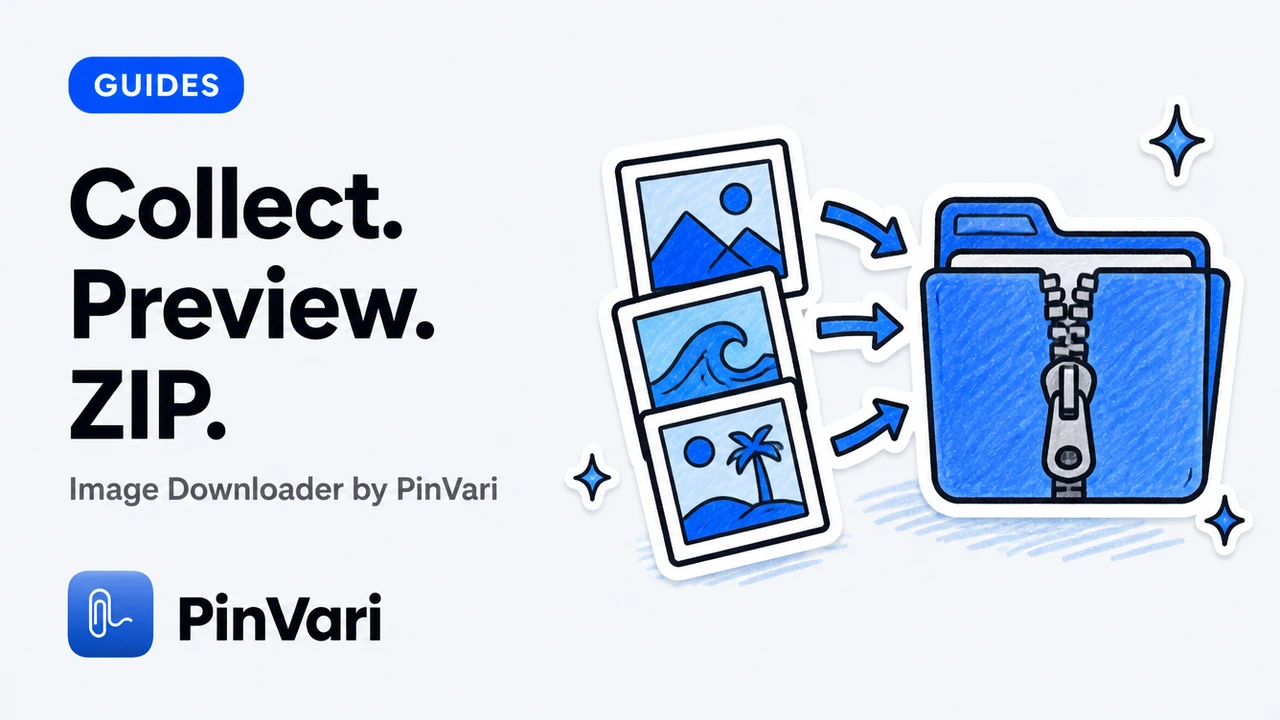
An image downloader Chrome extension collects images from pages you can view, lets you preview and filter them, then saves what you keep—usually as an organized ZIP. Collect before you commit is the whole product idea.
People search this phrase when right-click Save Image As… fails the job. One image is fine. A gallery is not.
This walkthrough stays calm and practical. It maps the collect → preview → download loop and shows where Image Downloader by PinVari fits without overclaiming site coverage.
How does an image downloader Chrome extension work day to day?
You open a page with images. You trigger the extension. It builds a collection from what the page exposes to your browser session.
You filter and select. You inspect a few heroes for dimensions and source. You choose original or a converted format. You download.
That is the loop. Everything else—side panel, right-click, multi-tab, contact sheets—is a way to stay inside that loop without chaos.
If the page is an infinite scroll gallery, run Scroll & collect before you filter. Lazy assets are not missing forever; they are simply not in the DOM yet. Details live in the lazy-load download guide.
Chrome extensions vary in how much they show you before saving. The useful ones treat the collection as a workspace. The noisy ones dump files immediately and leave naming to the filesystem.
A good day-to-day session also includes a pause before export. Glance at the selected count. Confirm filters are still what you meant. Then download once.
What should you collect versus ignore on a typical page?
Collect content images: product photos, article figures, portfolio frames, UI references you have permission to reuse.
Ignore decorative chrome when your brief does not need it: favicons, payment badges, 1×1 trackers, tiny sprites.
Size filters help. A minimum edge length hides most icons while keeping heroes. Format filters help when you only want JPG or PNG for a specific pipeline.
Search inside the collection when filenames or URL fragments are meaningful. Ecommerce CDNs often encode SKU hints in paths.
Content gallery card
Keep: Large product and lifestyle frames.
Drop: Swatch chips under a few hundred pixels.
Why: Your ZIP should match the brief, not the DOM.
Editorial page card
Keep: Inline figures and header art.
Drop: Author avatars and share-button glyphs.
Why: Editors want usable figures, not UI chrome.
Design reference card
Keep: UI shots you will moodboard.
Drop: Browser chrome captured as images.
Why: Inspiration boards rot when half the files are icons.
Hide small images early so every later click is about taste, not trash removal.
Why preview matters more than a bigger download button
Disk is cheap. Attention is not. Previewing dimensions stops thumbnail traps before they land in your Downloads folder.
A versions panel helps when the page exposes multiple candidates. You still only choose among addresses the page provided. You do not magically recover a RAW file from a CDN crop.
Preview images before download in Chrome is the deep how-to. The short version: look once, download once.
Conversion choices also belong in preview time. Original preserves source bytes, including animation. JPG, PNG, and WebP conversion creates a single frame and may change transparency. Know which outcome your next tool needs.
Dimensions in the inspector turn “I hope this is the hero” into a decision you can defend in a critique. That is the difference between a downloader and a dump tool.
How do you leave with an organized ZIP instead of folder chaos?
Set filename templates before you export. Zero-padded indices and readable tokens beat repeated generic names.
Choose folder grouping when the batch spans sources or formats. Preview the path. Then download.
ZIP parts keep large selections manageable. PinVari splits at 200 images or 100 MB per part so archives stay practical. Keep the workspace open while a job runs.
Retry is part of organization. Keep completed files after a partial failure. Retry only what failed. That pattern is more reliable than restarting the entire batch.
For ZIP-specific steps, use download images as a ZIP in Chrome. For bulk framing, see bulk image downloader for Chrome. Feature detail lives in the PinVari features walkthrough.
Review Image Downloader by PinVari on the product page for the workspace tour, and keep the Chrome Web Store listing handy while the release is in review.
What limits should you expect from any Chrome image downloader?
Availability depends on the website and your access. Protected browser pages, inaccessible frames, and some authenticated images may be unavailable. The extension does not bypass access controls or reconstruct hidden originals. Larger versions are not guaranteed, and page-provided versions may use different crops.
A selection can contain up to 2,400 images. ZIP parts split at 200 images or 100 MB. Source files are limited to 20 MB each. Conversion supports inputs up to 32 megapixels. Contact sheets contain up to 12 images per page. Keep the workspace open while a download runs.
SVG and AVIF may download while dimension verification stays limited, depending on the checker. Collections store references and settings rather than offline copies of every source image.
Only download and reuse images you have permission to use. A capable extension is not a license.
Image processing runs on your device. Image contents, page URLs, and filenames are not sent to PinVari for analytics. Previews and downloads connect to original image hosts. Usage diagnostics may be on for new installs and can be turned off.
Mobile Chrome does not run desktop extensions. Use desktop Chrome or a compatible desktop Chromium browser for the workspace. The marketing site works on phones; the extension does not.
How do side panel and right-click change the daily rhythm?
The side panel keeps the page visible while you build a shortlist. That matters on long case-study pages where context disappears if you jump into a popup.
Right-click collect is for surgical adds. You see one strong image, add it, keep browsing, and finish the ZIP later.
Both entry points still feed the same workspace rules: filter, preview, name, export. See side panel workflow and right-click download for dedicated steps.
Daily rhythm improves when you stop treating every page as an emergency dump. Collect while you research; download when the brief is clear.
Side panel for browsing, ZIP for handoff keeps creative focus on the page instead of the Downloads folder.
If your session spans multiple tabs, collect deliberately rather than vacuuming everything open. Order and source labels will thank you.
What does a calm first session look like with PinVari?
Install when the Store release is approved, pin the icon, and open a page you already know well. Collect once. Hide small images. Favorite two keepers. Preview dimensions. Download a tiny ZIP as a smoke test.
That smoke test teaches more than any feature list. You learn where filters live, how versions appear, and whether naming previews match your taste.
Save a filter preset on day one if you always drop icons under a fixed pixel edge. Future pages will open closer to ready.
Then read {L('pinvari-image-downloader-review','the features walkthrough')} for library, contact sheets, and conversion limits before you standardize the tool on a team machine.
How do you brief a teammate on this workflow?
Send three links: the product page, one sibling how-to, and one troubleshooting note. Ask them to run a single gallery with size filters on before they declare the tool broken.
Require filename templates on any ZIP that leaves the laptop. Require CSV when the next reader is legal, research, or migration.
Remind them that local processing does not mean the remote image host never sees a request. It means convert and package stay on device.
Schedule a fifteen-minute desk check the first week. Watch one Scroll & collect pass together. Correct filter defaults once, not in every critique forever.
What does good output look like on disk?
A good output folder has readable names, almost no icons, and a ZIP that opens without drama. A contact sheet sits beside it when stakeholders hate unzipping.
A good CSV has source URLs that still resolve for the reviewer. A good library entry is tagged so next quarter you can find the same competitive set.
Bad output is a flat dump of download (61).webp next to payment badges. Bad output is a thumbnail set labeled as heroes.
organized ZIP is the standard. If Finder looks chaotic, the export settings failed—not the designer.
How do you stay honest in stakeholder updates?
Say what the page exposed. Say what you filtered out. Say what failed and why you stopped retrying.
Do not promise full-resolution masters the CDN never published. Do not promise the extension works on every authenticated portal.
Point to the Image Downloader product page when someone asks what the tool is for. Point to the Chrome Web Store listing while the release remains in review.
Honesty keeps the tool trusted. Overclaiming creates ticket storms and quiet uninstalls.
FAQ
Do I need an account for an image downloader Chrome extension?
Not for Image Downloader by PinVari. Collect, filter, convert, and download work without an account. Settings and saved collections stay in your browser on that device.
Can I use it on my phone?
The marketing site works on phones. The extension is for desktop Chrome and compatible desktop browsers. Mobile Chrome does not support desktop extensions.
Is Image Downloader by PinVari available on the Store yet?
The release is in review. Use the product page and the Chrome Web Store detail URL for status; installation opens after approval.
How is this different from right-click Save Image As…?
Right-click saves one file with the browser’s default name. An extension adds collection, filters, preview, naming, conversion, and ZIP handoff for multi-image pages.
Where can I see the feature tour?
Start with the features walkthrough and the product page linked above.
Hand your agent the exact element
PinVari resolves what you point at into a named, executable instruction — on-device, no keys, your own agent. One click inside PinVari connects Claude Code, Cursor, VS Code or Codex — or paste one CLI line from pinvari.com/connect.
PinVari → Connect → your agent (one click)Get PinVari — $39 →