Bulk Image Downloader for Chrome: Save a Page of Images
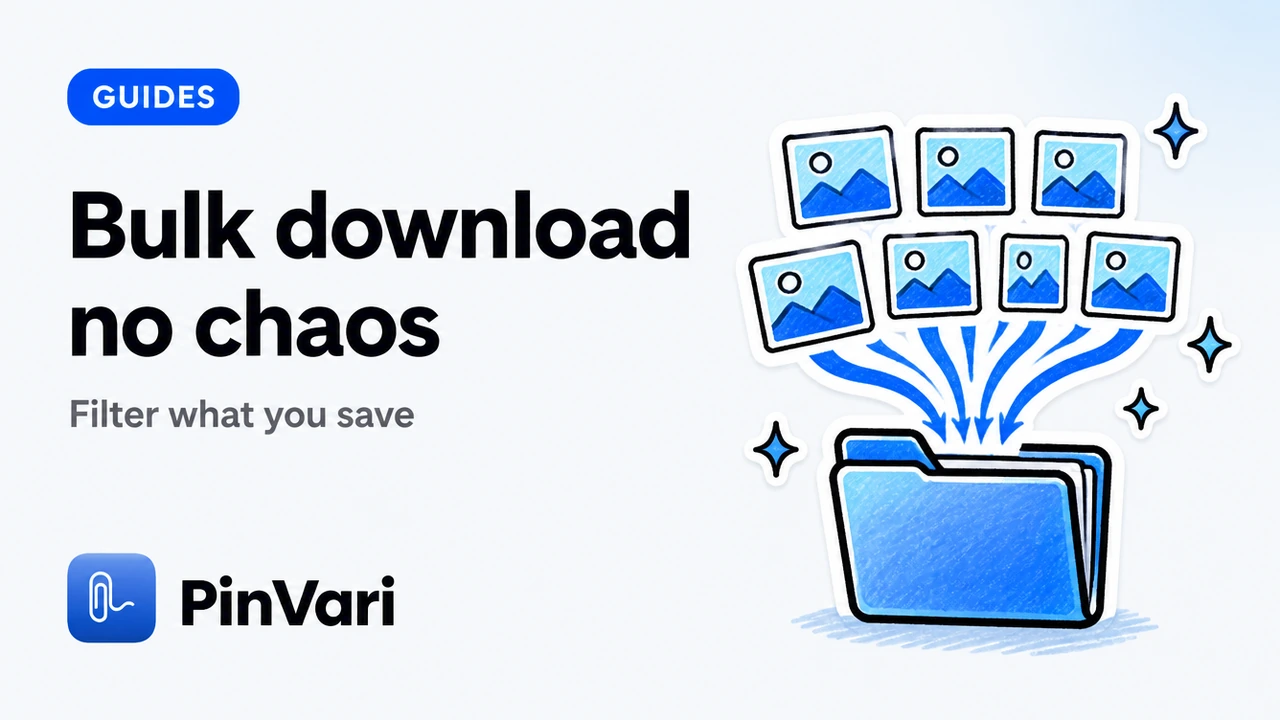
A bulk image downloader for Chrome turns a webpage of images into a single organized handoff—usually a ZIP—without drowning you in Save dialogs. Select, then archive is the difference between a brief and a junk drawer.
Bulk does not mean every byte on the domain. It means the set you approved from what the page exposed to your session.
This guide focuses on page-scale saves for designers, marketers, and ecommerce teammates. It stays honest about limits and points to Image Downloader by PinVari for the collect → preview → ZIP path.
When is bulk download the right tool?
Use bulk when the page presents many related assets: a product gallery, a lookbook, a case-study grid, a reference board.
Skip bulk when you need one stubborn file. DevTools or right-click is faster for a single URL.
Skip bulk when you lack permission or the assets sit behind access controls you should not bypass. Capability is not consent.
Bulk is a workflow for pages you can already view—not a bypass for gated media libraries.
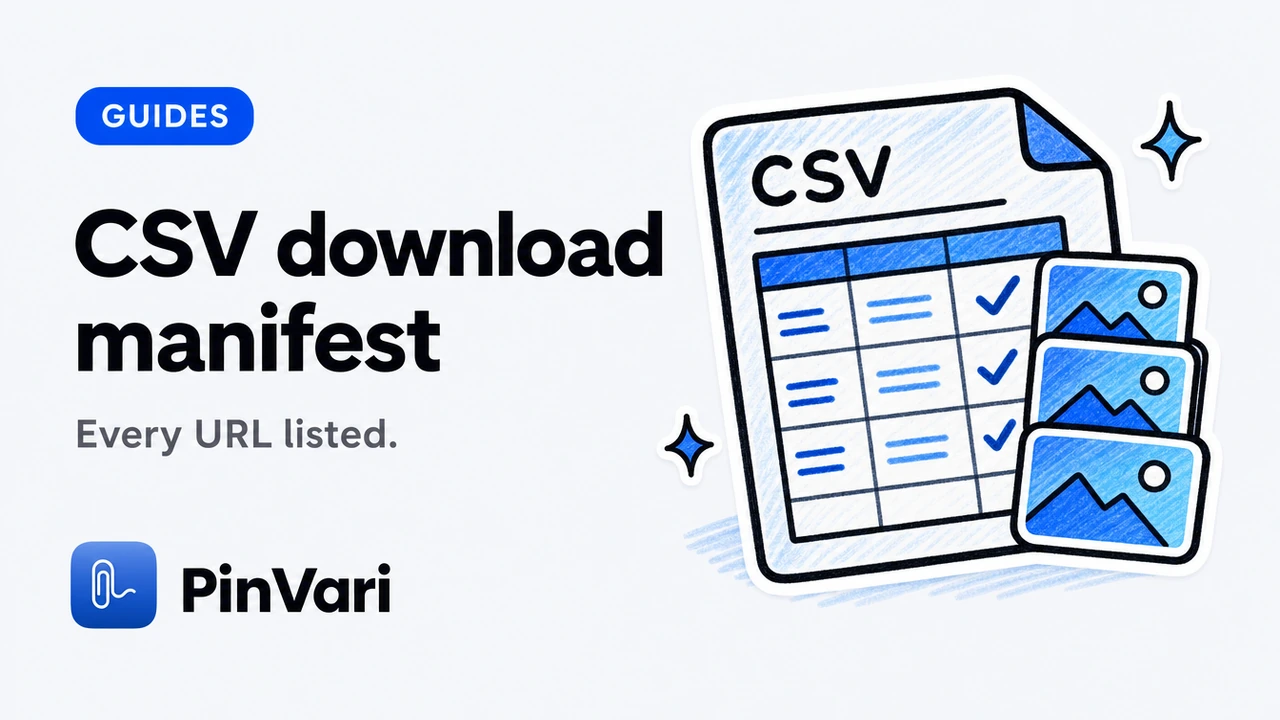
Teams also use bulk during website migrations and creative research. In those cases the ZIP is only half the deliverable; a CSV or URL list carries provenance into the next system.
How do you run a clean bulk grab in Chrome?
Open the page. Trigger your image downloader. Wait for the collection to populate from exposed images.
Filter early. Hide small images. Narrow formats if your pipeline is picky. Search if URL fragments encode SKUs.
Select the shortlist. Preview two or three heroes for dimensions. Adjust versions when the page offers candidates.
Set naming and folders. Choose original versus convert. Download as ZIP. Keep the workspace open until the job finishes.
If images were lazy, scroll-and-collect first. Otherwise your bulk set is only the above-the-fold slice.
Ecommerce gallery card
Goal: SKU photos without badges.
Move: Size filter plus format filter plus selective deselect.
Output: ZIP named by collection, optional CSV of sources.
Moodboard page card
Goal: A handful of strong references.
Move: Favorites plus contact sheet for review.
Output: Small ZIP, readable filenames.
Migration audit card
Goal: Inventory what a template loads.
Move: Broader selection plus URL or CSV export.
Output: Manifest first, files second.
What breaks bulk downloads on modern sites?
Lazy loading. The DOM lies until you scroll. Fix with an explicit scroll-and-collect pass.
Srcset puzzles. The visible image may not be the largest exposed candidate. Use a versions or candidate UI when present; never assume full resolution.
Icon soup. Without size filters, bulk becomes favicon archaeology. Pair this guide with filtering by size and download all images from a webpage for the step list.
Auth and frames. Logged-in media and cross-origin frames may be incomplete. The tool can only see what your session can see.
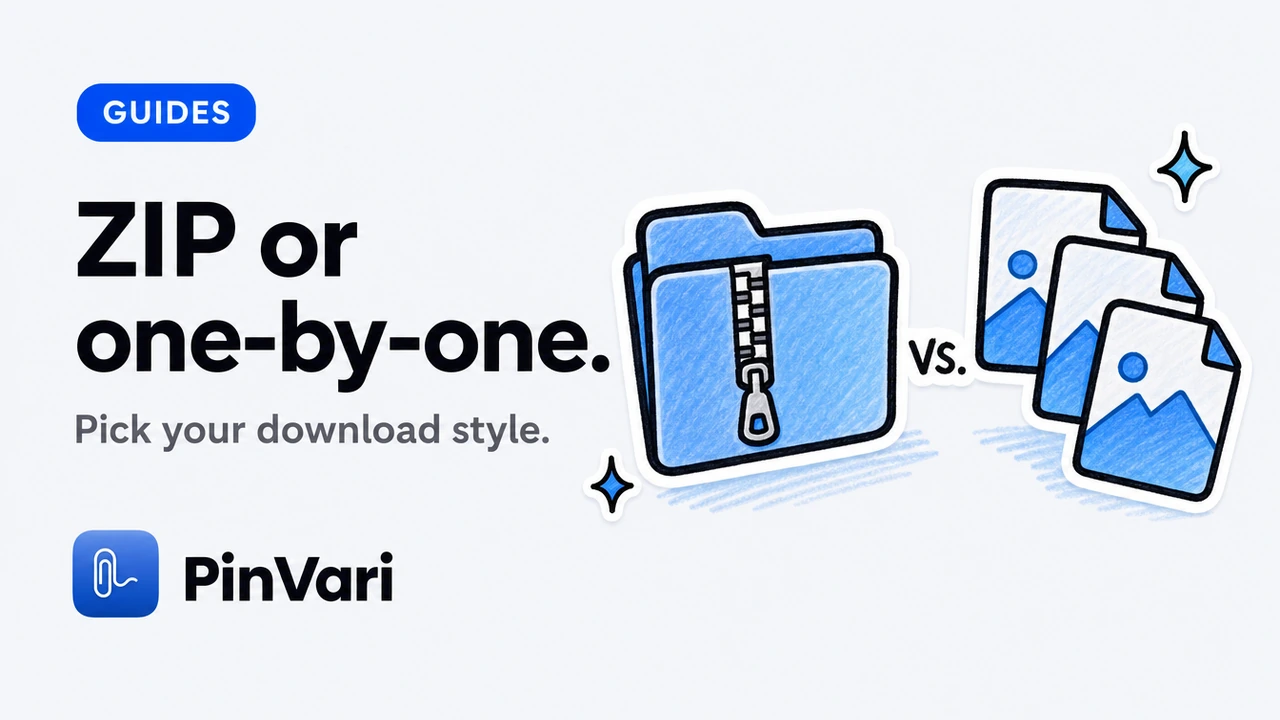
Prefer ZIP over dozens of individual browser downloads when Chrome’s multi-prompt behavior would interrupt you. Compare approaches in ZIP vs individual downloads.
Filters before select-all prevents the most common bulk regret: a perfect archive of useless icons.
How does Image Downloader by PinVari handle bulk pages?
It collects into a workspace you can filter and preview. You download an organized ZIP with optional conversion, resize, filename templates, and folder grouping.
Large selections split into parts at 200 images or 100 MB. That keeps archives practical and aligns with splitting large ZIP downloads.
Partial failures do not have to erase progress. Keep completed files and retry failed images. Export URL lists and CSV source records when the bulk job is really an audit.
Image processing runs on your device. Image contents, page URLs, and filenames are not sent to PinVari for analytics. Previews and downloads connect to original image hosts. Usage diagnostics may be on for new installs and can be turned off.
A selection can contain up to 2,400 images. ZIP parts split at 200 images or 100 MB. Source files are limited to 20 MB each. Conversion supports inputs up to 32 megapixels. Contact sheets contain up to 12 images per page. Keep the workspace open while a download runs.
Availability depends on the website and your access. Protected browser pages, inaccessible frames, and some authenticated images may be unavailable. The extension does not bypass access controls or reconstruct hidden originals. Larger versions are not guaranteed, and page-provided versions may use different crops.
Review Image Downloader by PinVari on the product page for the workspace tour, and keep the Chrome Web Store listing handy while the release is in review.
Related reading: batch download images in Chrome for selection discipline with the same product family.
How should teams brief from a bulk ZIP?
Name the collection after the job, not the domain. A spring hero refs label beats a generic images folder name.
Keep a CSV or URL list beside the ZIP when legal or archival questions may appear later. Provenance is part of bulk hygiene.
Send a contact sheet when stakeholders only need to approve the shortlist. Full bytes can follow after sign-off.
Bulk speed does not create reuse rights. Confirm permission before ads, decks, or training sets.
Write one sentence per kept image when the ZIP feeds a creative brief: audience, promise, proof. The archive is evidence; the sentence is the decision.
How do you keep bulk ZIPs usable a month later?
Name archives after the decision they support: competitor hero refs, SKU pack spring, migration inventory week 36.
Store the CSV or URL list beside the ZIP in the same folder. Future you will not remember which CDN path mapped to which slide.
Prefer split parts over one giant file when email or drive sync is involved. Parts also isolate corruption risk.
A selection can contain up to 2,400 images. ZIP parts split at 200 images or 100 MB. Source files are limited to 20 MB each. Conversion supports inputs up to 32 megapixels. Contact sheets contain up to 12 images per page. Keep the workspace open while a download runs.
Revisit favorites and named collections when the campaign repeats next season. Local libraries exist so bulk work compounds instead of restarting from zero.
For handoff patterns, compare contact sheet vs ZIP once that sibling is published in your cluster.
What metrics tell you a bulk run was healthy?
Selected count, completed count, failed count, and archive part count. If those four numbers are not boring, stop and investigate before you brief anyone.
Open one file from the middle of the ZIP, not only the first. Corruption and wrong versions love the middle of a batch.
{PRIV}
When failures cluster on one host, you may need a permission grant or a slower retry. When failures are random, retry once and move on.
How do you brief a teammate on this workflow?
Send three links: the product page, one sibling how-to, and one troubleshooting note. Ask them to run a single gallery with size filters on before they declare the tool broken.
Require filename templates on any ZIP that leaves the laptop. Require CSV when the next reader is legal, research, or migration.
Remind them that local processing does not mean the remote image host never sees a request. It means convert and package stay on device.
Schedule a fifteen-minute desk check the first week. Watch one Scroll & collect pass together. Correct filter defaults once, not in every critique forever.
What does good output look like on disk?
A good output folder has readable names, almost no icons, and a ZIP that opens without drama. A contact sheet sits beside it when stakeholders hate unzipping.
A good CSV has source URLs that still resolve for the reviewer. A good library entry is tagged so next quarter you can find the same competitive set.
Bad output is a flat dump of download (61).webp next to payment badges. Bad output is a thumbnail set labeled as heroes.
organized ZIP is the standard. If Finder looks chaotic, the export settings failed—not the designer.
How do you stay honest in stakeholder updates?
Say what the page exposed. Say what you filtered out. Say what failed and why you stopped retrying.
Do not promise full-resolution masters the CDN never published. Do not promise the extension works on every authenticated portal.
Point to the Image Downloader product page when someone asks what the tool is for. Point to the Chrome Web Store listing while the release remains in review.
Honesty keeps the tool trusted. Overclaiming creates ticket storms and quiet uninstalls.
FAQ
Is bulk image download the same as download all images?
Almost. Download all is the search phrase; bulk is the practice. You still should filter. See how to download all images from a webpage in Chrome.
Will bulk download get every image on the site?
No. It works from pages and tabs you authorize, subject to access and what those pages expose.
How many images can I bulk download at once with PinVari?
Up to 2,400 in a selection, with ZIP parts splitting at 200 images or 100 MB, and 20 MB per source file. Keep the workspace open during the run.
Should I convert during bulk export?
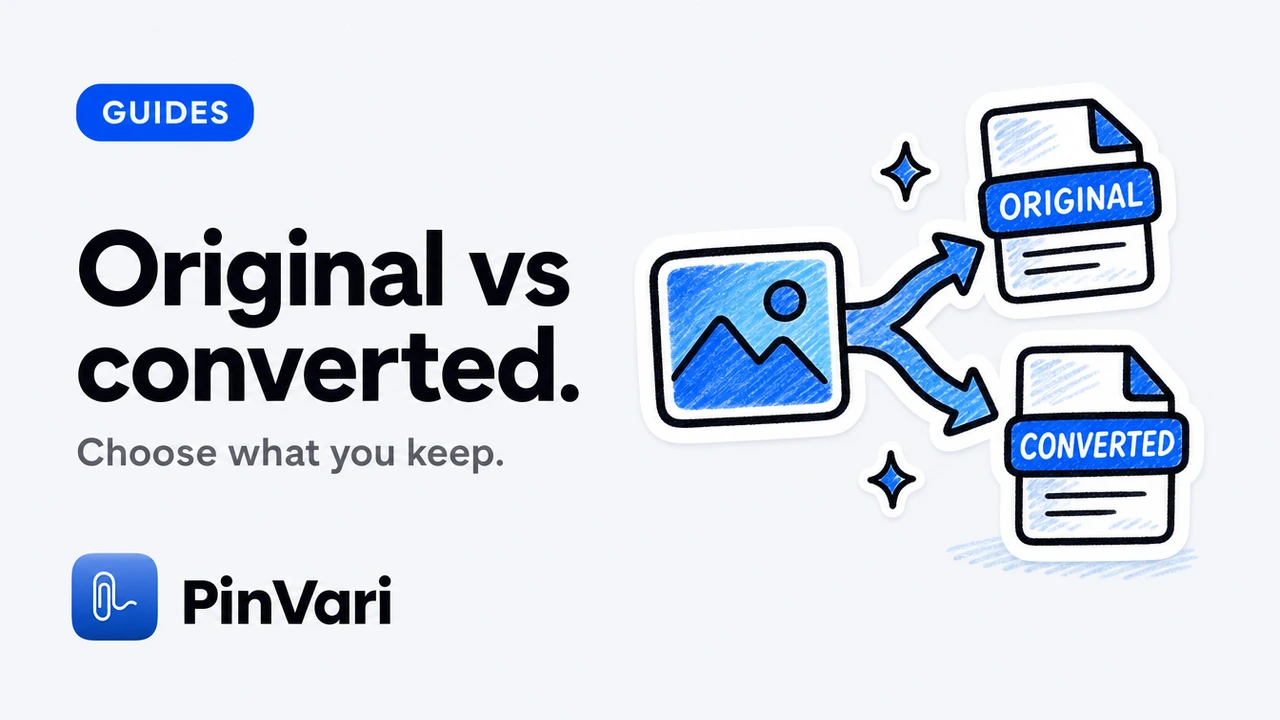
Convert when the next tool needs JPG, PNG, or WebP. Keep original when animation or exact bytes matter.
Batch vs bulk—does the word matter?
In practice, no. Batch download images in Chrome covers selection discipline with the same product family.
Hand your agent the exact element
PinVari resolves what you point at into a named, executable instruction — on-device, no keys, your own agent. One click inside PinVari connects Claude Code, Cursor, VS Code or Codex — or paste one CLI line from pinvari.com/connect.
PinVari → Connect → your agent (one click)Get PinVari — $39 →