How to Download All Images from a Webpage in Chrome
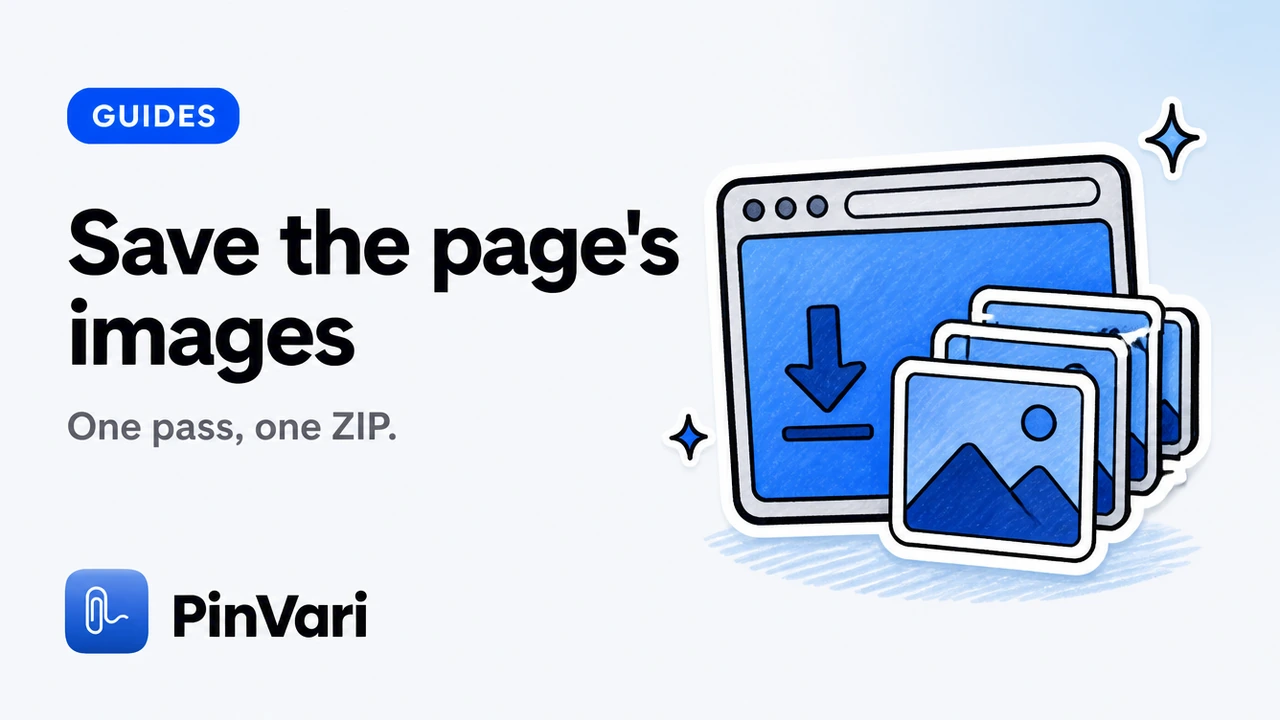
To download all images from a webpage in Chrome, collect every image the page exposes to your session, filter out junk, preview the keepers, and save them—ideally as one organized ZIP. All does not mean unfiltered if you want a usable folder.
This is the step-by-step path for that job. It assumes you already have permission to save what you are viewing.
What does “all images” mean on a modern webpage?
It means candidates your browser can see: image tag URLs, responsive candidates, many lazy-loaded sources after they load, some CSS backgrounds, and linked image URLs—depending on the tool.
It does not mean secret originals, paywalled masters, or files inside inaccessible frames. Honest tools state that limit up front.
If an image never became available to your tab, no extension can invent it.
Carousels and lightboxes add another wrinkle. An image may exist in the page’s script data but only become a normal image node after you open a slide. Interact, then recollect.
How do you download all images from a webpage step by step?
Step 1 — Open the page in desktop Chrome
Use desktop Chrome or a compatible desktop Chromium browser. Mobile Chrome does not run desktop extensions.
Step 2 — Collect the page
Open Image Downloader by PinVari after install is available, or your chosen downloader. Run collect on the current page.
Step 3 — Scroll and collect when the gallery is lazy
Infinite scroll pages hide most images until you scroll. Use Scroll & collect, then stop when growth flattens. Deep guide: lazy-loaded images in Chrome.
Step 4 — Filter junk before you select everything
Hide small images. Narrow by format if needed. Deselect obvious icons. Size filtering details: filter images by size.
Step 5 — Preview a few heroes
Check dimensions and source. Compare page-provided versions when listed. Confirm you are not about to save a tiny stand-in.
Step 6 — Name, convert if needed, download ZIP
Set templates and folders. Choose original or JPG, PNG, or WebP. Download. Prefer ZIP for page-scale sets—see download images as a ZIP and bulk image downloader for Chrome.
Step 7 — Retry failures without restarting everything
Keep completed files. Retry only failed items. Export CSV or URLs if you need a manifest.
Review Image Downloader by PinVari on the product page for the workspace tour, and keep the Chrome Web Store listing handy while the release is in review.
What usually gets included that you did not want?
Favicons and touch icons. Tracking pixels. Payment and trust badges. Tiny icons exported as raster. Avatar thumbnails beside comments.
Filter presets help if you repeat the same cleanup. Favorites help when all really means these twelve.
Run a contact sheet on your shortlist before you ship a huge ZIP to a stakeholder who only needed to approve the set.
Search inside the collection when CDN paths encode useful tokens. That is faster than opening every preview when you already know the SKU fragment.
How do you handle multi-tab all-images jobs?
Collect tabs you choose rather than silently scanning every open tab. Keep source identity so duplicates across tabs can collapse cleanly.
Order matters for handoff. Stable indices in filenames beat random filesystem order.
If the job spans a whole storefront section, work page by page with consistent templates instead of one fragile mega-scan. Consistent templates across pages make later merges boring—in a good way.
What are the honest failure modes?
CORS and host permission prompts may block some preview or download fetches until you allow access.
Authenticated assets may appear in the page but fail when fetched as bare URLs.
Chrome Web Store pages and other protected browser surfaces may be off-limits by design.
Availability depends on the website and your access. Protected browser pages, inaccessible frames, and some authenticated images may be unavailable. The extension does not bypass access controls or reconstruct hidden originals. Larger versions are not guaranteed, and page-provided versions may use different crops.
A selection can contain up to 2,400 images. ZIP parts split at 200 images or 100 MB. Source files are limited to 20 MB each. Conversion supports inputs up to 32 megapixels. Contact sheets contain up to 12 images per page. Keep the workspace open while a download runs.
Download-all search intent often collides with copyright. Save only what you have rights to reuse.
Image processing runs on your device. Image contents, page URLs, and filenames are not sent to PinVari for analytics. Previews and downloads connect to original image hosts. Usage diagnostics may be on for new installs and can be turned off.
How do you verify a download-all run actually finished cleanly?
Compare selected count to files on disk after unzip. A mismatch means failures, filters you forgot, or a closed workspace mid-job.
Open the largest expected hero and confirm dimensions match the inspector. Thumbnail surprises usually appear here first.
Skim filenames for collisions or empty tokens. Fix templates before the next page, not after a hundred renames.
If retries remain, run them once more, then export the failed URL list for manual DevTools follow-up.
Availability depends on the website and your access. Protected browser pages, inaccessible frames, and some authenticated images may be unavailable. The extension does not bypass access controls or reconstruct hidden originals. Larger versions are not guaranteed, and page-provided versions may use different crops.
Count, open, skim, retry is a four-step closeout that prevents silent half-downloads from entering a brief.
When should you stop trying to download all and switch tactics?
Stop when the page requires interaction you cannot automate ethically—CAPTCHA walls, paywalls, or authenticated media you should not scrape.
Stop when one asset matters and DevTools already shows the URL. Extensions shine on collections, not on single stubborn files.
{PRIV}
Switch to selective favorites when the page is mostly noise. Download-all is a starting posture, not a moral duty to keep every icon.
How do carousels and lightboxes affect download-all results?
Many product pages keep secondary photos behind a carousel control. Until you advance slides, those URLs may never enter the collection.
Open the gallery UI, step through slides, then run collect again. Merge duplicates by URL so you do not save the same hero twice.
Lightboxes that swap a high-resolution source on click deserve the same treatment. Interact first, collect second, filter third.
Interact, then recollect is the missing step when download-all feels incomplete on modern storefronts.
Teams that treat download-all as an unattended scrape usually inherit junk. Treat it as a supervised collect with a clear stop condition, then archive with names you can defend in a critique.
How do you brief a teammate on this workflow?
Send three links: the product page, one sibling how-to, and one troubleshooting note. Ask them to run a single gallery with size filters on before they declare the tool broken.
Require filename templates on any ZIP that leaves the laptop. Require CSV when the next reader is legal, research, or migration.
Remind them that local processing does not mean the remote image host never sees a request. It means convert and package stay on device.
Schedule a fifteen-minute desk check the first week. Watch one Scroll & collect pass together. Correct filter defaults once, not in every critique forever.
What does good output look like on disk?
A good output folder has readable names, almost no icons, and a ZIP that opens without drama. A contact sheet sits beside it when stakeholders hate unzipping.
A good CSV has source URLs that still resolve for the reviewer. A good library entry is tagged so next quarter you can find the same competitive set.
Bad output is a flat dump of download (61).webp next to payment badges. Bad output is a thumbnail set labeled as heroes.
organized ZIP is the standard. If Finder looks chaotic, the export settings failed—not the designer.
How do you stay honest in stakeholder updates?
Say what the page exposed. Say what you filtered out. Say what failed and why you stopped retrying.
Do not promise full-resolution masters the CDN never published. Do not promise the extension works on every authenticated portal.
Point to the Image Downloader product page when someone asks what the tool is for. Point to the Chrome Web Store listing while the release remains in review.
Honesty keeps the tool trusted. Overclaiming creates ticket storms and quiet uninstalls.
FAQ
Can Chrome download all images from a webpage without an extension?
Not as a polished bulk workflow. You would save files one by one or dig through DevTools. Extensions exist because page-scale saves need collection UI.
Will this get images from the whole website?
No. It works from the page or tabs you collect. Crawling an entire domain is a different, riskier product category.
Why are some images missing after I click download all?
They may still be lazy, inside a closed carousel, or not exposed as downloadable URLs. Scroll, open the carousel, recollect, then filter.
How large can the ZIP be?
With PinVari, parts split at 200 images or 100 MB. Per-file cap is 20 MB. Selection cap is 2,400 images.
Is there a difference between extract and download?
Language varies. Image extractor vs downloader explains the words; the useful product still ends in files you can open.
Hand your agent the exact element
PinVari resolves what you point at into a named, executable instruction — on-device, no keys, your own agent. One click inside PinVari connects Claude Code, Cursor, VS Code or Codex — or paste one CLI line from pinvari.com/connect.
PinVari → Connect → your agent (one click)Get PinVari — $39 →