Batch Download Images in Chrome Without the Mess
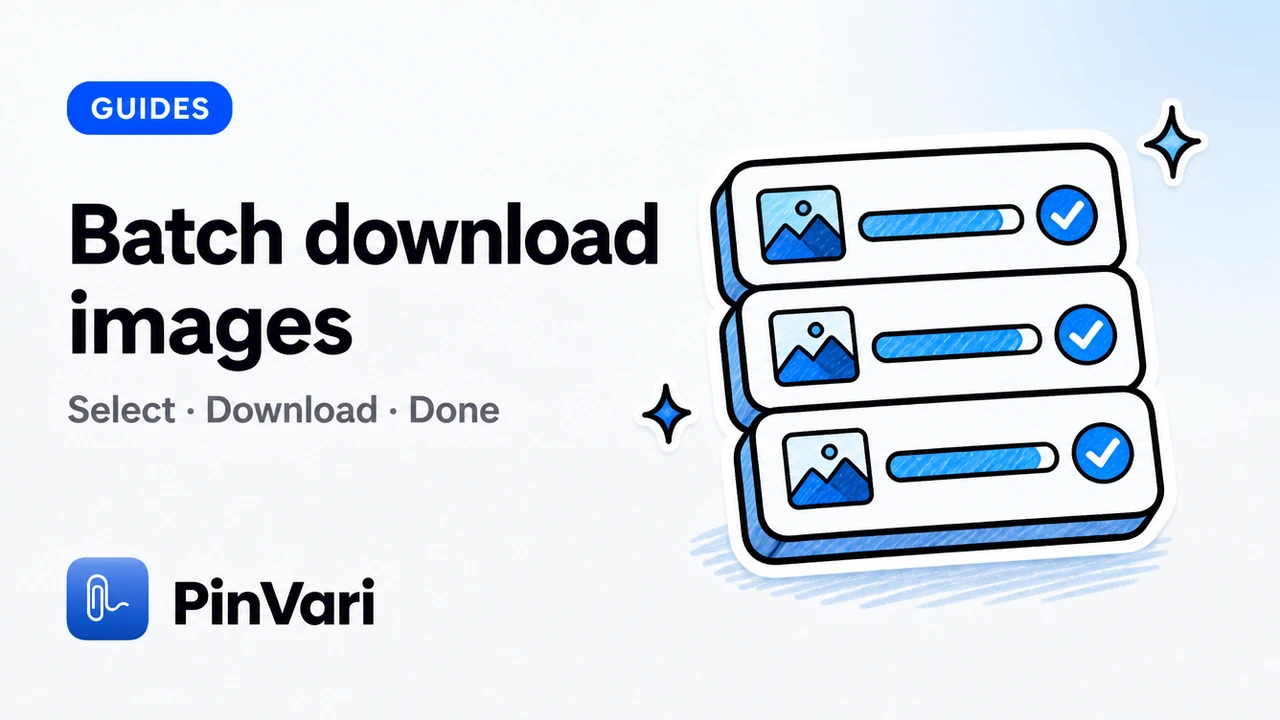
To batch download images in Chrome without the mess, select a filtered shortlist, preview a few heroes, then export an organized ZIP with sane part sizes. Batch is a selection discipline, not a bigger panic button.
Mess usually means icons, collisions, and thirty Save prompts. The fix is upstream of the download click.
This how-to keeps batches reviewable for creative and ecommerce work with Image Downloader by PinVari.
How do you set up a clean batch before downloading?
Collect the page or chosen tabs. Run Scroll & collect if the gallery is lazy. Hide small images. Narrow formats if needed.
Size filtering detail: filter images by size. Bulk framing: bulk image downloader for Chrome.
Select intentionally. Deselect badges and avatars. Favorite the true keepers if you will return later.
Deselect is part of batch—select-all is only a starting pose.
Why do ZIP parts matter in batch work?
Large batches fail socially when the archive is too big for mail or sync. PinVari splits at 200 images or 100 MB. Read split large ZIP downloads and download images as a ZIP.
Parts also isolate failure. A bad segment does not erase completed segments when retry is designed well.
Keep the workspace open until every part finishes. Closing mid-job is how silent partials happen.
How should filenames behave across a batch?
Stable indices. Zero padding. Collection tokens. No renumbering of completed items during retry.
Folder grouping by source or format helps when one batch spans multiple pages.
Readable order beats clever names you cannot sort.
What mess patterns should you refuse?
Individual downloads that spam Chrome prompts. Blind convert-all that flattens animation. Ignoring failed URLs.
A tidy ZIP of unlicensed assets is still a rights problem. Batch speed is not permission.
How do the options compare as stacked cards?
Skip wide tables. Read each option as a card.
Unfiltered select-all
Result: Icon-heavy ZIP
Fix time: High
Use when: Never for briefs
Filtered batch + ZIP parts
Result: Reviewable archives
Fix time: Low
Use when: Default
Favorites-only mini batch
Result: Tiny precise set
Fix time: Lowest
Use when: Critique decks
Where does Image Downloader by PinVari fit this job?
Image Downloader by PinVari is a Chrome extension built as a home for the images you find. Collect → preview → organized ZIP. Local processing. No account required for core download. Fifty-one languages.
Entry points include the current page, chosen tabs, right-click, and the side panel. Scroll & collect helps on lazy galleries. Filters cover format, dimensions, orientation, and source. Search, hide small images, save favorites, and reuse presets when you repeat the same cleanup.
Keep originals or convert to JPG, PNG, or WebP. Resize and set quality where supported. Preview filename templates and folder grouping before you commit. Export URLs, CSV records, and contact sheets when handoff needs more than bytes. Keep completed files after partial failures and retry only what failed.
Review Image Downloader by PinVari on the product page for the workspace tour, and keep the Chrome Web Store listing handy while the release is in review.
Related reading: ZIP vs individual; retry failed downloads; filename templates.
How do you practice batch download images chrome without creating junk archives?
Start every session with a purpose sentence. Write it in the collection name. If you cannot name the purpose, you are browsing, not downloading.
Hide small images before you select. Preview at least two heroes for dimensions and source. Prefer page-provided larger versions only when the versions UI lists them.
Choose original when animation or exact bytes matter. Convert to JPG, PNG, or WebP when the next tool in your stack is picky. Resize only to shrink, never to invent detail.
For batch download images chrome, treat the ZIP filename as part of the brief. Future you should understand it without opening chat history.
Close the loop with a spot check: open one middle file, confirm dimensions, confirm the name sorts correctly, confirm failed counts are zero or retried.
A selection can contain up to 2,400 images. ZIP parts split at 200 images or 100 MB. Source files are limited to 20 MB each. Conversion supports inputs up to 32 megapixels. Contact sheets contain up to 12 images per page. Keep the workspace open while a download runs.
What operational mistakes show up specifically around batch download images chrome?
People skip Scroll & collect on lazy pages, then blame the extension for “missing” images that never loaded.
People convert everything, then wonder why an animated asset became a single frame. People ignore permission prompts, then call the host blocked forever.
People ship archives without CSV or URL manifests when legal later asks where a file came from. People confuse a capable tool with a license to reuse.
batch download images chrome still depends on page access. No Chrome extension should claim it bypasses paywalls or reconstructs hidden originals.
Availability depends on the website and your access. Protected browser pages, inaccessible frames, and some authenticated images may be unavailable. The extension does not bypass access controls or reconstruct hidden originals. Larger versions are not guaranteed, and page-provided versions may use different crops.
Image processing runs on your device. Image contents, page URLs, and filenames are not sent to PinVari for analytics. Previews and downloads connect to original image hosts. Usage diagnostics may be on for new installs and can be turned off.
Keep diagnostics settings aligned with team policy. Turn them off if required. Downloads should keep working either way.
When a run fails partway, keep completed files, retry failures, and export the failed URL list for manual follow-up instead of restarting from zero.
Build a short personal playbook for recurring sites. Note which filters work, whether Scroll & collect is required, and which filename template you reuse. That playbook is how batch download images chrome becomes boring—in the best way—across a quarter of campaigns.
If you collaborate, share the playbook as a checklist, not as a tribal screenshot. Include the product page link and the Store listing link so teammates install the same extension when the release is approved.
Finally, schedule a monthly cleanup of old collections and presets you no longer need. Local libraries only help when they stay searchable.
What does a calm weekly rhythm look like for batch download images chrome?
Block one short window to collect references, not to endlessly scroll. End the window with a ZIP or a contact sheet, even if the set is small.
Review favorites you marked during the week. Drop anything that no longer supports an active brief. Export a library backup if your browser profile is about to change.
A weekly rhythm beats heroic late-night dump sessions that nobody can reopen later.
Document one lesson per week: a filter threshold, a site that needs scroll-and-collect, or a naming token that reduced collisions. Those notes compound faster than any generic tip list.
If you still need more structure, write a three-line closeout: selected count, completed count, failed count. Boring numbers prevent silent partial handoffs.
What does a calm weekly rhythm look like for batch download images chrome?
Block one short window to collect references, not to endlessly scroll. End the window with a ZIP or a contact sheet, even if the set is small.
Review favorites you marked during the week. Drop anything that no longer supports an active brief. Export a library backup if your browser profile is about to change.
A weekly rhythm beats heroic late-night dump sessions that nobody can reopen later.
Document one lesson per week: a filter threshold, a site that needs scroll-and-collect, or a naming token that reduced collisions. Those notes compound faster than any generic tip list.
If you still need more structure, write a three-line closeout: selected count, completed count, failed count. Boring numbers prevent silent partial handoffs.
FAQ
Is batch download different from bulk download?
In practice, no. Both mean multi-image save with selection discipline.
How many images can I batch at once with PinVari?
Up to 2,400 in a selection, with ZIP parts at 200 images or 100 MB, and 20 MB per source file.
Should I convert during batch export?
Only when the next tool needs JPG, PNG, or WebP. Keep original for animation or exact bytes.
What if some files fail?
Keep completed files and retry failures. Export failed URLs if you need DevTools follow-up.
Can I batch across tabs?
Yes—collect chosen tabs deliberately. See download from multiple tabs.
Hand your agent the exact element
PinVari resolves what you point at into a named, executable instruction — on-device, no keys, your own agent. One click inside PinVari connects Claude Code, Cursor, VS Code or Codex — or paste one CLI line from pinvari.com/connect.
PinVari → Connect → your agent (one click)Get PinVari — $39 →