Retry Failed Image Downloads Cleanly
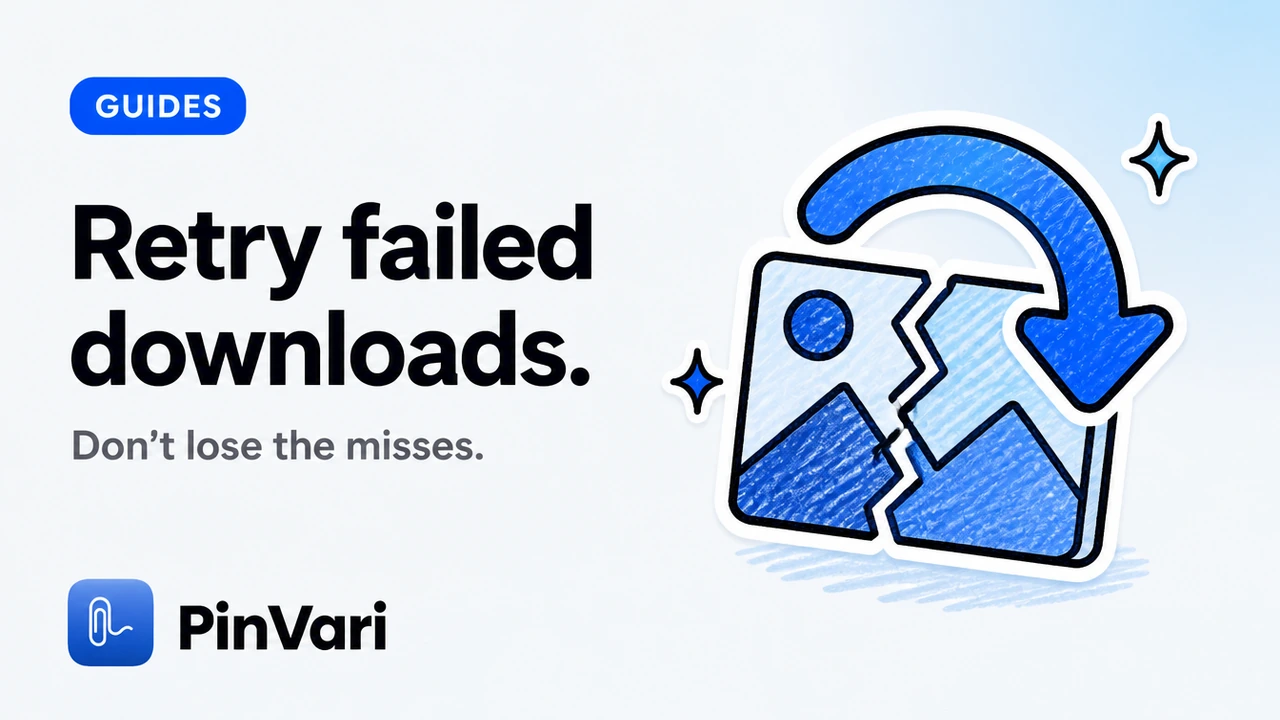
Retry failed image downloads cleanly by keeping every completed file and requeueing only the URLs that errored.
Wiping a half-finished archive to start over wastes bandwidth and invites duplicate names.
Retry is accounting before it is networking. Image Downloader by PinVari follows collect → preview → organized ZIP so you can keep judgment in the loop.
Related reading: how to download images as a ZIP in Chrome image download failed — retry playbook split large image ZIP downloads.
See the Image Downloader by PinVari product page for the workflow. The Chrome Web Store listing is the release-in-review detail page while version 2.5.3 completes review.
Why do bulk image downloads fail mid-batch?
A failed fetch usually means Chrome could not retrieve that URL with the same access your tab already has.
Auth cookies, CORS, short-lived signed URLs, and blocked hosts show up on ecommerce and portfolio sites.
Placeholders and tracking pixels fail even when product photos succeed.
Lazy galleries expire tokenized URLs after idle viewports — stale tokens look like tool bugs.
Timeouts should strand a few files, not force a rebuild of hundreds of good ones.
This stays grounded in page-accessible images. Availability depends on page access — not wishful crawling.
Image Downloader by PinVari keeps collect → preview → organized ZIP local, with convert, resize, templates, folders, contact sheets, library/favorites, and 51 languages — no account for the core path.
Do not assume a retry reconstructs a hidden original. Retrying a thumbnail URL will not invent full resolution.
How do you retry without losing completed files?
Treat pass one as a ledger. Completed files stay on disk or in finished ZIP parts.
Write a second archive for the remainder — never overwrite a good part.
Leave finished split parts alone; retry into a new part name.
Deduplicate by source URL when merging folders later.
Name retry archives with date and pass number for clear chronology.
Preview dimensions before you commit disk space. Soft files waste everyone's time downstream.
When failures share one hostname, confirm login state and SPA route before more retries.
Do this
Focus: Retry failed image downloads cleanly by keeping every completed file and requeueing only t
PinVari fit: Collect → preview → organized ZIP on your device
Watch for: Overclaiming access the page never granted
Avoid this
Trap: One-click everything without preview
Cost: Favicon junk, soft thumbnails, redo requests
Fix: Filter by size, check dimensions, then download
What does a clean retry look like in PinVari?
Preview failures after the first ZIP instead of guessing from filenames.
Drop junk icons from the retry set before burning more requests.
Re-run download for the remaining selection with local processing.
Refresh, re-scan, and Scroll & collect again when many URLs fail together.
Right-click collect covers one stubborn visible asset without abandoning the list.
Scroll & collect on lazy pages, then filter junk. Side panel and right-click cover stragglers without losing place.
PinVari stays local — you are not uploading the batch to a remote extractor to retry.
What mistakes make retries worse?
When should you stop retrying and change strategy?
Stop after one or two clean retries on the same URL list.
Change strategy when failures cluster on one host, frame, or auth wall.
Open the asset in its own tab or copy a DevTools URL for surgical misses.
Document gaps when access exceeds your browser session.
Infinite loops hammer CDNs without improving the archive.
Honest limits: no hidden-master reconstruction, no paywall bypass, no "every image on any site" claims.
How should you hand off a partial batch?
Ship successful ZIP parts first; label retry archives clearly.
Include a CSV of remaining source URLs.
Keep URL source records when legal needs lineage.
Add a contact sheet for mobile-friendly review.
Hold keepers in library/favorites while retries continue separately.
Handoff with folders, filename templates, and CSV/URL source records when provenance matters.
A clean stop beats a noisy infinite retry.
What mistakes make retries worse?
Overwriting a successful ZIP with a gappy second pass.
Retrying icons you planned to delete.
Mixing converted and original files without filename tokens.
Saving individuals instead of ZIP parts and drowning in prompts.
Promising full res when you only had display derivatives.
Prefer organized ZIP parts on large jobs so retries stay small and recoverable.
Step-by-step workflow for retry failed image downloads
Open the page where you can already see the assets in Chrome. If you cannot see them in your session, stop — no extension can invent access you do not have.
Launch Image Downloader by PinVari and scan after the layout settles. Skeleton loaders produce empty collections and false panic.
Use Scroll & collect on long or lazy pages so below-the-fold nodes enter the list before you filter. SPA routes may need a re-scan after navigation.
Preview dimensions and source URLs. Deselect favicons, badges, and soft thumbnails you will never place in a deck or Figma file.
Apply filename templates and folder naming that match the brief. Zero-padded indices keep slideshow order sane when the ZIP opens.
Download an organized ZIP. Prefer ZIP parts on large jobs so a single failure does not risk the entire archive.
Spot-check a few unzipped files at 100% zoom. If they look soft, you likely kept the wrong responsive candidate — fix selection before you hand off.
Export CSV/URL source records when audits, migrations, or legal reviews need provenance beside the pixels.
If anything failed, keep completed parts, requeue only failures, and write a clearly named retry archive. Read how to download images as a ZIP in Chrome and image download failed — retry playbook when those jobs overlap.
Write the brief slug into the folder name before the first export. Renaming two hundred files after the fact is unpaid work.
Practical checklist before you ship the ZIP
Confirm the collection matches the brief, not the entire DOM.
Confirm junk icons are gone and heroes still remain.
Confirm convert and resize settings match what the next tool accepts — keep originals when unsure.
Confirm ZIP parts open and counts match your keep list plus a documented gap list.
Confirm soft Store language matches reality while version 2.5.3 is in review: product page for features, Store detail URL for the listing.
Confirm you did not promise unpublished full-resolution masters. Page-accessible URLs only.
Confirm teammates can find three assets without pinging you. If they cannot, fix names and folders before the Slack drop.
How do you brief a teammate on this workflow?
Send three links: the product page, one sibling how-to, and one troubleshooting note. Ask them to run a single gallery with size filters on before they declare the tool broken.
Require filename templates on any ZIP that leaves the laptop. Require CSV when the next reader is legal, research, or migration.
Remind them that local processing does not mean the remote image host never sees a request. It means convert and package stay on device.
Schedule a fifteen-minute desk check the first week. Watch one Scroll & collect pass together. Correct filter defaults once, not in every critique forever.
What does good output look like on disk?
A good output folder has readable names, almost no icons, and a ZIP that opens without drama. A contact sheet sits beside it when stakeholders hate unzipping.
A good CSV has source URLs that still resolve for the reviewer. A good library entry is tagged so next quarter you can find the same competitive set.
Bad output is a flat dump of download (61).webp next to payment badges. Bad output is a thumbnail set labeled as heroes.
organized ZIP is the standard. If Finder looks chaotic, the export settings failed—not the designer.
How do you stay honest in stakeholder updates?
Say what the page exposed. Say what you filtered out. Say what failed and why you stopped retrying.
Do not promise full-resolution masters the CDN never published. Do not promise the extension works on every authenticated portal.
Point to the Image Downloader product page when someone asks what the tool is for. Point to the Chrome Web Store listing while the release remains in review.
Honesty keeps the tool trusted. Overclaiming creates ticket storms and quiet uninstalls.
FAQ
Can I retry failed image downloads without re-downloading the whole ZIP?
Yes. Keep successful files or ZIP parts and requeue only failed URLs. A second archive for the remainder is cleaner than rebuilding everything.
Why did only some images fail in my Chrome batch?
Mixed access is normal. Icons, framed assets, and signed CDN links fail more often than publicly cached heroes. Preview failed rows before you assume the extension broke.
Does Image Downloader by PinVari retry automatically forever?
No. You stay in control of selection and download. Endless auto-retry can hammer a site and still cannot bypass access rules.
Will retrying get me a higher-resolution original?
Only if a larger page-provided URL is already available to the scan. Retry does not reverse-engineer hidden masters.
What should I include when I hand off a partial batch?
Ship the successful ZIP parts plus a short note or CSV of remaining source URLs. That is more honest than a silent gap.
The Chrome Web Store detail page tracks the release while it is in review — use the product page for the full feature picture.
Hand your agent the exact element
PinVari resolves what you point at into a named, executable instruction — on-device, no keys, your own agent. One click inside PinVari connects Claude Code, Cursor, VS Code or Codex — or paste one CLI line from pinvari.com/connect.
PinVari → Connect → your agent (one click)Get PinVari — $39 →