Use a Side Panel Image Downloader While You Browse
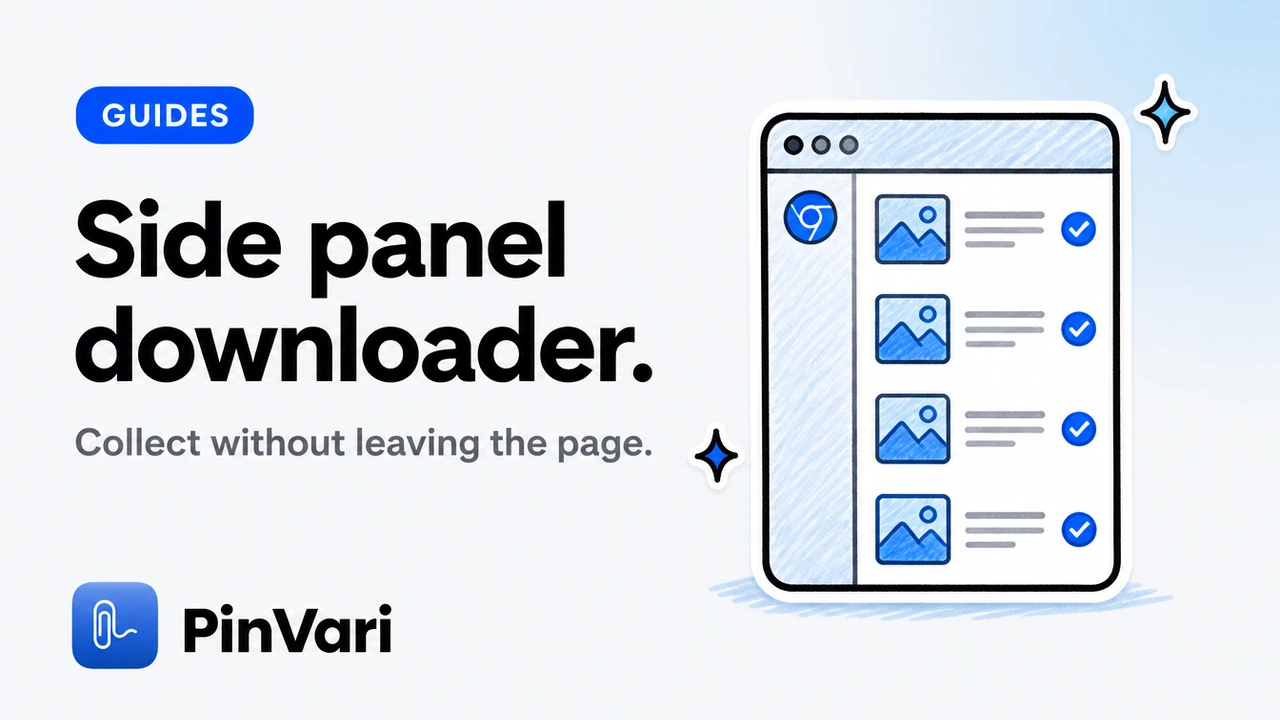
To use a side panel image downloader while you browse, dock the workspace beside the page, collect as you go, then filter and ZIP without losing context. The page stays primary; the panel is the shortlist.
Popup-only tools force constant context switching. Side panel fixes that for long case studies and lookbooks.
This how-to centers Image Downloader by PinVari’s side panel rhythm.
How do you set up a side panel session?
Open the page, open the side panel, collect, and pin filters you always need—especially hide-small.
Scroll the page normally. Recollect or Scroll & collect when lazy regions load.
Panel for decisions, page for understanding is the split that speeds research.
How does side panel compare to right-click?
Side panel for continuous shortlisting; right-click for one-off adds—right-click guide.
Moodboard-oriented flow: download for moodboard. Organization: organize creative references.
Favorite in the panel when an image is a definite yes but the ZIP can wait.
How do you close a panel session cleanly?
Filter, preview two heroes, template, ZIP or save collection. Collections: save image collections.
Export CSV if the research may be audited. Clear temporary selections you do not need.
Close with an artifact—ZIP, contact sheet, or saved collection—so the session existed.
What side panel pitfalls should you avoid?
Forgetting filters from a previous job. Letting the panel fall behind a lazy scroll. Downloading before preview on noisy pages.
A side panel full of icons is still a junk drawer—filter first.
How do the options compare as stacked cards?
Skip wide tables. Read each option as a card.
Popup only
Context: Lost on toggle
Fit: Quick jobs
Side panel
Context: Preserved
Fit: Research sessions
Right-click only
Context: Preserved
Fit: Surgical adds
Where does Image Downloader by PinVari fit this job?
Image Downloader by PinVari is a Chrome extension built as a home for the images you find. Collect → preview → organized ZIP. Local processing. No account required for core download. Fifty-one languages.
Entry points include the current page, chosen tabs, right-click, and the side panel. Scroll & collect helps on lazy galleries. Filters cover format, dimensions, orientation, and source. Search, hide small images, save favorites, and reuse presets when you repeat the same cleanup.
Keep originals or convert to JPG, PNG, or WebP. Resize and set quality where supported. Preview filename templates and folder grouping before you commit. Export URLs, CSV records, and contact sheets when handoff needs more than bytes. Keep completed files after partial failures and retry only what failed.
Review Image Downloader by PinVari on the product page for the workspace tour, and keep the Chrome Web Store listing handy while the release is in review.
Related reading: download from Chrome; preview; local-first workspace.
How do you practice side panel image downloader without creating junk archives?
Start every session with a purpose sentence. Write it in the collection name. If you cannot name the purpose, you are browsing, not downloading.
Hide small images before you select. Preview at least two heroes for dimensions and source. Prefer page-provided larger versions only when the versions UI lists them.
Choose original when animation or exact bytes matter. Convert to JPG, PNG, or WebP when the next tool in your stack is picky. Resize only to shrink, never to invent detail.
For side panel image downloader, treat the ZIP filename as part of the brief. Future you should understand it without opening chat history.
Close the loop with a spot check: open one middle file, confirm dimensions, confirm the name sorts correctly, confirm failed counts are zero or retried.
A selection can contain up to 2,400 images. ZIP parts split at 200 images or 100 MB. Source files are limited to 20 MB each. Conversion supports inputs up to 32 megapixels. Contact sheets contain up to 12 images per page. Keep the workspace open while a download runs.
What operational mistakes show up specifically around side panel image downloader?
People skip Scroll & collect on lazy pages, then blame the extension for “missing” images that never loaded.
People convert everything, then wonder why an animated asset became a single frame. People ignore permission prompts, then call the host blocked forever.
People ship archives without CSV or URL manifests when legal later asks where a file came from. People confuse a capable tool with a license to reuse.
side panel image downloader still depends on page access. No Chrome extension should claim it bypasses paywalls or reconstructs hidden originals.
Availability depends on the website and your access. Protected browser pages, inaccessible frames, and some authenticated images may be unavailable. The extension does not bypass access controls or reconstruct hidden originals. Larger versions are not guaranteed, and page-provided versions may use different crops.
Image processing runs on your device. Image contents, page URLs, and filenames are not sent to PinVari for analytics. Previews and downloads connect to original image hosts. Usage diagnostics may be on for new installs and can be turned off.
Keep diagnostics settings aligned with team policy. Turn them off if required. Downloads should keep working either way.
When a run fails partway, keep completed files, retry failures, and export the failed URL list for manual follow-up instead of restarting from zero.
Build a short personal playbook for recurring sites. Note which filters work, whether Scroll & collect is required, and which filename template you reuse. That playbook is how side panel image downloader becomes boring—in the best way—across a quarter of campaigns.
If you collaborate, share the playbook as a checklist, not as a tribal screenshot. Include the product page link and the Store listing link so teammates install the same extension when the release is approved.
Finally, schedule a monthly cleanup of old collections and presets you no longer need. Local libraries only help when they stay searchable.
What does a calm weekly rhythm look like for side panel image downloader?
Block one short window to collect references, not to endlessly scroll. End the window with a ZIP or a contact sheet, even if the set is small.
Review favorites you marked during the week. Drop anything that no longer supports an active brief. Export a library backup if your browser profile is about to change.
A weekly rhythm beats heroic late-night dump sessions that nobody can reopen later.
Document one lesson per week: a filter threshold, a site that needs scroll-and-collect, or a naming token that reduced collisions. Those notes compound faster than any generic tip list.
If you still need more structure, write a three-line closeout: selected count, completed count, failed count. Boring numbers prevent silent partial handoffs.
What does a calm weekly rhythm look like for side panel image downloader?
Block one short window to collect references, not to endlessly scroll. End the window with a ZIP or a contact sheet, even if the set is small.
Review favorites you marked during the week. Drop anything that no longer supports an active brief. Export a library backup if your browser profile is about to change.
A weekly rhythm beats heroic late-night dump sessions that nobody can reopen later.
Document one lesson per week: a filter threshold, a site that needs scroll-and-collect, or a naming token that reduced collisions. Those notes compound faster than any generic tip list.
If you still need more structure, write a three-line closeout: selected count, completed count, failed count. Boring numbers prevent silent partial handoffs.
FAQ
Does the side panel work on every site?
Collection still depends on page access and exposed images.
Can I use side panel and multi-tab together?
Collect chosen tabs, then refine in the panel workspace.
Will the panel slow Chrome?
Large collections have caps; keep selections intentional.
Is side panel available on mobile?
The extension targets desktop Chrome.
Should I ZIP from the panel?
Yes—export from the same workspace after preview.
Hand your agent the exact element
PinVari resolves what you point at into a named, executable instruction — on-device, no keys, your own agent. One click inside PinVari connects Claude Code, Cursor, VS Code or Codex — or paste one CLI line from pinvari.com/connect.
PinVari → Connect → your agent (one click)Get PinVari — $39 →