Claude Code Workflow: Optimize Your AI Coding Process
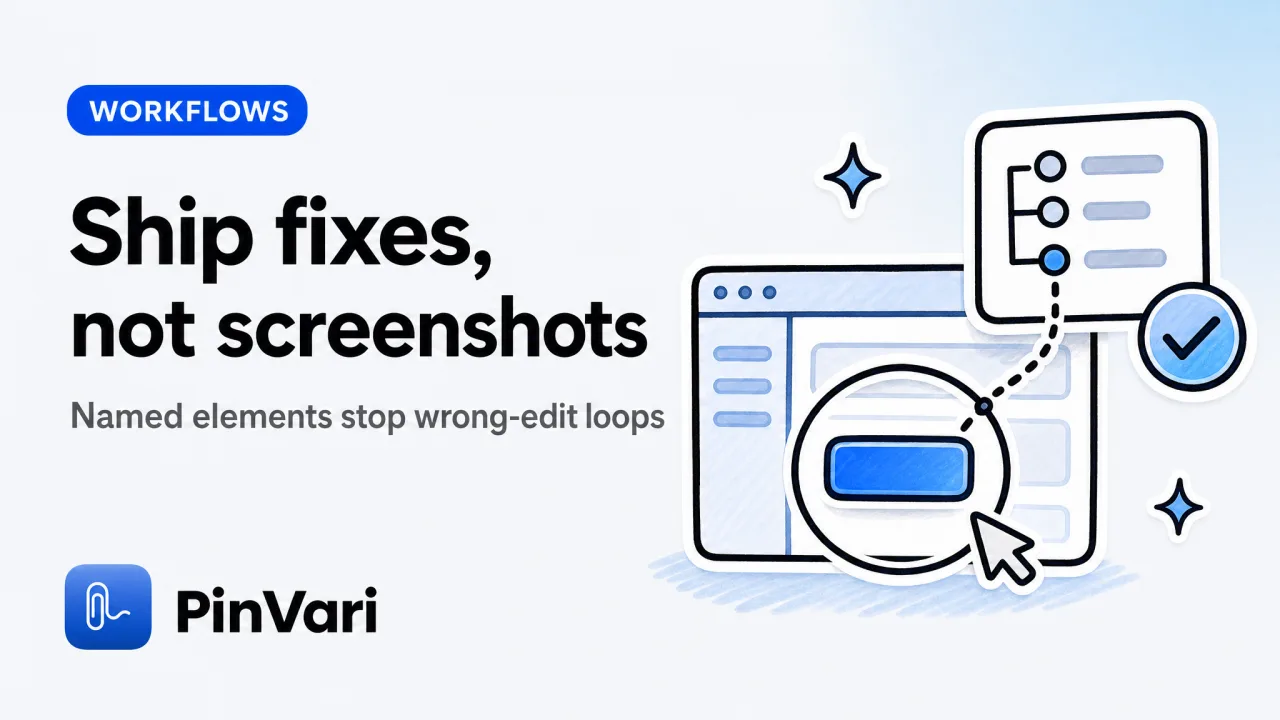
A Claude Code workflow feeds the agent three things: the instruction, the context (files/screenshots), and a verification step to confirm the change shipped. Most teams paste screenshots and write "fix the button" , Claude guesses from pixels, edits the wrong element 30-40% of the time, and you waste 12 minutes re-prompting.
The fix is named-element capture: circle the UI component on-screen, get the accessibility role + label + frame + confidence score, and hand Claude an executable instruction that says "edit the AXButton titled 'Submit' at frame {x:120, y:340, w:80, h:36}" instead of "that blue button in the middle-ish area."
Below is the repeatable workflow we run at scale: point-and-speak to resolve the element, connect Claude to the local MCP server that streams those instructions, verify in-app, close the task. No guessing, no token waste on giant screenshots, no wrong-edit loops.
Why do most Claude Code workflows waste tokens on screenshots that guess wrong?
Claude Code accepts screenshots as context , drag an image into the chat or use the /add command. The model reads pixels with vision, infers what the circled region might be, and edits the closest-matching code.
When the UI is a nested Flexbox with six <button> tags sharing the same class, Claude picks the wrong one 30-40% of the time because it has no accessibility-tree path. You re-prompt, paste another screenshot, and burn another 1,200 tokens per image.
The root cause: screenshots are raster data with zero semantic labels. A circled region at {x:340, y:200, w:100, h:40} could be a button, a link, or a decorative <div>.
Claude infers from color, text, and surrounding layout , it's a pixel guess. When the guess is wrong, you iterate.
When you iterate four times, you've spent 6,400+ tokens on context and 15-20 minutes re-explaining the same fix.
A production workflow needs the named element: the accessibility role (AXButton, AXTextField), the label ("Submit", "Email address"), the parent chain (window > toolbar > group > button), and a confidence score (0.0-1.0) that flags ambiguous hits. That data costs ~80 tokens per instruction (JSON) instead of 1,200+ per screenshot, and it eliminates the wrong-element failure mode entirely.
The named-element moat: macOS exposes the UI element under any point via AXUIElementCopyElementAtPosition → role/title/value/frame. Circling a button returns {"role":"AXButton","title":"Submit","frame":{"x":120,"y":340,"w":80,"h":36},"confidence":0.96,"provenance":"circled"}. Claude edits the right component the first time.
How do you connect Claude Code to a point-and-speak capture workflow?
The cleanest integration is a local MCP server that streams named-element instructions directly into Claude's tool set. Install the connector, hold ⌥⌘A, circle the UI element you're describing, speak the fix ("change this button to say 'Continue'"), and the instruction + resolved element + cropped screenshot land in Claude's next pinvari_next_instruction call.
Claude reads the element path, edits the code, and calls pinvari_mark_done to close the task.
Here's the one-click setup:
- Install PinVari (macOS 14+, Apple Silicon or Intel) , download the notarized DMG from pinvari.com, drag to
/Applications, grant Accessibility + Screen Recording permissions in System Settings → Privacy & Security. - Open PinVari → Connect → Claude Code , the app writes
~/.pinvari/mcp/pinvari-mcpand prompts you to restart Claude. Alternatively, runclaude mcp add --scope user pinvari -- "$HOME/.pinvari/mcp/pinvari-mcp"in Terminal (never the bareclaude mcp add pinvari, it errors). - Verify the connection , open Claude Code, type
/mcp, you'll seepinvari_next_instructionandpinvari_mark_donein the tool list. The app must be running (the connector talks to 127.0.0.1:3402).
Now the workflow loop:
- Press ⌥⌘A while focused on the app you're editing (browser, Electron app, native macOS window). Freehand-circle the element you're describing (or hover ~0.2s to dwell-select it). Speak the instruction: "This submit button should disable after one click to prevent double-submit."
- Press ⌥⌘A again or ⏎ to finish marking. The capture lands in the notch island (a Dynamic-Island-style HUD) with a lime pulse.
- In Claude Code, prompt: "Fix the next PinVari instruction." Claude calls
pinvari_next_instruction, gets{"role":"AXButton","title":"Submit","frame":{"x":120,"y":340,"w":80,"h":36},"instruction":"This submit button should disable after one click to prevent double-submit","screenshot":"<base64>","confidence":0.96}, edits theSubmitButton.tsxfile, and replies with the diff. - Verify in-app , refresh, click the button, confirm it disables. If fixed, tell Claude "mark done" → it calls
pinvari_mark_done, the task closes.
The iteration time drops from 12-15 minutes (screenshot → wrong guess → re-screenshot → re-prompt) to 2-3 minutes (circle → fix → verify). Token cost per instruction: ~80 (JSON) + ~400 (cropped screenshot) = 480, vs 1,200+ for a full-page screenshot that still guesses wrong.
Multi-region captures: Circle three separate UI elements in one breath ("this button needs a spinner, that input needs validation, and this link should open in a new tab"). Each mark gets its own word bucket based on when you said "this"/"that" in the audio timeline. Claude processes them sequentially with one pinvari_next_instruction call per region.
What happens when Claude can't see the element in the accessibility tree?
Some surfaces are accessibility-blind: <canvas> game UIs, certain Electron apps that don't expose the AX tree, legacy Flash embeds. When AXUIElementCopyElementAtPosition returns an empty parent chain or a bare AXGroup with no label, PinVari falls back to on-device Vision OCR (Apple's framework, no API key).
It reads the text inside the circled region, returns {"ocr_text":"Submit","frame":{"x":120,"y":340,"w":80,"h":36},"confidence":0.72,"provenance":"circled_ocr_fallback"}, and flags the lower confidence (OCR typically scores 0.65-0.85 vs 0.90+ for named AX elements).
Claude still gets the instruction and a cropped screenshot, but you lose the semantic role , it knows there's text that says "Submit" at that frame, not that it's definitively an AXButton. For canvas UIs (Figma plugins, Unity WebGL), that's often enough.
For production web apps, the AX tree should be populated , if it's not, that's an accessibility bug worth fixing (screen readers need it too).
Electron/Chromium apps build the AX tree lazily: the first hit-test can return null, then the tree appears ~100-150ms later. PinVari sets AXManualAccessibility on the target window and retries until a labeled element shows up (max 3 retries, 500ms total).
On Intel Macs with SwiftUI apps, the AX tree can lag under memory pressure , same retry logic.
When confidence is below 0.80, the instruction includes a `
:::warn` callout: "Confidence 0.72 , verify the element path before editing." Claude will ask you to confirm the target. When confidence is above 0.90, it edits immediately.
How does this compare to screenshot-only workflows in Cursor or Codex CLI?
Skip the wide grid. Read each option as a card.
#
Claude Code + PinVari
**Element resolution:** Named AX element + OCR fallback
**Token cost/instruction:** ~480 (JSON + cropped img)
**Wrong-edit rate:** <5% (confidence-gated)
**MCP integration:** Yes (pinvari_next_instruction)
**Price:** $39 one-time (PinVari)
#
Cursor (screenshot paste)
**Element resolution:** Pixel inference
**Token cost/instruction:** ~1,200-1,800
**Wrong-edit rate:** 30-40%
**MCP integration:** No native screenshot MCP
**Price:** $20/mo Pro
#
Codex CLI (screenshot)
**Element resolution:** Pixel inference
**Token cost/instruction:** ~1,200-1,800
**Wrong-edit rate:** 30-40%
**MCP integration:** No
**Price:** Free (OpenAI API costs)
#
Jam.dev (browser only)
**Element resolution:** DOM selector
**Token cost/instruction:** N/A (sends to tracker)
**Wrong-edit rate:** ~10% (browser-only)
**MCP integration:** No
**Price:** Free / $10+/mo teams
The Claude Code + PinVari stack wins on token efficiency and accuracy (named elements remove guessing). Cursor agent mode and Codex CLI both accept screenshots via drag-and-drop or the /add command, but they infer from pixels , no accessibility-tree path, no confidence score.
When you're shipping 40+ fixes/day across native macOS apps, Electron windows, and browsers, the wrong-edit tax compounds fast.
Jam.dev captures DOM selectors perfectly (it instruments the browser's DevTools protocol), but it's Chromium-only , can't capture Xcode, Slack desktop, or VS Code UI bugs. Best screenshot tool Mac comparisons rank CleanShot X and Shottr for raw image capture, but neither resolves the element or integrates with AI coding agents.
Why not just use the accessibility inspector? macOS Accessibility Inspector shows the AX tree statically , you click an element, it reveals the role/label/frame. Point-and-speak workflows capture the element and the spoken instruction in one gesture, then stream it to Claude without a context switch. The inspector is a debugging tool; PinVari is an instruction-capture tool.
If you want the Mac point-and-speak capture that names the element, see PinVari pricing. One-time $39 launch for the first 500 licenses, then $59.
FAQ
#
What's the difference between Claude Code workflow and Cursor workflow?
Claude Code workflow relies on MCP tools for structured context (named elements, tool calls, confidence scores). Cursor alternatives like Windsurf and Codex use the standard editor-context model (open files + screenshots pasted via drag-and-drop).
The MCP layer lets Claude request captures mid-task (pinvari_request_capture) and close them when verified (pinvari_mark_done), which Cursor can't do without manual prompting.
Token-wise, named-element JSON costs ~480 tokens/instruction vs 1,200+ for a full screenshot.
#
How do I use Claude Code with PinVari if I'm on a team plan?
Each developer installs PinVari locally ($39 one-time, team seats available), runs claude mcp add --scope user pinvari -- "$HOME/.pinvari/mcp/pinvari-mcp", and connects their own Claude Code instance. The MCP server is local (127.0.0.1:3402) , no shared API keys, no cloud routing.
Captures stay on-device unless you export them to Linear/Slack/Markdown. For team-wide AI agent workflows, standardize on a confidence floor (we use 0.85) and a commit-message template that links the PinVari instruction ID to the tracker issue.
#
Can I export Claude Code instructions to a bug tracker instead of running the fix live?
Yes , PinVari → Export → Linear / GitHub / Slack / Markdown. The resolved element path, spoken instruction, cropped screenshot, and audio transcript export as a structured issue.
Linear gets {"title":"Fix cancel link in modal","description":"AXLink 'Cancel' at {x:200,y:450,w:60,h:20} should close modal without saving","labels":["bug","ui"],"attachments":["cropped_screenshot.png","audio.m4a"]}. For customer feedback tools workflows, this replaces typing long Loom descriptions , circle, speak, export.
#
Does Claude Code workflow work with accessibility-blind apps like Figma or Unity WebGL?
Partially , when the accessibility tree is empty (canvas UIs, legacy plugins), PinVari falls back to on-device Vision OCR. It reads the text inside the circled region and returns {"ocr_text":"Submit","confidence":0.72,"provenance":"circled_ocr_fallback"}.
Claude gets the instruction and a cropped screenshot, but loses the semantic role (no AXButton label, just pixel-detected text). For production web/native apps, the accessibility tree should be populated , if it's not, that's a screen-reader accessibility bug worth fixing separately.
#
How does point-and-speak compare to typing descriptions in Claude Code?
Point-and-speak captures the element path (role/label/frame) and the instruction in one ⌥⌘A gesture , no context switch, no "let me describe where the button is" typing. Typed descriptions ("fix the blue button on the left side of the modal") are ambiguous: "left side" relative to what?
Which of three blue buttons? Claude guesses from your words plus any pasted screenshot, wrong-edit rate ~30%.
Circling resolves to the named AXButton titled "Cancel" at exact frame coordinates, confidence 0.94, wrong-edit rate <5%. For AI code editor workflows at scale, the elimination of re-prompting saves 8-12 minutes per fix.
#
What's the token cost breakdown for a Claude Code + PinVari instruction vs a raw screenshot?
Named-element JSON: ~80 tokens (role, label, frame, confidence, instruction text). Cropped screenshot (base64-encoded, 200×150px region): ~400 tokens.
Total: 480 tokens. A full-page screenshot (1920×1080, drag-and-dropped into Claude): ~1,200-1,800 tokens, and Claude still infers from pixels with a 30-40% wrong-guess rate.
Over 100 instructions/week, that's 48K tokens (named) vs 120K-180K tokens (screenshots) , the named-element workflow costs 60-73% less and edits the right component the first time.
Hand your agent the exact element
PinVari resolves what you point at into a named, executable instruction — on-device, no keys, your own agent. One click inside PinVari connects Claude Code, Cursor, VS Code or Codex — or paste one CLI line from pinvari.com/connect.
PinVari → Connect → your agent (one click)Get PinVari — $39 →