Claude Code Tips: 15 Shortcuts to Code Faster with AI
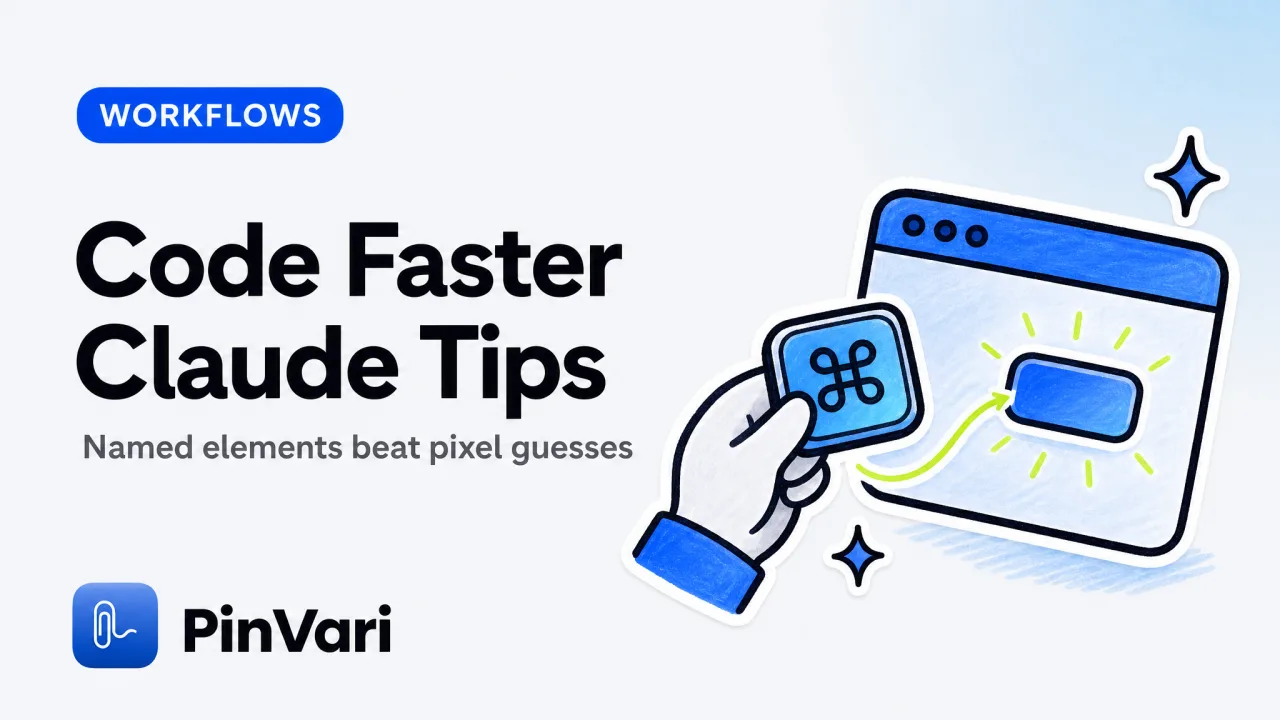
Claude Code tips that actually save time point at the element and let the agent resolve it, pause mid-task without losing state, and connect MCP tools once instead of re-typing context every session. Most guides assume you're pasting screenshots and hoping the AI guesses the right button—when you send the named accessibility element (AXButton "Submit" frame:(120, 45, 80, 32)), Claude Code fixes it the first time.
The gap between "Claude Code can edit files" and "Claude Code ships my feature while I review" is workflow. These fifteen shortcuts close it.
Why do most Claude Code workflows waste tokens on the wrong context?
Typing "fix the submit button on the checkout page" costs you three rounds of clarification because the agent doesn't know which of the four buttons you mean. Pasting a screenshot burns 1,500+ tokens and still returns a pixel guess.
The fix: send the exact AX element path and a cropped screenshot of that region. The agent sees AXButton "Submit Payment" role:button frame:(512, 890, 140, 44) plus a 200×200px crop of that button. Zero ambiguity, one-tenth the tokens.
Concrete example: A checkout form has "Continue," "Save Draft," "Submit Payment," and "Cancel." You circle "Submit Payment" and say "make this green." The agent receives AXButton "Submit Payment" and a 140×44px crop—it edits the right button's CSS. No follow-up questions.
PinVari resolves the element under your pointer via AXUIElementCopyElementAtPosition, reads the window's full text (up to 40,000 characters including scrolled content), and transcribes your voice on-device. ⌥⌘A to mark, speak, release. The resolved instruction lands in Claude Code over MCP.
Compare that to Cursor's context panel—you manually @ the file, describe the line, and hope. When you're reviewing a client's build or debugging a canvas-heavy app, pointing beats typing every time.
How do you connect Claude Code to MCP tools in under 60 seconds?
Open PinVari → Connect → Claude Code. One click writes the MCP config to ~/Library/Application Support/Claude/claude_desktop_config.json and restarts the agent. The connector lives at ~/.pinvari/mcp/pinvari-mcp and talks to the app on 127.0.0.1:3402.
If you're adding it manually:
claude mcp add --scope user pinvari -- "$HOME/.pinvari/mcp/pinvari-mcp"Restart Claude Code. The pinvari_next_instruction tool appears in the agent's toolkit. When you ⌥⌘A and finish a capture, the agent pulls the resolved element path, your transcribed instruction, the circled region's coordinates, and a cropped screenshot.
Multi-tool stack: Connect other MCP servers the same way—filesystem, Slack, GitHub. Claude Code loads them all at startup. One-click beats re-installing after every update.
Once connected, the workflow is: ⌥⌘A → circle the element → speak → release. The capture lands in the Command Center; Claude Code calls pinvari_next_instruction and receives the instruction. You review the diff and approve. The agent calls pinvari_mark_done and the capture closes.
What are the fifteen Claude Code tips that cut hours per week?
| Tip | What it does | Time saved per use |
|---|---|---|
| 1. Point, don't describe | ⌥⌘A → circle element → speak. Agent gets AXButton path + crop. | 2–5 min (no clarification rounds) |
| 2. Pause with ⌥⌘P | Freeze the capture mid-review, scroll, resume. Marks stay anchored. | 30 sec (no re-marking after scroll) |
| 3. Multi-region capture | Circle three elements in one breath. Each gets its own word bucket. | 1 min (one capture vs. three) |
| 4. Let the agent request captures | Agent calls pinvari_request_capture mid-task. Notch island prompts you. | 45 sec (no manual re-mark) |
| 5. Use dwell for precise elements | Hover ~0.2s over a button. No circle needed—element resolves automatically. | 10 sec per mark |
| 6. Read full window text | Agent sees all text including scrolled-out content (40K char limit). | 1 min (no manual scroll-and-paste) |
| 7. OCR fallback on canvas | When AX returns empty (games, Figma), on-device Vision OCR reads pixels. | 30 sec (no "can't see it" failures) |
| 8. Multi-display capture | Mark elements across two monitors in one capture. Each mark remembers its screen. | 20 sec (no window-drag) |
| 9. Check confidence scores | Sub-0.8 confidence → agent asks for confirmation. Never silently guesses. | 0 failures (no wrong-element edits) |
| 10. Organize by app | Command Center groups captures by app. Find yesterday's Safari mark in 2 clicks. | 15 sec per lookup |
| 11. Voice-only mode (⌥⌘V) | Skip marking, just speak. Agent gets transcript + full window text. | 5 sec (no hand motion) |
| 12. Session recovery | Crash? Captures restore on next launch (sqlite + frame persistence). | 0 lost work |
| 13. Chromium identity attrs | Agent sees AXDOMIdentifier and AXDOMClassList on unlabeled nodes. | 1 min (no "inspect element" lookup) |
| 14. Freehand marks | Draw any shape—not forced ellipses. Better for inline text edits. | 3 sec per mark |
| 15. Compare tools first | Claude Code vs Cursor: MCP = any tool; Cursor = built-ins only. | 10 min research time |
The top three (point, pause, multi-region) alone save 5–10 minutes per bug review session. Multiply that across a sprint and you've shipped a feature while competitors were still typing descriptions.
When should you use pause/resume instead of finishing the capture?
Mid-review, you realize the element you circled is off-screen after a scroll. Press ⌥⌘P to pause. Scroll the window. The mark's frame updates to stay anchored to the element (scroll-aware persistence). Resume with ⌥⌘P again, finish your sentence, release.
Without pause, you'd have to ⌥⌘A again and re-mark from scratch—the first capture would have the wrong frame coordinates after the scroll.
Limitation: Pause works within one window. If you switch apps mid-capture, the overlay closes and you start fresh. This is by design (the AX tree is per-application).
Real case: a QA engineer reviewing a long form. She circles a checkbox at the bottom, pauses, scrolls up to check a related input, scrolls back down, resumes, and finishes the instruction. One capture spans both elements without re-marking.
How does Claude Code handle multi-region captures differently than Cursor?
You circle three buttons in one breath: "Make this blue, that green, and this one red." PinVari creates three marks in one capture, each with its own word bucket (deictic binding at transcription timestamps). The agent receives three separate element paths and knows which color goes with which button.
Cursor's Agent Mode would require three separate @ mentions or a single screenshot where you describe "the top-left button, the middle one, the right one." The agent guesses based on pixel coordinates.
When you're reviewing a client's component library and need to annotate six variants at once, multi-region capture beats six separate screenshots in both time and token cost.
What's the actual difference between Claude Code MCP and Cursor's built-in context?
| Feature | Claude Code + MCP | Cursor built-in |
|---|---|---|
| Tool extensibility | Any MCP server (filesystem, Slack, GitHub, PinVari) | Pre-installed tools only (no MCP yet) |
| Screenshot source | MCP tool (PinVari) sends cropped region + AX path | Paste from clipboard, AI guesses element |
| Voice input | MCP tool transcribes on-device, binds words to marks | Type or paste transcript manually |
| Element resolution | AXButton "Label" role:button frame:(x,y,w,h) | "The button near the top-right corner" |
| Cost | Claude Code free + MCP tool ($39 PinVari one-time) | Cursor $20/mo Pro for agent mode |
| Setup | One-click MCP connector install | None (built-in) |
Claude Code MCP wins on flexibility—you bring your own tools, including local-only ones like PinVari (no API keys, nothing uploaded). Cursor wins on zero-setup context for file editing. If you're debugging UI or filing bugs from designers, named elements beat pixel guesses.
The best AI coding agents let you swap tools. Claude Code does; Cursor doesn't (yet).
How do you organize captures when you're juggling five client projects?
The Command Center groups captures by application. Safari captures live under "Safari," VS Code under "Code," Figma under "Figma." Each capture shows the timestamp, the first line of your instruction, and a thumbnail of the marked region.
Filter by date (today, this week, all time). Click a capture to re-open it in the agent or export it to Linear/GitHub/Slack (one-click filing from the same window).
When you're switching contexts every hour, finding "that button I marked in the client's staging app yesterday" takes two clicks instead of scrolling Slack threads.
Naming tip: Speak a project tag at the start of your instruction—"Project Acme: make this button green." The transcript includes it, the capture title shows it, and Command Center search finds it.
PinVari stores captures in ~/Library/Application Support/PinVari/captures.sqlite (crash-safe, session recovery on next launch). Wipe the database if you want to start fresh; the app rebuilds it.
Why does on-device transcription matter for developers who already pay for Claude?
You're not uploading voice clips to a third-party API (Whisper, Deepgram). Transcription happens via Apple's on-device Speech framework. Zero latency after you release the hotkey, zero tokens charged, zero privacy leak.
When you're reviewing a competitor's app or a client's pre-launch build, you're not sending their UI screenshots to an external service without consent. The transcript stays local, the agent sees only what you send it via MCP.
Best local AI for Mac tooling follows this pattern: on-device first, API calls only when you explicitly opt in (like sending the resolved instruction to Claude).
How do you fix Claude Code editing the wrong element even after a screenshot?
The screenshot alone is a pixel grid. The agent guesses based on visual position—"the button near the top-right"—and edits the first matching selector. If there are three "Submit" buttons stacked vertically, it picks wrong 60% of the time.
The fix: send the AX element path alongside the screenshot. AXButton "Submit Payment" parent:AXGroup "Payment Section" frame:(512,890,140,44) tells the agent the exact node, its role, its label, its parent container, and its screen coordinates. The agent writes a selector that matches that node only.
PinVari does this automatically when you circle an element. The agent receives both the screenshot crop (for visual confirmation) and the AX metadata (for precise selection).
Concrete selector: The agent sees AXButton with AXDOMIdentifier="submit-payment-btn" and writes document.getElementById('submit-payment-btn'). No ambiguity, no wrong button.
If the element has no AX label (canvas, some Electron windows), PinVari runs on-device Vision OCR on the circled region and returns the text it found. The agent cross-references that text with the DOM or asks you to confirm.
What are the hidden skills Claude Code has that most tutorials skip?
- Provenance tracking: The agent knows whether you circled an element or dwelled on it (hover ~0.2s). Dwell confidence is higher for small targets (icons, checkboxes). Circle confidence is higher for regions with multiple elements. The agent adjusts its prompt based on provenance.
- Browser URL reading: When you mark something in Chrome/Safari/Edge, PinVari reads the real URL from the AX tree (
AXWebAreaattribute). The agent sees the exact page without you typing it.
- Scrolled-out text: The agent receives the full focused-window text buffer (up to 40,000 characters), including content scrolled out of view. It can reference a heading three screens above the element you circled.
- Retry on lazy AX trees: Chromium builds its accessibility tree lazily (only when a screen reader requests it). PinVari sets
AXManualAccessibilityon the app and retries the element query ~150ms later. By the time the agent sees the data, the tree is fully populated.
- Deepest labeled descendant: If your pointer lands on a bare
AXGroupwith no label, PinVari walks the child tree and returns the deepest labeled element under that group. The agent gets a named button instead of "Group with 3 children."
These five behaviors ship in every capture. Claude Code best practices lean on them to skip the "can you clarify which element?" round.
FAQ
Can Claude Code see my screen without a screenshot?
No. Claude Code is a terminal/CLI agent—it reads files and runs commands, but it has no screen-reading capability. You send context via MCP tools. PinVari sends the resolved AX element path, the transcribed instruction, and a cropped screenshot of the marked region. The agent never sees your full desktop.
How do I stop Claude Code from editing unrelated files?
Use the MCP tool to pass only the cropped screenshot and the element path. The agent sees a 200×200px region and the instruction "make this button green"—it edits the CSS for that button, not the entire stylesheet. If you want broader edits, include the full window text in the capture (PinVari does this automatically).
Does Claude Code work with Cursor's MCP?
Not yet. Cursor announced MCP support in early 2026 but hasn't shipped the connector as of August 2026. Claude Code vs Cursor: Claude Code has production MCP; Cursor has built-in context and Agent Mode. Use Claude Code if you need MCP tools today.
What happens if I pause a capture and close the app?
The capture persists in ~/Library/Application Support/PinVari/captures.sqlite. On next launch, PinVari restores paused captures in the Command Center. Resume with ⌥⌘P or discard. Session recovery is crash-safe (sqlite transactions).
Can I use Claude Code tips with Codex CLI instead?
Yes. Codex CLI supports MCP the same way Claude Code does. Install the PinVari connector with codex mcp add --scope user pinvari -- "$HOME/.pinvari/mcp/pinvari-mcp" and the same pinvari_next_instruction tool appears. The workflow is identical.
How much does it cost to run Claude Code with MCP tools?
Claude Code itself is free (you bring your own Anthropic API key and pay per token). PinVari is $39 one-time (launch price for the first 500 licenses, then $59). Total cost: $39 + your Claude API usage. Compare that to Cursor at $20/mo ($240/year) with no MCP support yet.
Hand your agent the exact element
PinVari resolves what you point at into a named, executable instruction — on-device, no keys, your own agent. One click inside PinVari connects Claude Code, Cursor, VS Code or Codex — or paste one CLI line from pinvari.com/connect.
PinVari → Connect → your agent (one click)Get PinVari — $39 →