Best Image Downloader Chrome Extension (2026 Guide)
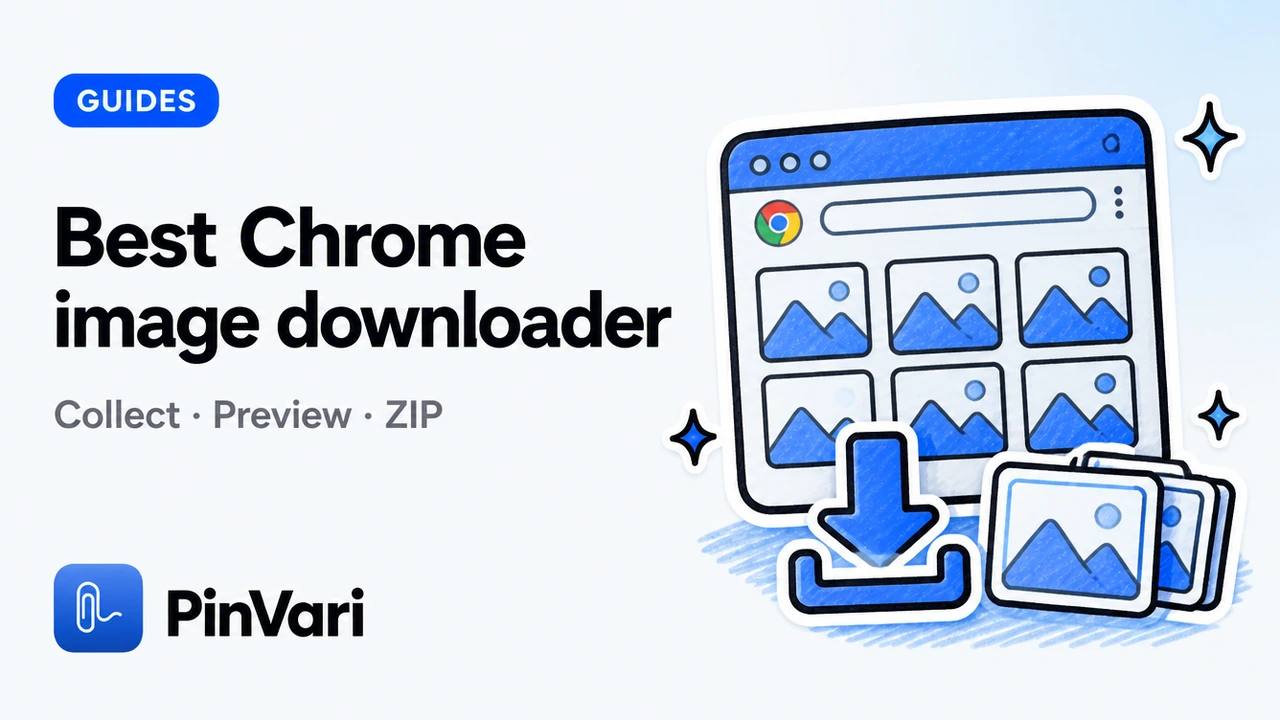
The best image downloader Chrome extension in 2026 is the one that lets you collect a page, preview what matters, and leave with an organized ZIP—not a pile of favicons. Preview before download beats any vanity metric about install counts.
Most roundups rank by users. That measures distribution age, not whether your next moodboard or product brief stays usable after you unzip.
This guide is a buyer checklist for designers, marketers, and ecommerce teammates. It ends on how Image Downloader by PinVari maps to those jobs without overclaiming site coverage.
What should the best image downloader Chrome extension actually do?
It should turn a messy webpage into a shortlist you can hand to a teammate. That means scan, filter, preview, name, and export—not a silent grab of every decorative pixel.
A capable extension reads images the page already exposed: standard image tags, responsive candidates, common lazy attributes, readable CSS backgrounds, and linked image URLs. It does not invent masters behind a paywall.
“Best” means you can see dimensions and source before you download—and hide junk icons before they waste your afternoon.
Format control belongs in the same session. Keep originals when animation matters. Convert to JPG, PNG, or WebP when the next tool expects a specific type. Resize at export so huge assets do not flood an import.
Organized output matters more than raw speed. Filename templates, folders by source or format, CSV or URL manifests, and ZIP parts under sane limits keep batches reviewable. Local processing and no account wall matter for everyday creative work on client pages.
You also want recovery when a CDN flakes. Keeping completed files and retrying only failures is a quality signal. So is a contact sheet when stakeholders need to approve a shortlist before the full archive lands.
How do you judge Chrome image downloaders without chasing install counts?
Use jobs, not stars. Ask whether the tool finishes the job you opened Chrome to do today.
Preview grid and versions
Job: Confirm you are saving the hero, not a 48px badge.
Signal: An inspector with dimensions and source, plus page-provided alternate versions when they exist.
Fail mode: Blind bulk ZIP with no way to look first.
Filters that kill junk
Job: Drop favicons, tracking pixels, and tiny UI chrome.
Signal: Size, format, orientation, and search filters you can save as presets.
Fail mode: Manual deletion of fifty icons after every export.
Organized ZIP and retry
Job: One archive you can rename and ship, with partial failure recovery.
Signal: Split parts, keep completed files, retry only failures.
Fail mode: One broken URL cancels the whole batch, or Chrome spams Save dialogs.
Privacy and permissions clarity
Job: Know what stays local and what permissions unlock.
Signal: Clear privacy language and site access requested when needed.
Fail mode: Opaque cloud processing for a simple local save.
When you compare Store listings, read how to choose a Chrome Web Store image downloader and match permissions to the job—not to the flashiest screenshot collage.
Why does collect → preview → ZIP beat one-click save-all?
One-click tools feel fast until you open the folder. Then you sort icons from product shots for twenty minutes and wonder where the afternoon went.
Collect first so the page becomes a workspace. Preview so dimensions and source are visible. Download last so the ZIP matches what you already approved.
That order also protects you from lazy-load traps. Infinite galleries hide most assets until you scroll. A dedicated scroll-and-collect step grows the collection before you filter—see how to download lazy-loaded images in Chrome.
Batch selection with filters keeps ecommerce pages usable. Product galleries share the DOM with badges, swatches, and payment icons. Size filters cut that noise; pair with filter images by size before you download.
Naming and folders belong in the plan you preview. If the ZIP path is wrong, fix the template before you burn bandwidth—not after you rename fifty files by hand. Select then archive is the quiet rule behind every clean creative handoff.
Where does Image Downloader by PinVari fit the checklist?
Image Downloader by PinVari is a Chrome extension—a home for the images you find. Processing stays on your device. No account is required to collect, filter, convert, or download. The UI includes 51 language options.
You can collect from the current page, tabs you choose, or direct image links. Right-click a page or image to collect or download. Keep the source page open with the side panel. Use Scroll & collect for lazy galleries.
Filter by format, dimensions, orientation, and source. Search, hide small images, save favorites, and reuse presets. Preview the full image with dimensions and source. Compare alternate versions the page explicitly provides when available.
Keep originals or convert supported images to JPG, PNG, or WebP. Resize and set quality where supported. Preview custom filenames and organize folders by source or format. Save selections as ZIPs with split parts. Export URLs and CSV source records. Build contact sheets for review.
A selection can contain up to 2,400 images. ZIP parts split at 200 images or 100 MB. Source files are limited to 20 MB each. Conversion supports inputs up to 32 megapixels. Contact sheets contain up to 12 images per page. Keep the workspace open while a download runs.
Availability depends on the website and your access. Protected browser pages, inaccessible frames, and some authenticated images may be unavailable. The extension does not bypass access controls or reconstruct hidden originals. Larger versions are not guaranteed, and page-provided versions may use different crops.
Image processing runs on your device. Image contents, page URLs, and filenames are not sent to PinVari for analytics. Previews and downloads connect to original image hosts. Usage diagnostics may be on for new installs and can be turned off.
Review Image Downloader by PinVari on the product page for the workspace tour, and keep the Chrome Web Store listing handy while the release is in review.
For a product-shaped tour rather than a category checklist, continue with the PinVari Image Downloader overview. For bulk framing, see bulk image downloader for Chrome. For commercial framing of free tools, see what free really means.
What mistakes make “best extension” lists useless?
They treat install count as quality. A huge listing can still dump junk icons into Downloads.
They promise every image on any site. That claim collapses on authenticated assets, blocked frames, protected browser pages, and anything the page never exposed.
They ignore handoff. Creative work needs filenames, folders, manifests, and contact sheets—not only bytes on disk.
They bury privacy. If image contents leave your machine for a routine save, the product is solving a different problem than local collection.
Do not confuse a Chrome image downloader with a desktop capture app. This guide covers only Image Downloader by PinVari—the extension line.
Lists also fail when they skip failure modes. Retry behavior, ZIP part limits, and lazy-load collection are the details that separate a demo GIF from a tool your team can standardize.
How do you brief a teammate on this workflow?
Send three links: the product page, one sibling how-to, and one troubleshooting note. Ask them to run a single gallery with size filters on before they declare the tool broken.
Require filename templates on any ZIP that leaves the laptop. Require CSV when the next reader is legal, research, or migration.
Remind them that local processing does not mean the remote image host never sees a request. It means convert and package stay on device.
Schedule a fifteen-minute desk check the first week. Watch one Scroll & collect pass together. Correct filter defaults once, not in every critique forever.
What does good output look like on disk?
A good output folder has readable names, almost no icons, and a ZIP that opens without drama. A contact sheet sits beside it when stakeholders hate unzipping.
A good CSV has source URLs that still resolve for the reviewer. A good library entry is tagged so next quarter you can find the same competitive set.
Bad output is a flat dump of download (61).webp next to payment badges. Bad output is a thumbnail set labeled as heroes.
organized ZIP is the standard. If Finder looks chaotic, the export settings failed—not the designer.
How do you stay honest in stakeholder updates?
Say what the page exposed. Say what you filtered out. Say what failed and why you stopped retrying.
Do not promise full-resolution masters the CDN never published. Do not promise the extension works on every authenticated portal.
Point to the Image Downloader product page when someone asks what the tool is for. Point to the Chrome Web Store listing while the release remains in review.
Honesty keeps the tool trusted. Overclaiming creates ticket storms and quiet uninstalls.
FAQ
What is the best image downloader Chrome extension for designers?
Pick one with preview, size filters, filename templates, and ZIP handoff. Designers lose hours to icon junk and opaque WebP files. Image Downloader by PinVari is built around that collect-and-organize loop.
Is a free image downloader good enough in 2026?
Often yes for selective saves and organized ZIPs. Read what free really means so diagnostics, limits, and Store status stay clear before client work.
Can any extension guarantee full-resolution originals?
No honest tool can. You only get what the page exposes to your session. Versions panels help when multiple candidates exist; they cannot reconstruct hidden masters.
Should I use an online image extractor instead?
Only if you accept pasting URLs into a third party. For private or client pages, a local Chrome extension keeps processing on your device.
How do ZIP limits affect what counts as best?
Caps like 2,400 images per selection and 100 MB parts keep archives usable. Vague unlimited claims usually mean marketing fog or a flood of browser prompts.
When should I skip an image downloader?
Skip when you lack permission, when assets sit behind access controls you should not bypass, or when a single file is easier via DevTools.
Hand your agent the exact element
PinVari resolves what you point at into a named, executable instruction — on-device, no keys, your own agent. One click inside PinVari connects Claude Code, Cursor, VS Code or Codex — or paste one CLI line from pinvari.com/connect.
PinVari → Connect → your agent (one click)Get PinVari — $39 →