Annotate Screenshot Mac: Marks That Name Elements
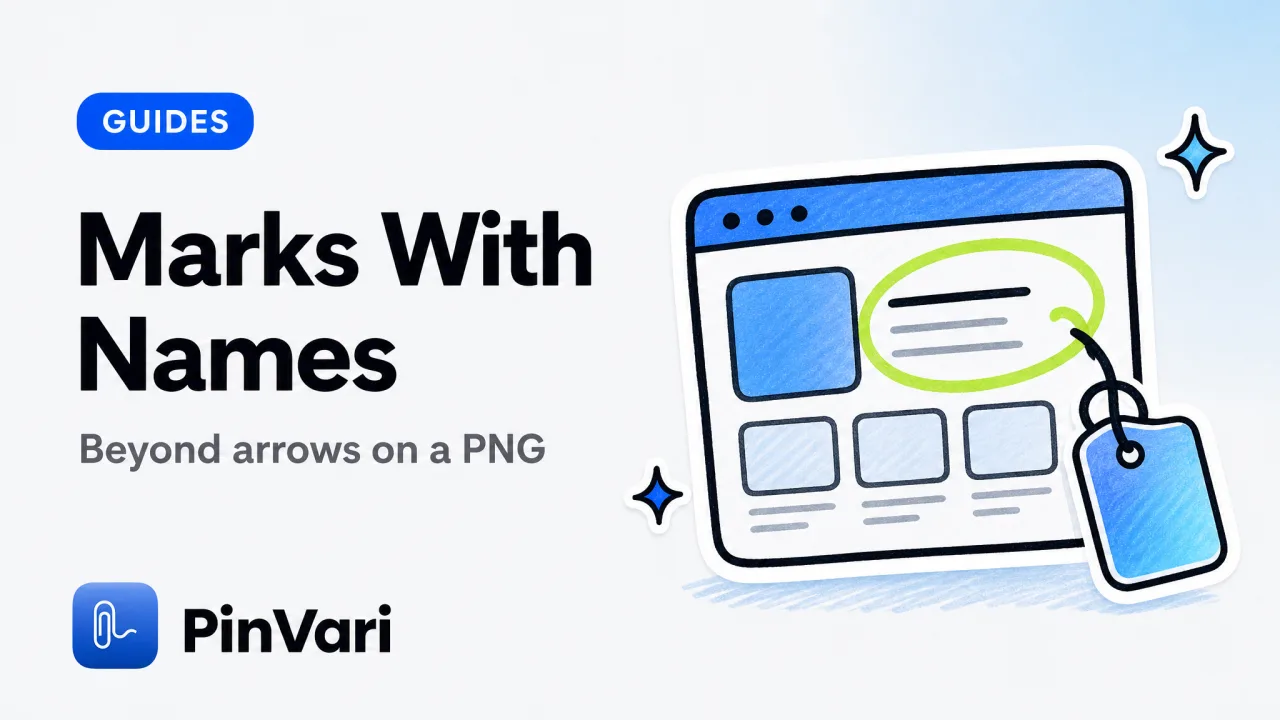
Annotate screenshot Mac is the habit of capturing the screen, then drawing arrows, boxes, and blur on the image before you send it. Native Markup (Preview or the thumbnail that pops after ⌘⇧4) does this for free. CleanShot X does it with nicer tools.
Most Mac power users stop there. The annotation is still pixels. An agent or a developer still has to guess which control you meant. The useful upgrade is a mark that also stores the named Accessibility element under the ink.
How do I annotate a screenshot on a Mac with built-in tools?
This is the free path. Learn it even if you buy something else.
- ⌘⇧4 for a region, ⌘⇧3 for the whole display, ⌘⇧5 for the control strip. See screen capture Mac shortcut.
- Click the thumbnail in the corner before it vanishes.
- Use Markup: arrows, rectangles, highlight, text, blur.
- Drag the result to Slack, or Open in Preview for more stamps.
Preview → Tools → Annotate is the same kit on a file you already have.
Limits: no global voice, no AX name, no URL from the browser tree, no MCP. Fine for "red circle around the typo." Weak for "fix this button" sent to Claude Code.
Hold Control with ⌘⇧4 to copy to the clipboard instead of saving a file. That is the fastest annotate-later path if you still want Markup in Preview after a paste.
What do CleanShot X and friends add?
CleanShot X is the Mac screenshot king, and that is a real compliment. Scrolling capture, a desktop overlay, annotation presets, a cloud upload if you want it.
It still does not know the thing you boxed is AXButton "Download CSV". The annotation is cosmetic.
Other annotation layers (Shottr, Cleanshot alternatives, QuickTime plus Preview) trade price and polish. I compared the category in best screenshot tool Mac and CleanShot X alternative.
Buy CleanShot if you live in screenshots and want them pretty. Add a capture app if the next consumer is an agent or a tracker that needs a name.
Preview Markup
Type: built-in Ink: arrows, shapes, text, blur Resolution: pixels only Price: free Best for: one-off Slack
CleanShot X
Type: premium screenshot app Ink: excellent Resolution: pixels only Price: one-time Best for: people who ship screenshots all day
PinVari
Type: point-and-speak Ink: freehand lime trail, multiple marks Resolution: AX role, label, frame, confidence, provenance Price: $39 launch, one-time Best for: Claude Code, Cursor, Linear, GitHub
How do I annotate and name the element in one gesture?
Hold ⌥⌘A. Freehand circle the control (not a forced ellipse). Speak the change. Press ⌥⌘A again or ⏎.
You get a crop, on-device transcript, and a hit-test through the real app's AX tree. The overlay is topmost, so a naive hit-test would resolve PinVari itself; the code walks on-screen windows and hit-tests the app underneath.
If the point lands on a bare AXGroup, a labeled descendant search walks down. Chromium may expose AXDOMIdentifier / AXDOMClassList when the title is empty. Electron often needs AXManualAccessibility and a ~150ms retry.
Dwell (~0.2s) annotates without a circle. Three marks in one breath get three word buckets. ⌥⌘V is voice-only. ⌥⌘P pauses for scroll; scrolled marks keep their own frame.
That is annotate screenshot Mac for people who also run an agent.
Arrows help humans. Names help agents. If your workflow is only humans in Slack, Markup is enough. If Cursor is going to edit the wrong icon, you need the name.
Where should annotated screenshots go?
Slack, for taste. A pretty PNG is fine. Say whether it is blocking.
Linear or GitHub, for work. Attach the crop and paste the element line. Do not upload a 5K desktop.
An agent, for a fix. Do not paste the PNG if you can send a tool result. pinvari_next_instruction carries the name, the words, the crop, window text (up to 40,000 characters, including scrolled-off copy), and the browser URL from AXWebArea.
Connect with PinVari → Connect, or:
claude mcp add --scope user pinvari -- "$HOME/.pinvari/mcp/pinvari-mcp"The app must be running on 127.0.0.1:3402. Mid-task the agent can request another annotation via pinvari_request_capture. The notch island lights up.
One-time pricing. No upload by default. Apple Silicon and Intel, macOS 14+, notarized DMG (not MAS, because the sandbox blocks global CGEventTap plus foreign AX).
Annotation habits that waste everyone's time
Full desktop with the dock. Crop.
Five arrows, no sentence. Speak or type one imperative.
Red box on an unlabeled icon. Add the AX name or an OCR quote.
Uploading customer PII. Blur in Markup, or better, do not capture the pane.
Annotating a stale tab. Include the live URL. Staging and prod diverge.
A 4-column comparison table of apps in the ticket. Nobody reads it on a phone. Use two facts and a crop.
Cloud screenshot hosts are convenient and they are someone else's disk. If the UI has customer data, keep the file local or redacted. On-device OCR and speech exist so you do not have to upload in order to annotate.
A two-minute Mac annotation checklist
- Right display? Multi-display marks should remember the monitor.
- Cropped to the control plus a little context.
- One arrow or one freehand circle, not both fighting.
- One sentence of expected behavior.
- Name of the control, typed or from AX.
- Destination: human, ticket, or agent. Not all three with three different crops.
Command Center groups captures by app so a Safari pass does not mix with Figma. Crash-safe recovery matters when Markup's thumbnail vanished and you thought the shot was gone.
I still use ⌘⇧4 twenty times a day. I use point-and-speak when the next step is a fix, not a reaction emoji.
How do I annotate screenshot Mac captures for an agent versus a human?
Humans like arrows and a joke in the caption. Agents like a name and an imperative.
If the next reader is a designer in Slack, Markup in Preview is polite. Blur the customer email. One arrow. One sentence.
If the next reader is Claude Code, skip the arrow art. Circle once, speak the change, send the bundle. An arrow on a PNG is a token tax that does not add an AX name.
If both must read it, file the named bundle to Linear and drop the pretty PNG in Slack with the ticket id. Do not maintain two truths.
I keep CleanShot for blog images and point-and-speak for work. Two tools, two audiences. Mixing them is how a "quick annotate" becomes a 12-megabyte desktop in a private repo.
Practice the native path once a month so you are not stuck on a loaner Mac. ⌘⇧4, thumbnail, Markup, done. Then go back to named marks when you are home.
Scrolling pages need pause. A still PNG of a footer taken while the page jumped is a lie. ⌥⌘P exists so the crop stays on the mark you drew.
Why do my annotated screenshots look sharp and still get ignored?
They look like mail. No owner, no due date, no name.
An annotate screenshot Mac habit without a destination is a hobby. Decide Slack, Jira, or an agent before you draw.
If nobody replies, the crop was the whole desktop or the sentence was "thoughts?" Put a name and a verb on the mark. Then ask for a yes or a PR, not thoughts.
Pretty ink is optional. A named mark is not.
FAQ
How do I annotate a screenshot on a Mac without extra apps?
⌘⇧4 or ⌘⇧5, click the thumbnail, Markup, send. Or open the PNG in Preview → Annotate. That is the entire native story.
What is the best app to annotate screenshot Mac captures?
CleanShot X if you want polish and scrolling capture. A point-and-speak app if you want names for an agent. Shottr if you want cheap and local. There is no single winner; there are two jobs.
Can Preview read the UI element I circled?
No. Preview stores pixels and your drawing. The Accessibility API is a different system. You need a capture tool that hit-tests the live window.
How do I blur secrets when I annotate?
Markup's hide/blur tools, CleanShot's pixelate, or crop so the secret is never in the frame. Cropping is more reliable than blur. Do it before the file hits Slack's cache.
Does annotate screenshot Mac work on multiple monitors?
Native capture follows the display you draw on. Good third-party tools record which monitor the mark used. Check the file; I have sent the wrong screen's crop more than once.
Can I send an annotated screenshot to Claude Code?
You can paste pixels. You will spend tokens and still risk the wrong control. Prefer a local MCP capture that includes the named element and a small crop.
Hand your agent the exact element
PinVari resolves what you point at into a named, executable instruction — on-device, no keys, your own agent. One click inside PinVari connects Claude Code, Cursor, VS Code or Codex — or paste one CLI line from pinvari.com/connect.
PinVari → Connect → your agent (one click)Get PinVari — $39 →