Download srcset / Responsive Images Correctly
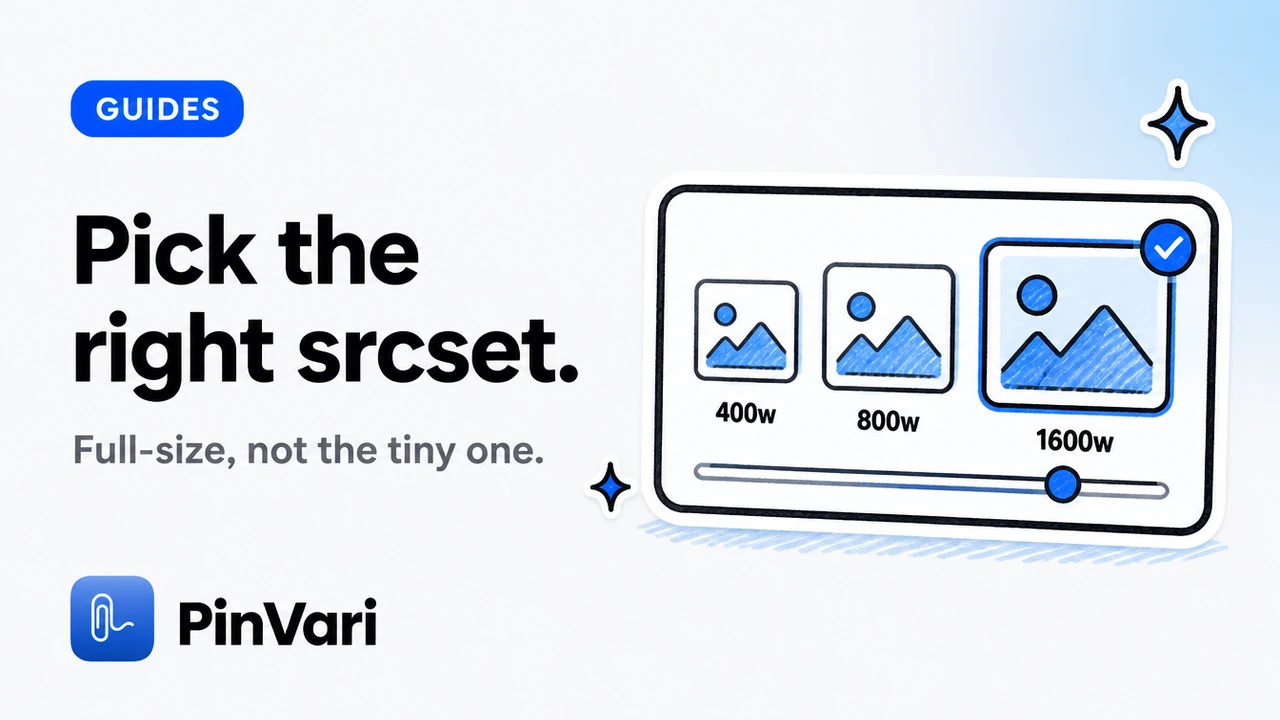
Download srcset and responsive images correctly by choosing a larger page-provided candidate when the markup exposes one. The on-screen display size is not always the file you want on disk.
Responsive pages ship multiple URLs for density and viewport. If you save the first src blindly, you often get a soft thumbnail that looks fine in a card and fails in a deck.
If you save the first src blindly, you often get a thumbnail. Image Downloader by PinVari is built to preview and compare before you commit an organized ZIP.
See the Image Downloader by PinVari product page for the collect → preview → ZIP workflow. The Chrome Web Store listing is the release-in-review detail page while version 2.5.3 completes review.
What does srcset actually give you?
srcset and related picture sources list candidate URLs the author chose to publish. You can only download candidates that exist in that list or elsewhere on the page.
It is not a promise of a RAW master from a DAM. If 2400w was never published, no extension can fabricate it.
Some sites expose fat candidates; others only ship a narrow ladder. Check before you blame the tool — see images downloading as thumbnails — fixes.
Descriptors like 2x or 1600w are hints, not guarantees of print-grade quality. Compression still applies.
Pick larger page-provided versions when exposed. That sentence is the whole honest strategy.
srcset is a menu of published files. It is not a backdoor into an unpublished asset library.
How do you avoid saving the wrong responsive size?
Preview dimensions before download. Compare candidates when the page listed more than one URL.
Filter out tiny icons so your eyes land on gallery and hero assets. Then confirm the URL path — many CDNs encode width in the filename or query string.
Build the habit with check image dimensions before you save and preview images before download in Chrome.
Watch art-direction crops across <source> elements. The biggest file is not always the crop you want for a slide.
Dimensions in preview beat guessing from the on-page render. A 400px-wide card can still reference a 1600w candidate.
Good candidate
Looks like: Higher width descriptor, longer edge in preview, clear photo detail
Action: Select for ZIP; keep original format unless you need convert
Weak candidate
Looks like: -thumb in the path, tiny w descriptor, blur when zoomed in preview
Action: Deselect; look for another source on the same node
When is the largest option still not enough?
When the site never published a larger file. Marketing pages sometimes only ship mid-size WebP.
When the large URL is behind a different host policy and fails to fetch. Retry once; then record the gap.
When legal needs the exact delivered creative, not a stretched upscale. Upscaling in an editor is not the same as downloading a real candidate.
Batch and ZIP ceilings are documented in Chrome image downloader limits. Stay inside them so retries stay sane.
For handoff, note the chosen width in your filename template or CSV. Future you will not remember which candidate you picked.
If every candidate looks soft, the site may only publish display derivatives. Document that limit for the stakeholder instead of promising a phantom master.
How does PinVari help with responsive downloads?
Collect images from the page, including candidates the scan can see. Preview so you compare sizes instead of trusting the rendered thumbnail.
Use Scroll & collect on lazy galleries so late srcset nodes enter the list. Download an organized ZIP with folders and templates that keep order readable.
Convert JPG/PNG/WebP locally only when the next app needs it. Prefer originals when you are archiving references.
Side panel browsing lets you keep the responsive page open while you curate.
Collect → preview → organized ZIP is the antidote to silent thumbnail batches.
Preview-first habit
Step: Scan, open dimensions or versions, then select
Pays off: Fewer soft images landing in Figma or Keynote
Download-first habit
Step: One-click everything visible
Costs: Junk icons plus the wrong rung of the srcset ladder
What should you tell teammates about responsive grabs?
Tell them which width candidate you chose and whether conversion ran. Ambiguity creates redo requests.
Share the CSV manifest when audits matter. Source URLs prove you did not invent pixels.
If the page used art-direction crops, say so. Designers will otherwise wonder why the subject is framed differently than the live site.
Keep a contact sheet for quick visual QA of the selected rung across the batch.
Honest limits build trust faster than claiming “always maximum resolution.”
How do you brief a teammate on this workflow?
Send three links: the product page, one sibling how-to, and one troubleshooting note. Ask them to run a single gallery with size filters on before they declare the tool broken.
Require filename templates on any ZIP that leaves the laptop. Require CSV when the next reader is legal, research, or migration.
Remind them that local processing does not mean the remote image host never sees a request. It means convert and package stay on device.
Schedule a fifteen-minute desk check the first week. Watch one Scroll & collect pass together. Correct filter defaults once, not in every critique forever.
What does good output look like on disk?
A good output folder has readable names, almost no icons, and a ZIP that opens without drama. A contact sheet sits beside it when stakeholders hate unzipping.
A good CSV has source URLs that still resolve for the reviewer. A good library entry is tagged so next quarter you can find the same competitive set.
Bad output is a flat dump of download (61).webp next to payment badges. Bad output is a thumbnail set labeled as heroes.
organized ZIP is the standard. If Finder looks chaotic, the export settings failed—not the designer.
How do you stay honest in stakeholder updates?
Say what the page exposed. Say what you filtered out. Say what failed and why you stopped retrying.
Do not promise full-resolution masters the CDN never published. Do not promise the extension works on every authenticated portal.
Point to the Image Downloader product page when someone asks what the tool is for. Point to the Chrome Web Store listing while the release remains in review.
Honesty keeps the tool trusted. Overclaiming creates ticket storms and quiet uninstalls.
What should you measure after two weeks?
Measure junk ratio in the ZIP, average minutes per gallery, and how often teammates ask for renames. Measure retry rate on the same hosts.
If junk ratio stays high, raise the minimum dimension. If minutes stay high, save presets. If retries cluster on one domain, document that domain as hostile and stop burning loops.
Measure whether CSV attachments actually get read. If nobody opens them, simplify the manifest columns.
For how-to-download-srcset-images-chrome, write the two-week numbers in the project channel once. Data beats opinions about which downloader feels nicer.
Keep the side panel open while you curate so context stays visible. Prefer right-click collect for one-off saves inside an already open session. Revisit favorites when a campaign returns next month. Use contact sheets for stakeholder previews before anyone unpacks binaries. Treat Scroll & collect as mandatory on infinite grids. Confirm site access when a scan returns empty without obvious cause. Export source records whenever legal or migration teams might ask where a file came from.
Keep the side panel open while you curate so context stays visible. Prefer right-click collect for one-off saves inside an already open session. Revisit favorites when a campaign returns next month. Use contact sheets for stakeholder previews before anyone unpacks binaries. Treat Scroll & collect as mandatory on infinite grids. Confirm site access when a scan returns empty without obvious cause. Export source records whenever legal or migration teams might ask where a file came from.
Keep the side panel open while you curate so context stays visible. Prefer right-click collect for one-off saves inside an already open session. Revisit favorites when a campaign returns next month. Use contact sheets for stakeholder previews before anyone unpacks binaries. Treat Scroll & collect as mandatory on infinite grids. Confirm site access when a scan returns empty without obvious cause. Export source records whenever legal or migration teams might ask where a file came from.
FAQ
Can I always download the highest srcset image in Chrome?
Only when that candidate is exposed and fetchable. Many pages omit a true full-res master.
Why do my responsive downloads look soft?
You likely saved a low-width candidate or a compressed display derivative. Re-check preview dimensions and candidate URLs.
Does PinVari reconstruct images missing from srcset?
No. It works with page-accessible URLs. That honesty keeps expectations clear.
Should I convert srcset WebP files to JPG?
Convert when a teammate’s toolchain rejects WebP. Otherwise keep the delivered bytes.
Do I need multiple tabs to grab all sizes?
Not usually. One page scan after scroll is enough if the candidates are in the document. Multi-tab helps when variants live on separate URLs.
The Chrome Web Store detail page tracks the release while it is in review — use the product page for the full feature picture.
Hand your agent the exact element
PinVari resolves what you point at into a named, executable instruction — on-device, no keys, your own agent. One click inside PinVari connects Claude Code, Cursor, VS Code or Codex — or paste one CLI line from pinvari.com/connect.
PinVari → Connect → your agent (one click)Get PinVari — $39 →